Driver App Overview
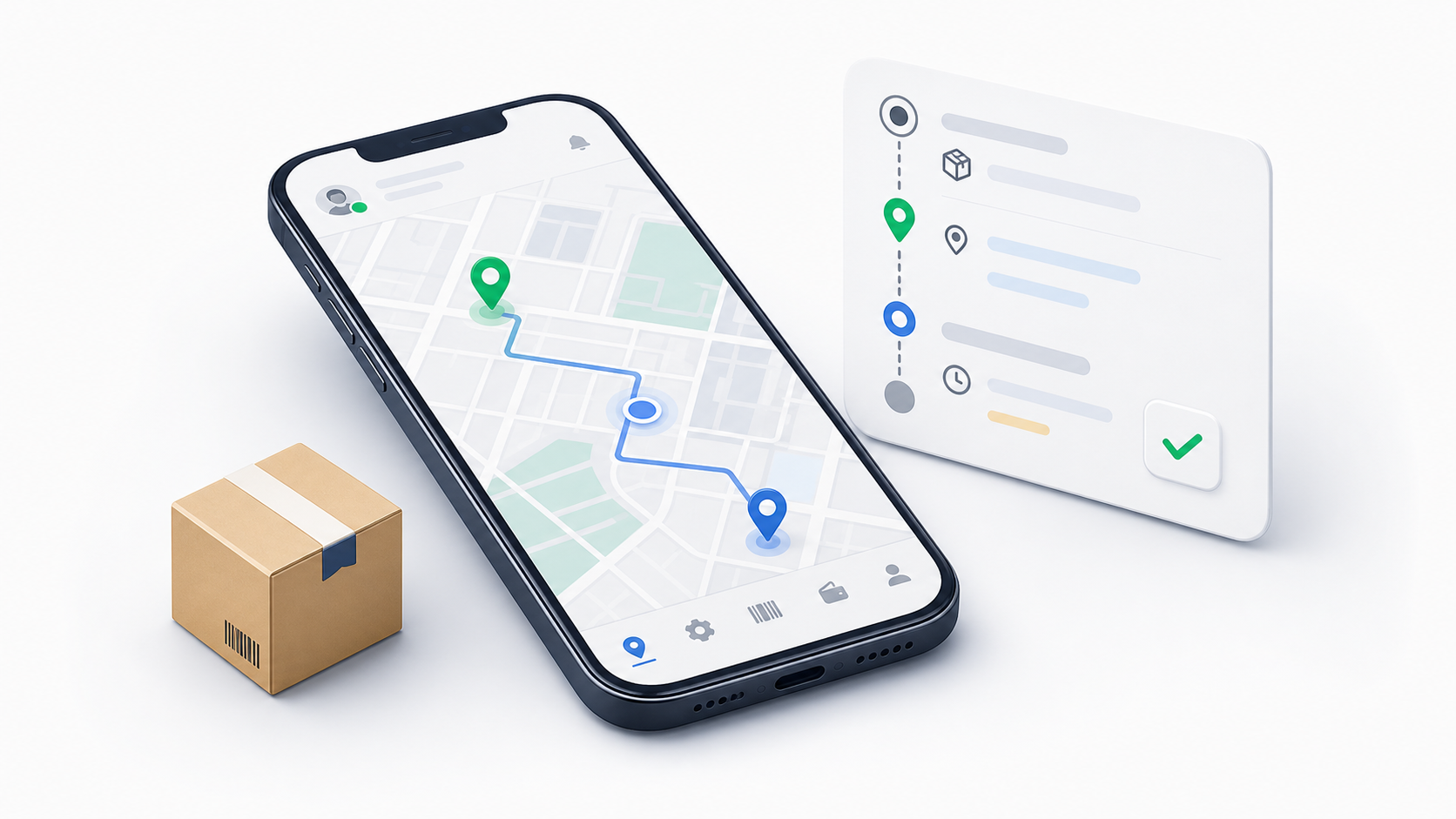
The OnDi Driver App is the mobile workspace drivers use during delivery operations. It shows assigned work, guides the driver through pickup and dropoff, records proof, tracks cash on delivery, and keeps the dispatcher updated.
This guide is for drivers. It explains what to do from sign in to account review, and it also explains why some buttons only appear for certain orders, waybills, trips, or route sessions.
How To Use This Guide
Start with the driver pages when training or supporting a driver. Use the portal links when a dispatcher, supervisor, or tenant admin needs to understand how the work is created, assigned, or controlled.
| Driver topic | Driver guide | Portal or dispatcher setup |
|---|---|---|
| Sign-in and driver access | Sign In and Access | Drivers, Portal Configuration |
| Home screen, live status, and visibility | Start Shift, Live Status, Map, and List | Driver Monitor, Assignments |
| Single-order work | Find and Open Orders, Order Lifecycle, POD, and COD | Create and Edit Orders, Order Details and Actions |
| Returns and failed delivery | Returns and Cancellations | Exceptions, Return Requests |
| Waybills | Waybills | Create and Edit Waybills, Waybill Lifecycle and Returns |
| Trips | Trips | Create and Edit Trips, Trip Execution and Returns |
| Route sessions | Route Sessions | Create and Manage Routes, Route Sessions and Orders |
| COD and wallet | Wallet and COD | COD, Remittance, and Driver Settlement, Record Cash Remittance |
How A Normal Shift Works
Most driver work follows this sequence:
- Sign in to the Driver App.
- Allow location access when the app asks for it.
- Go Live so dispatch can track availability and current position.
- Check For you for the map, list view, current orders, and notifications.
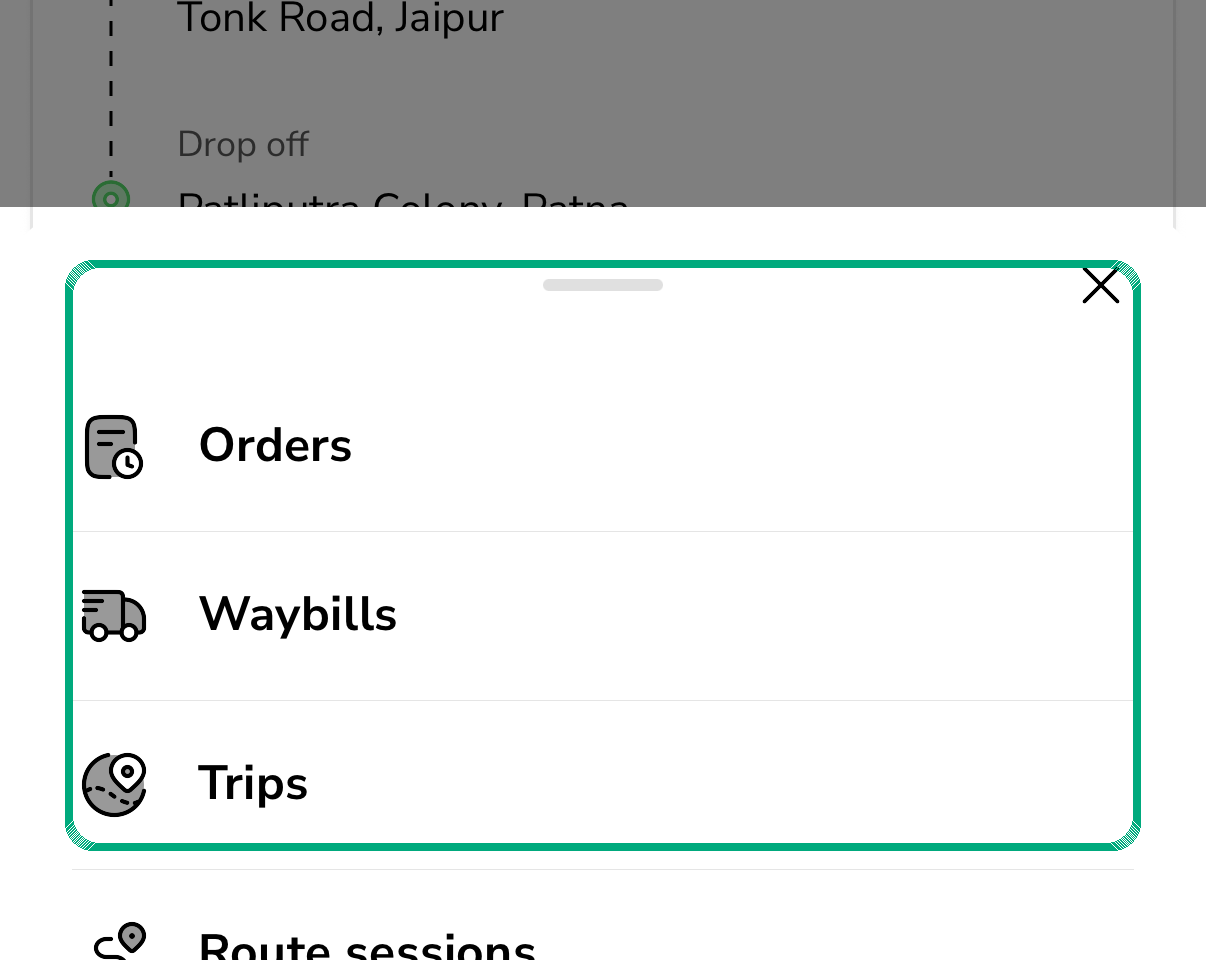
- Open Operations when you need Orders, Waybills, Trips, or Route sessions.
- Open the assigned work item and read the pickup, dropoff, customer, payment, and proof requirements.
- Follow the next button shown by the app.
- Capture any required pickup proof or proof of delivery.
- Collect COD or delivery fee when the app shows a collection amount.
- Complete the delivery, handover, trip stop, or route session step.
- Review COD and account information before ending the shift.
Main Areas
| Area | What drivers use it for |
|---|---|
| For you | Start the shift, go live, switch between map and list view, and review current work. |
| Operations | Open Orders, Waybills, Trips, and Route sessions. This is where most delivery actions start. |
| Scan | Scan delivery, inventory, or warehouse location barcodes when the operation requires scanning. |
| Wallet | Review wallet balance, COD to remit, COD history, and cash actions. |
| Account | Check driver profile, availability, license, vehicles, teams, zones, and settings. |
The driver app does not show every delivery in the tenant. It shows work the driver is assigned to, plus any unassigned work the tenant has allowed drivers to claim.
What Drivers Can See
The app decides what to show based on the signed-in driver and the operation setup.
Drivers can usually see:
- Orders assigned to them.
- Pending orders that require their acceptance.
- Eligible unassigned orders when tenant settings allow self-assign or claiming.
- Waybills assigned to them.
- Trips assigned to them.
- Route sessions assigned to them.
- COD and wallet records connected to their completed or collected cash work.
- Messages and conversations connected to their delivery work.
Drivers usually cannot see:
- Orders assigned to another driver.
- Waybills, trips, or route sessions assigned to another driver.
- Work outside their tenant, zone, team, or vehicle rules.
- Actions blocked by status, policy, active waybill membership, or dispatcher settings.
Important Words
| Word | Meaning |
|---|---|
| Order | A delivery job with pickup, dropoff, package, customer, and payment details. |
| Assignment | The link between a driver and an order. It controls whether the driver can act on the order. |
| Waybill | A grouped movement record for multiple deliveries, usually used for handover between locations. |
| Trip | A planned group of delivery stops. Drivers review the sequence and act on included deliveries. |
| Route session | A route execution assigned to a driver. It moves through route-level statuses such as Open, Started, Picked Up, In Transit, and Completed. |
| POD | Proof of Delivery. This can be a receiver signature, package photo, or both, depending on service policy. |
| COD | Cash on Delivery. The driver collects cash from the receiver and later remits it according to company process. |
| Live | The driver is online for operations and location tracking is active. |
| Available | The driver can receive work. The app may block status changes while active deliveries are in progress. |
Why Buttons Change
The app only shows actions that match the current work item. For example, a driver will not see Complete before the order has been picked up and moved toward delivery.
Button visibility depends on:
- The delivery status.
- The assignment status.
- Whether the driver accepted the work.
- Whether the tenant allows self-assign, accept/reject, or self-unassign.
- Whether the driver is active, available, and online.
- Whether the order is inside an active waybill or route session.
- Whether service policy requires pickup proof, POD, COD, or replacement return collection.
If the expected button is missing, check the status label first. If the status looks right but the button is still missing, contact the dispatcher.
Driver Guide Order
Use the guide pages in this order when training a new driver:
- Sign In and Access
- Start Shift, Live Status, Map, and List
- Find and Open Orders
- Order Lifecycle, POD, and COD
- Returns and Cancellations
- Waybills
- Trips
- Route Sessions
- Scan, Messages, and Notifications
- Wallet and COD
- Account, Status, and Vehicles
When To Contact Dispatch
Contact the dispatcher before changing status when:
- The customer refuses the package.
- The address is wrong, closed, unsafe, or unreachable.
- COD cannot be collected.
- Required proof cannot be captured.
- The package is damaged, missing, or not ready at pickup.
- The app shows a work item but no valid next action.
- The order was cancelled after pickup and the package is still with the driver.
- A route, trip, or waybill does not match the packages the driver has.
Related Portal Guides
Dispatchers and tenant admins manage the setup that controls driver behavior: