Order Details and Actions
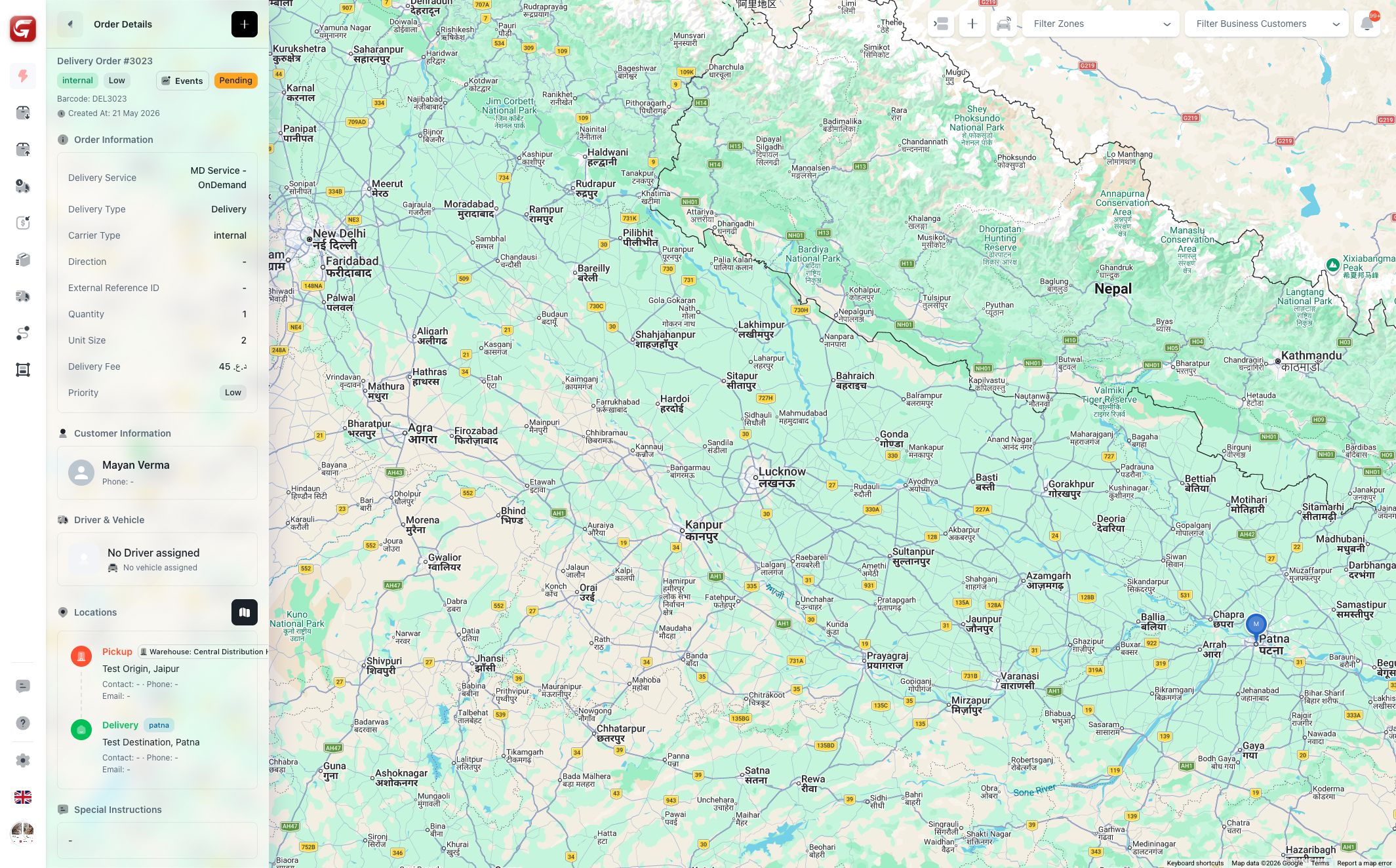
The order detail view is where dispatchers confirm the full story before taking action. It includes locations, route map, driver, vehicle, payment, proof, events, labels, package details, returns, and related orders.
Opening Details
You can open order details from:
- A map order card.
- A table row.
- The row action menu.
- A related delivery link from support tickets or chat.
- Driver assignment lists.
In table view, details can also open as a modal.
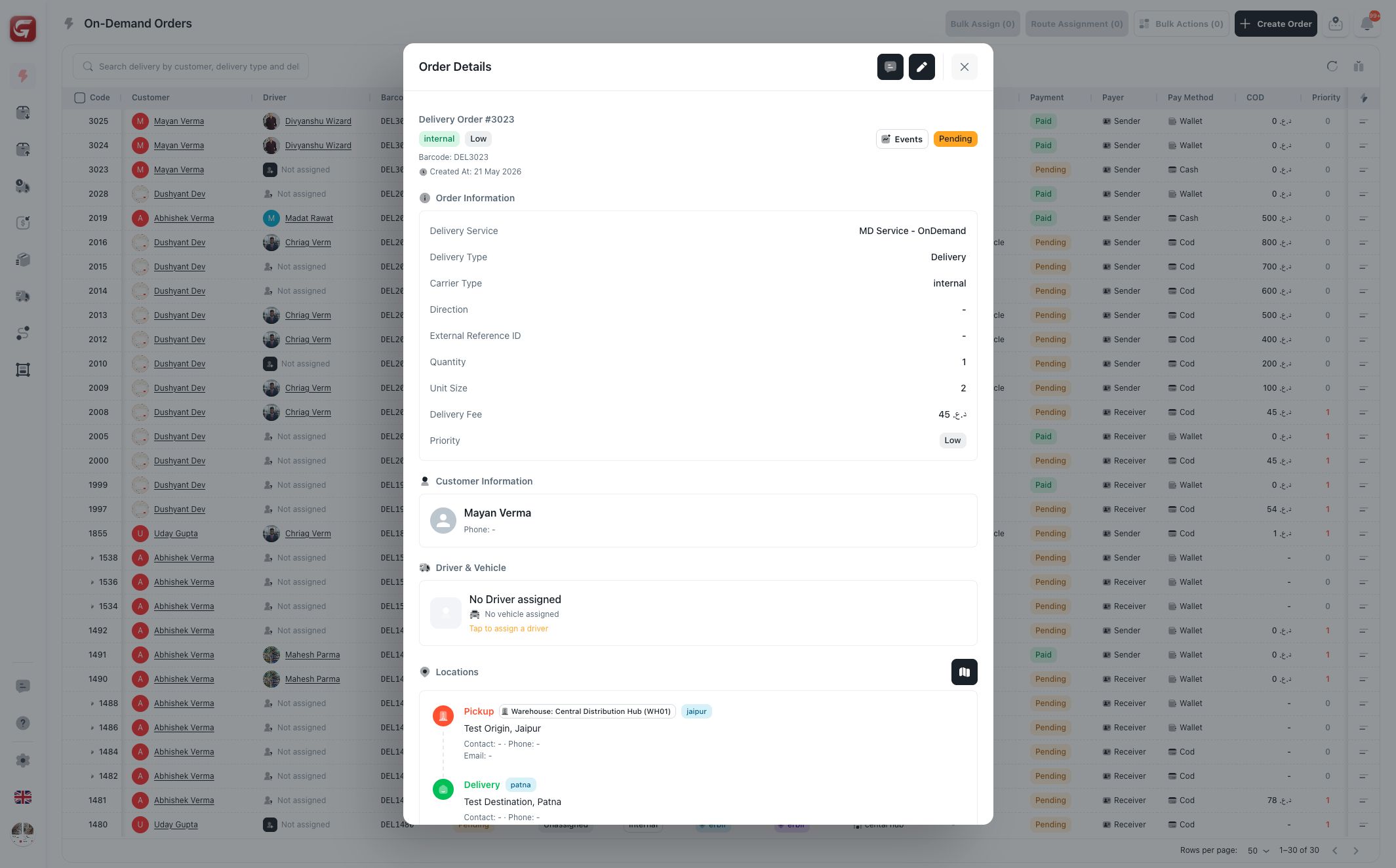
Detail Sections
| Section | What it tells you |
|---|---|
| Header | Delivery code, barcode, carrier, priority, current status, and event access. |
| Order information | Service, type, references, creation details, and general metadata. |
| Customer information | Customer name and contact context. |
| Driver and vehicle | Assigned driver, vehicle, and current assignment context. |
| Driver live location | Driver position when live tracking data is available. |
| Locations and route map | Pickup, dropoff, route preview, warehouse points, and map markers. |
| Staging warehouse | Warehouse used between pickup and delivery when applicable. |
| Carrier information | Prime or external carrier details when present. |
| Child orders | Related orders created from a parent workflow. |
| Assignment timeline | Driver assignment events and status progression. |
| Instructions and notes | Special instructions, notes, and package guidance. |
| Shipment label | Label preview and print/download access. |
| Proof of delivery | Delivery evidence when uploaded or captured. |
| Payment information | Payer, payment method, payment status, COD, and collection context. |
| Return/replacement links | Return or replacement order relationships when they exist. |
| Package details | Unit size, items, and shipment contents. |
Open details before cancelling, switching drivers, or changing status. The detail view exposes context that may not fit in the table row.
Row Action Menu
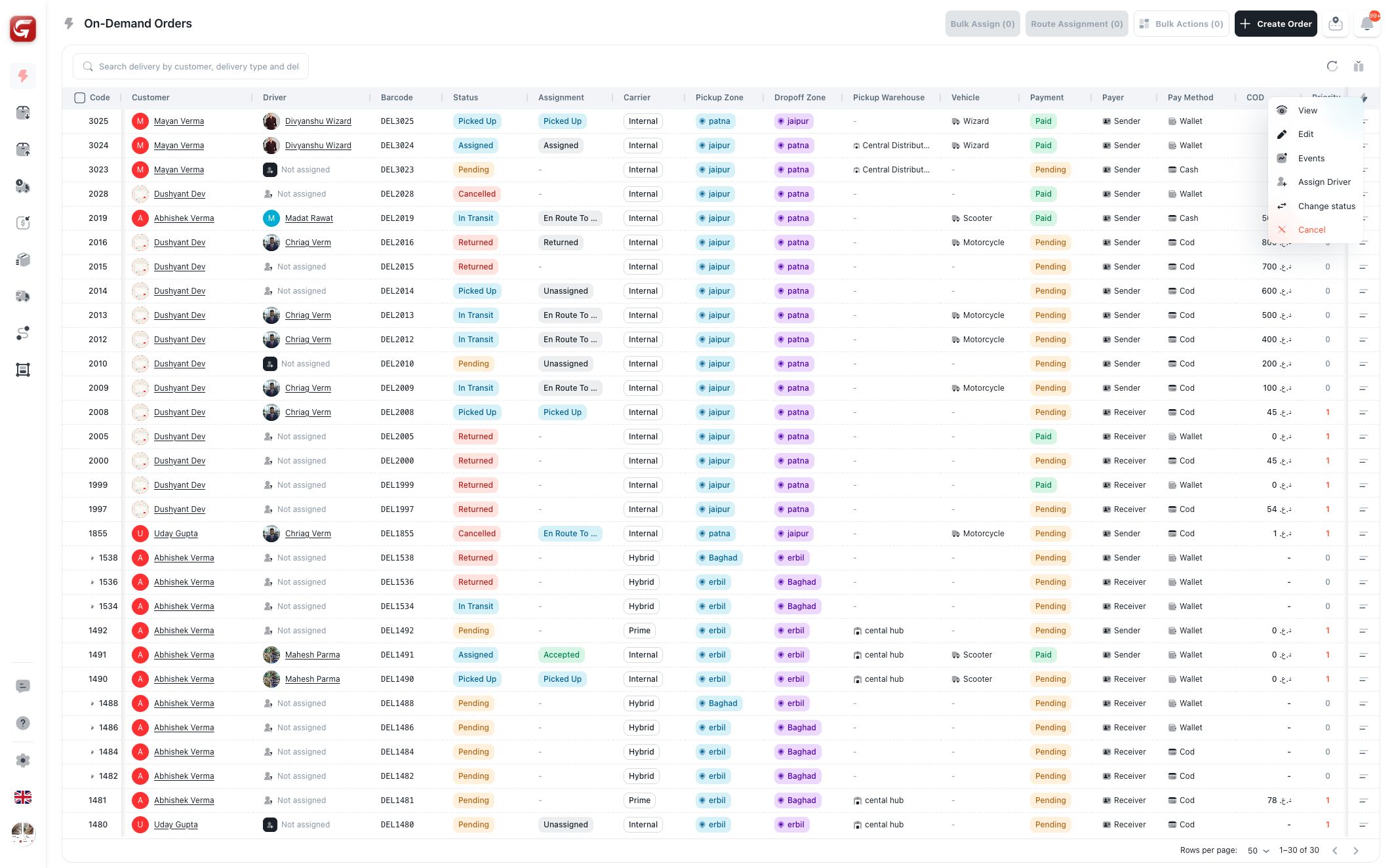
The table row action menu includes the actions currently allowed for that order. Actions may change by status, carrier type, and assignment state.
| Action | What it does |
|---|---|
| View | Opens the order detail view. |
| Edit | Opens the order form if the order is still editable. |
| Events | Shows the event history for audit and troubleshooting. |
| Assign Driver | Assigns an eligible driver to a pending internal order. |
| Change Status | Updates delivery lifecycle status. |
| Unassign | Removes the driver when assignment changes are allowed. |
| Switch Driver | Changes the driver when assignment changes are allowed. |
| Cancel | Cancels an order that is not delivered or already cancelled. |
Events
Events are the operational audit trail. Use them to understand who changed an order, when a status changed, and how driver assignment moved over time.
Events are useful when investigating:
- Delays.
- Unexpected status changes.
- Driver switches.
- Customer questions.
- Support ticket context.
Labels and Proof
Shipment labels help identify packages during pickup, warehouse handling, transfer, and delivery.
Proof of delivery shows delivery evidence when the workflow captured it. If proof is missing, check whether the driver has completed the relevant delivery step and whether proof capture is required for that service.