Assignment and Status Actions
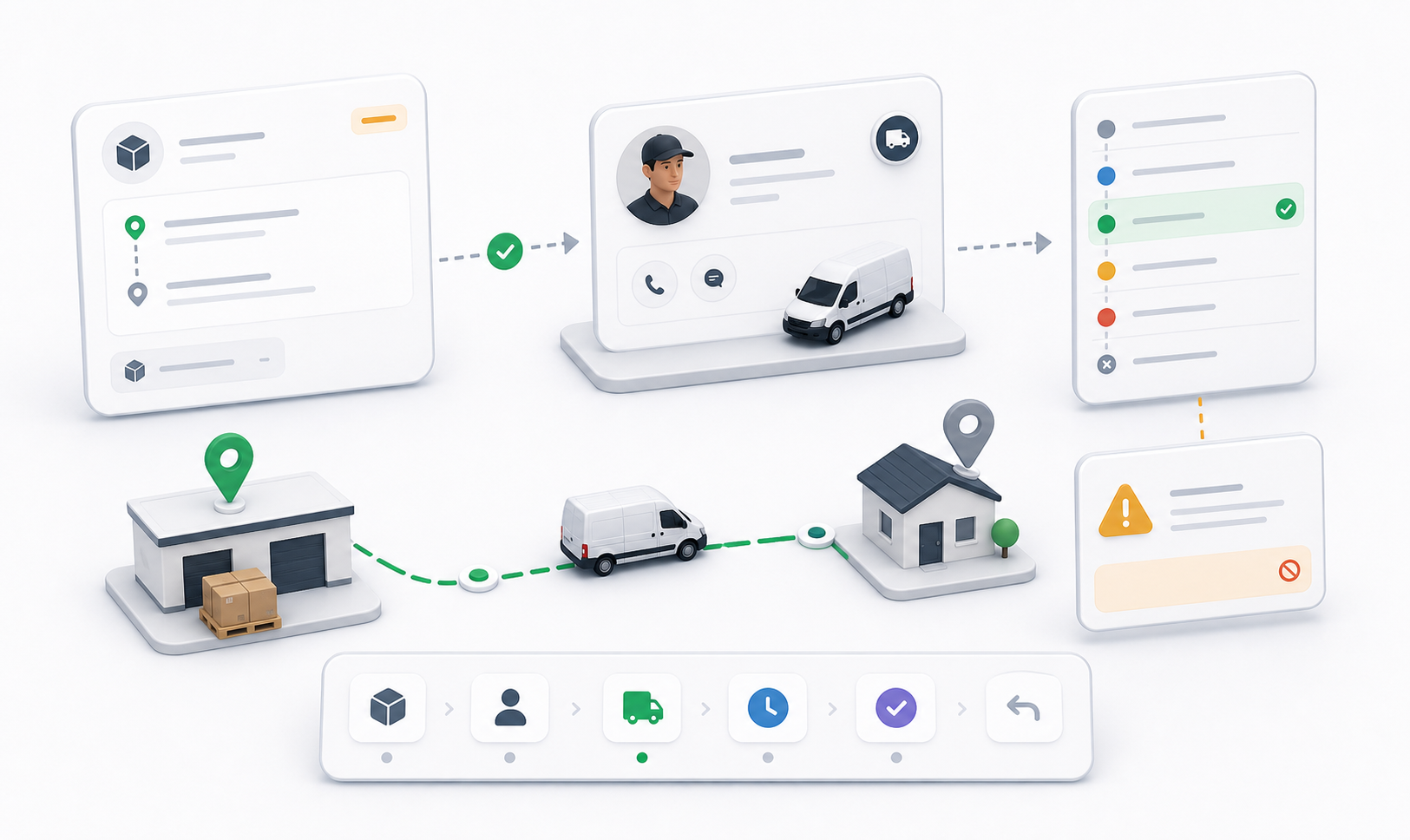
Assignment and status actions are high-impact dispatcher controls. They change who owns an order and where the order sits in the delivery lifecycle.
Assign Driver
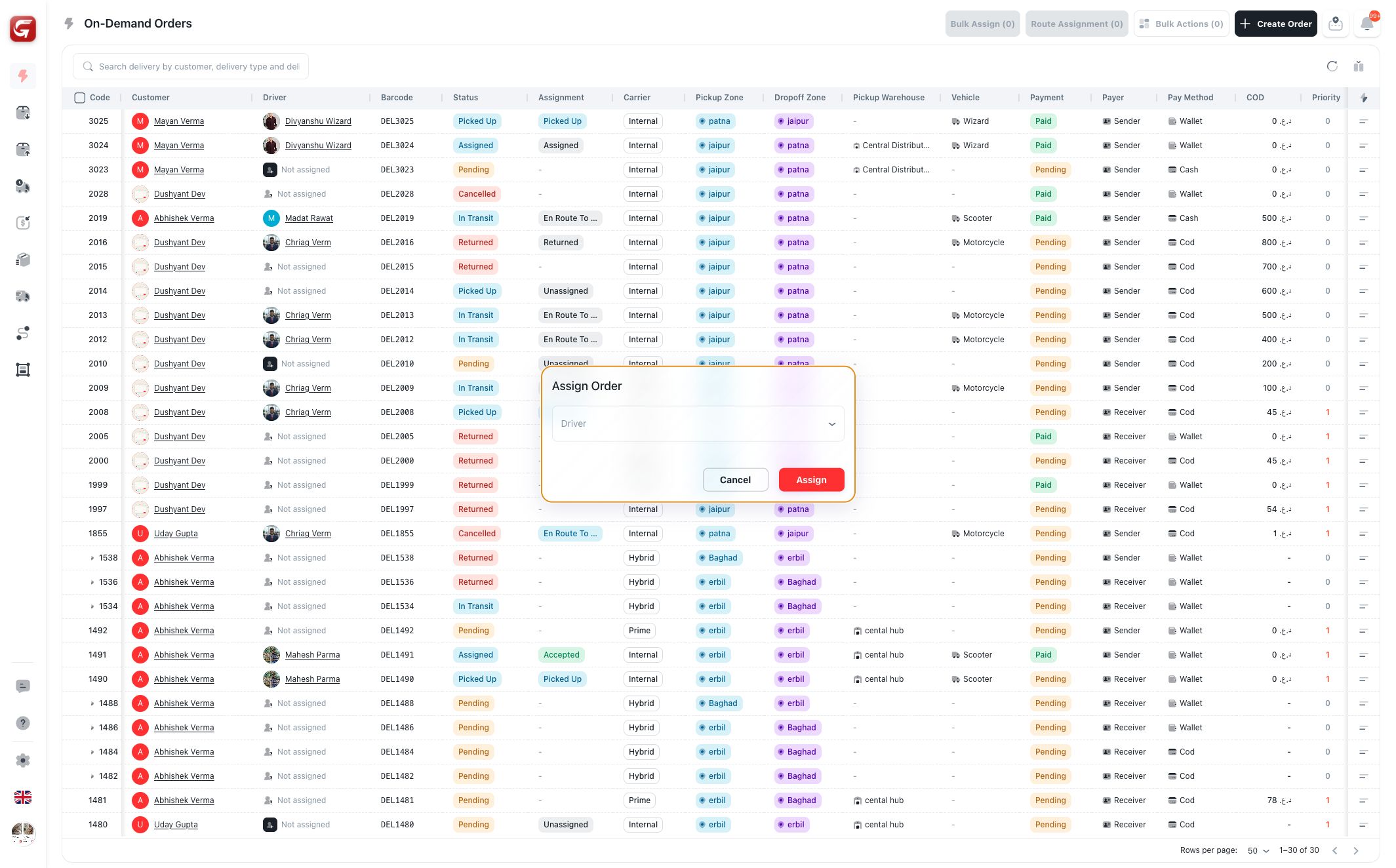
Use Assign Driver when an internal order is ready for a driver and has no active assignment.
The driver selector shows active, available drivers. Before assigning, check:
- Driver availability.
- Driver vehicle.
- Pickup and dropoff zones.
- Driver current workload.
- Order size and service expectations.
If the driver does not match the zone, vehicle, or availability rules, the system can block assignment or show a warning.
Switch Driver
Use Switch Driver when an order already has a driver but must move to another driver.
Switching may require a reason. The system blocks switching to the same driver and can restrict switching when the delivery is delivered, cancelled, or otherwise locked.
Use this for:
- Driver availability changes.
- Vehicle issues.
- Zone correction.
- Operational balancing.
- Driver reassignment after a delay.
Unassign
Use Unassign to remove the active driver from an order. A reason is required.
Unassigning returns the order to a state where it can be assigned again. This is useful when the original driver cannot continue or the order needs reassessment.
Unassigning affects driver workload and delivery visibility. Use it only when the driver should no longer be responsible for the order.
Change Status
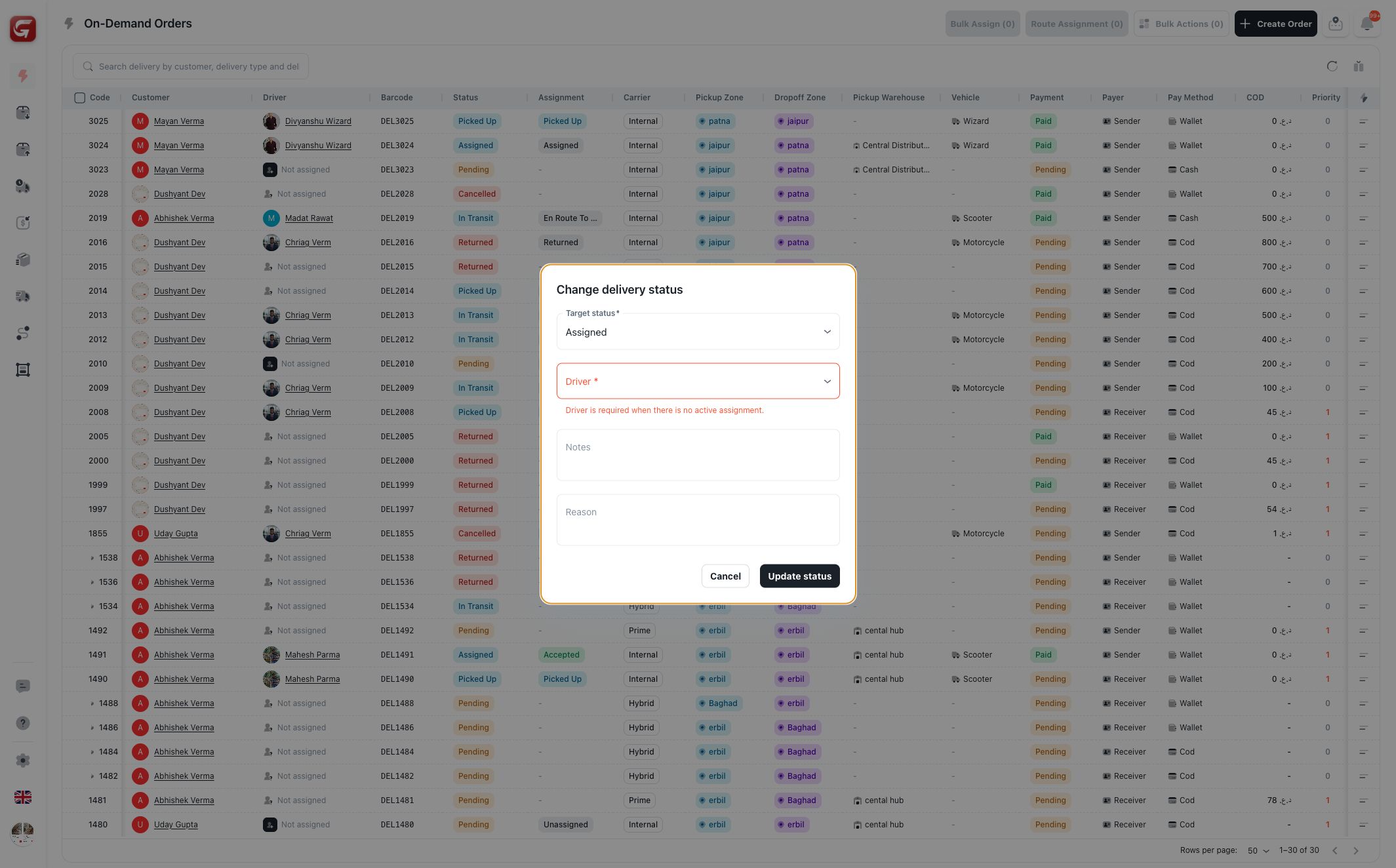
Use Change Status when the dispatcher needs to correct or update the delivery lifecycle manually.
Target statuses can include:
- Pending.
- Assigned.
- Picked Up.
- In Transit.
- Delivered.
- Cancelled.
- Returned.
If the target status requires a driver and the order has no active assignment, the modal requires a driver before the update can be saved.
Use notes and reasons to explain why the status was changed. This helps future support, audit, and operational review.
Cancel Order
Use Cancel when delivery should stop and the order is not already delivered or cancelled.
Cancellation should be used when:
- The customer cancels.
- The package is no longer available.
- The address is invalid and cannot be corrected.
- The business decides not to proceed.
Bulk Assignment From Table View
In Table View, selected rows can enable:
| Bulk control | What it does |
|---|---|
| Bulk Assign | Assigns multiple eligible orders to one driver. |
| Route Assignment | Adds multiple eligible orders to a route assignment flow. |
| Bulk Actions | Opens broader batch actions such as status updates and print actions. |
Bulk assignment is intentionally restricted. Selected rows must be eligible, usually pending internal orders without a driver assignment.
Assignment Conditions
| Condition | Effect |
|---|---|
| Delivered or cancelled status | Edit, cancel, and assignment actions are usually unavailable. |
| External or prime carrier | Internal driver actions may not apply. |
| No driver but status requires driver | The status modal requires driver selection. |
| Zone mismatch | Assignment may warn or block. |
| Driver has no vehicle | Assignment can be blocked for vehicle-required work. |
| Assignment change setting disabled | Switch/unassign actions may be unavailable. |
If a driver assignment is blocked, check the order status, carrier type, driver availability, vehicle, and zone match before retrying.