Financial Dashboard

The Financial Dashboard helps tenant admins monitor delivery revenue, cash-on-delivery movement, customer wallet balances, and payout requests. Use it when reviewing money collected through deliveries, outstanding COD, driver remittance, and customer payout approvals.
Go to Delivery Management -> Financial Dashboard.

Overview tab
The Overview tab summarizes delivery finance for the selected filters.
Use the filters at the top:
- From / To: limit the reporting period.
- Customer Type: show all customers, individual customers, or business customers.
- Select Customer: focus the dashboard on one customer.
- Clear: remove active filters.
Summary widgets
The top financial cards show:
- Total Revenue: combined revenue in the filtered period.
- Delivery Fees: delivery service fees.
- COD Collected: cash-on-delivery amount collected.
- Total Payouts: payout value recorded in the period.
Trend percentages compare the current period with prior data. Use trends as direction indicators, not as a substitute for checking the underlying delivery and payout records.
Revenue overview
The revenue chart compares Delivery Fees and COD Collected over time. Use it to spot changes in cash-heavy order volume, service-fee volume, or unusual finance activity in a specific week or period.
COD breakdown
The COD breakdown shows where cash-on-delivery money stands:
- Total COD: total COD value in the filtered period.
- COD Collected: collected COD amount.
- Remitted to Customers: COD already remitted to customers.
- Outstanding: COD still not remitted.
- Settled by Wallet: COD settled through wallet movement.
Outstanding COD should be reviewed with driver collection and remittance workflows.
Driver COD ranking
The Driver COD Ranking section lists drivers by COD handled:
- driver
- COD collected
- remitted value
- pending value
- delivery count
- remit rate
Use this section to identify drivers with high pending COD and to follow up on remittance.
Customer breakdown
The customer breakdown separates Individual Customers and Business Customers. It shows customer count, orders, revenue, and COD amount. This helps finance teams understand whether revenue is driven more by business accounts or individual delivery customers.
Wallet overview
Wallet overview shows:
- Total Wallet Balances: sum of customer wallet balances.
- Pending Payouts: payout value and count waiting for approval.
- Available After Payouts: estimated wallet balance after pending payouts are approved.
Use this area before approving large payout requests.
Payout Requests tab
Open Payout Requests to review and manage customer payout requests.
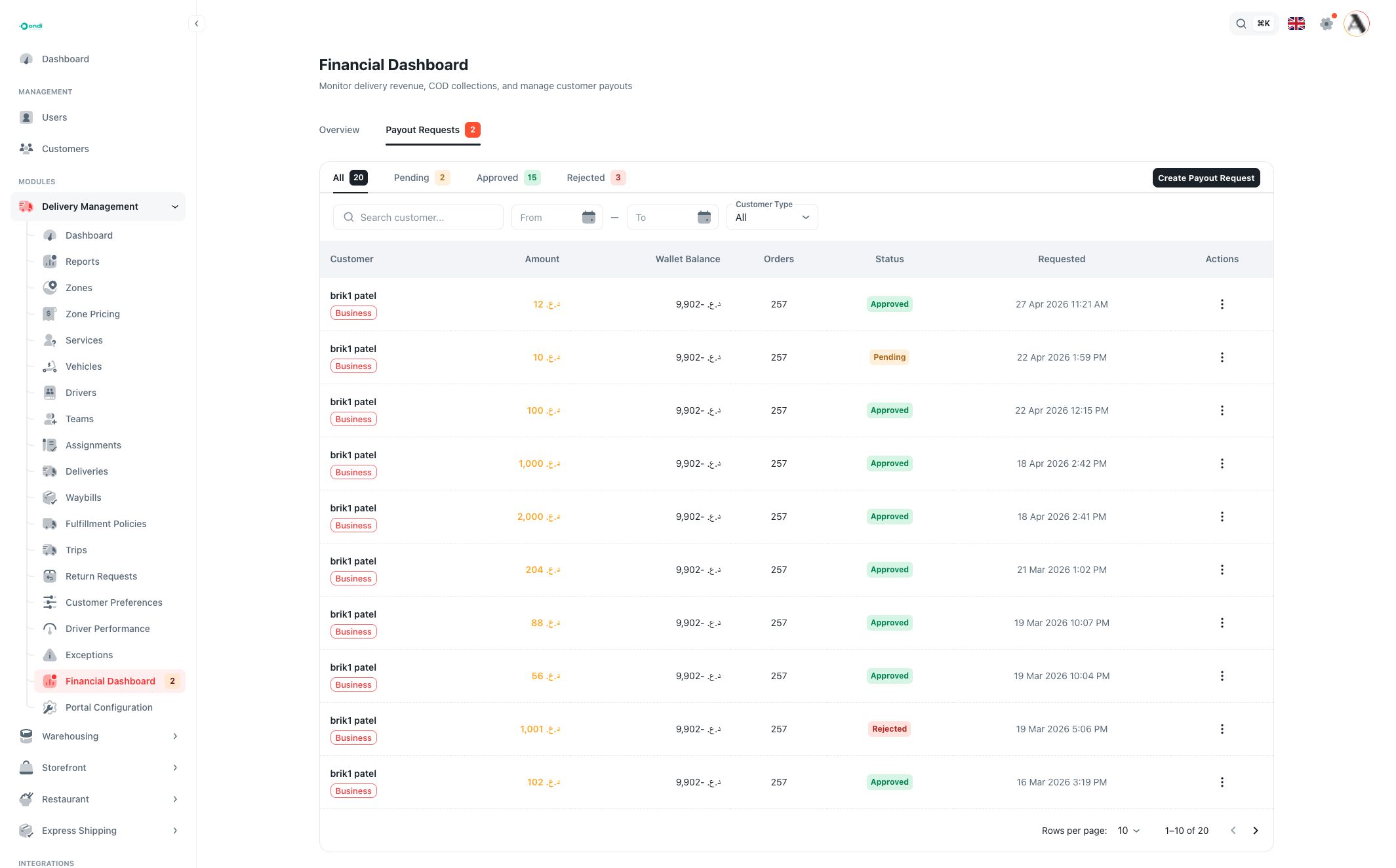
Status tabs show:
- All
- Pending
- Approved
- Rejected
Use the search and filters to narrow requests by customer, date range, or customer type.
The payout table shows:
- Customer: customer name and customer type.
- Amount: requested payout amount.
- Wallet Balance: wallet balance at the time shown by the dashboard.
- Orders: related order count.
- Status: pending, approved, or rejected.
- Requested: request creation date and time.
- Actions: row action menu.
Approve or reject payout requests
Pending payout rows can be approved or rejected from the row action menu. Use approve only after confirming the customer's wallet balance and payout eligibility. Use reject when the request is invalid, duplicated, unsupported, or needs correction.
Approved and rejected requests remain visible for financial history.
Create a payout request
Click Create Payout Request to create a payout from the tenant admin dashboard.
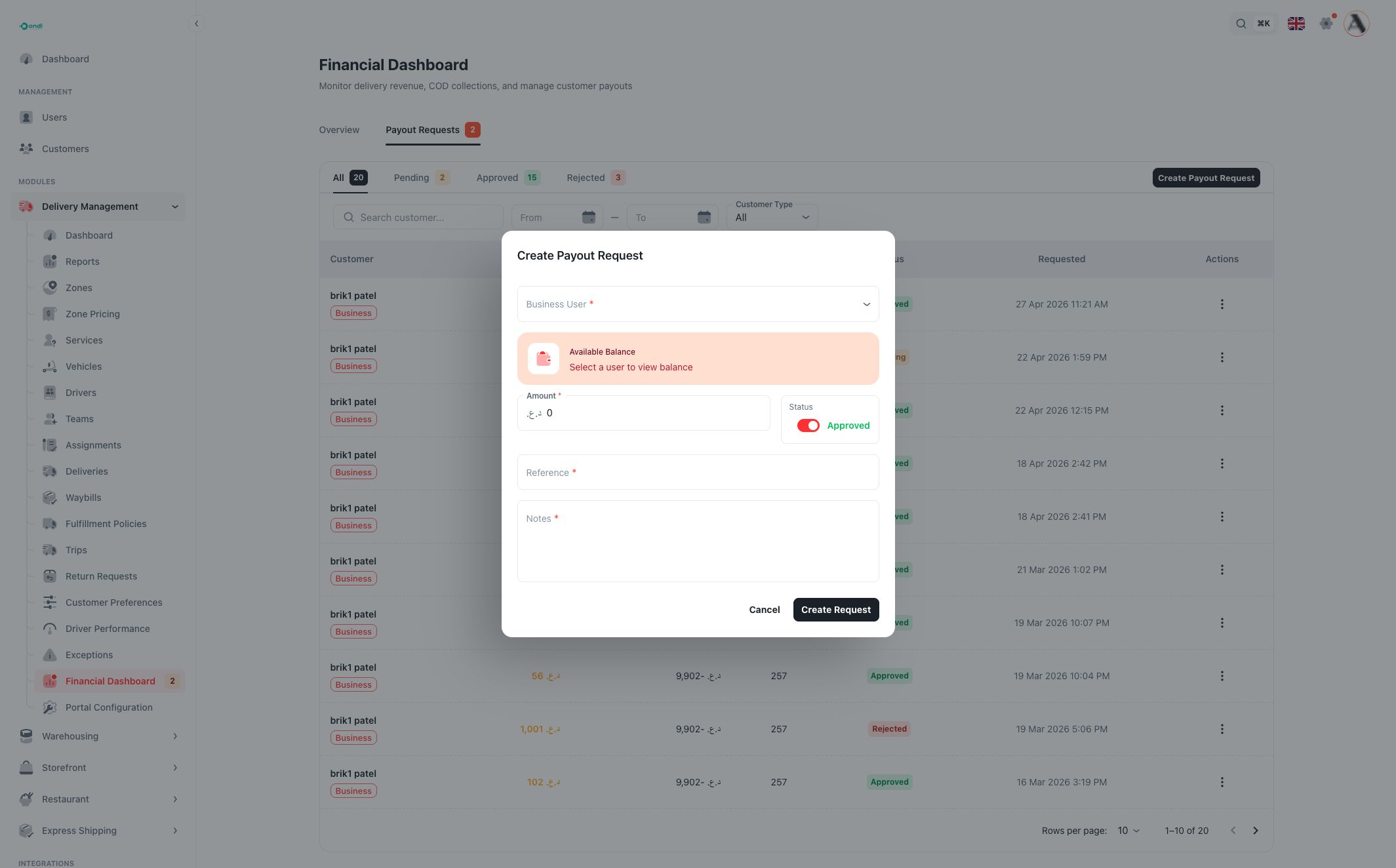
The dialog includes:
- Business User: required when the payout is created from the Financial Dashboard. The selector shows business customers.
- Available Balance: shown after a user is selected.
- Amount: required and must be greater than zero. It cannot exceed the known wallet balance.
- Status: choose whether the request is created as approved or pending.
- Reference: required. Use a bank reference, payment reference, receipt number, or internal finance ID.
- Notes: required. Add enough context for future review.
Important conditions
Payout creation from this page is intended for business users. Wallet payout eligibility is also affected by Portal Configuration, where tenant admins choose which customer types can request wallet payouts.
COD and wallet values depend on delivery payment records, driver collection status, wallet transactions, and payout records. If values look unexpected, review the underlying deliveries and customer wallet history before changing payout status.