Teams
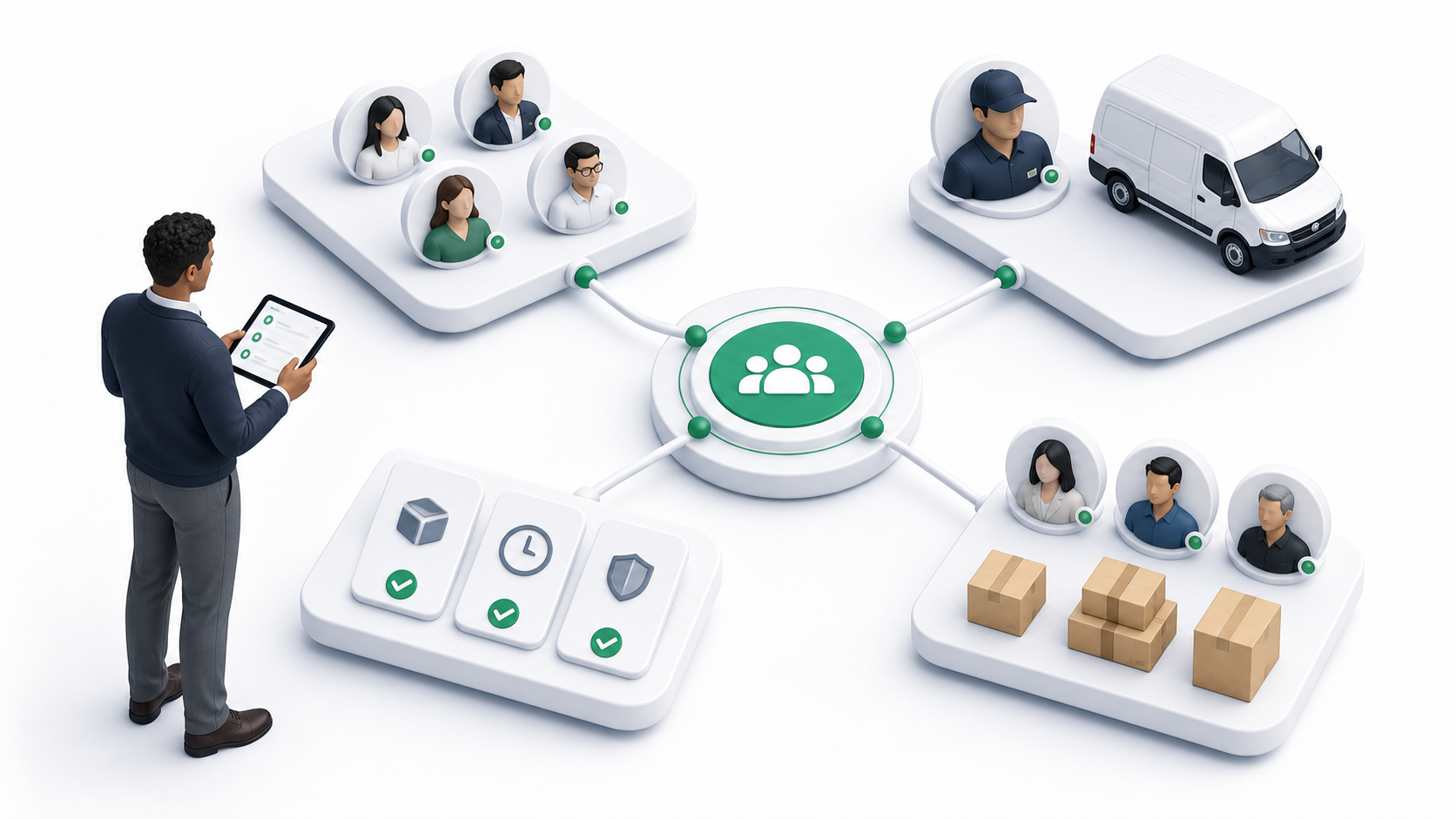
Teams are operational groups used by Delivery. A team can contain tenant users, drivers, delivery services, and customers. Services and drivers can also be assigned to all teams when they should not be limited to selected teams.
Use teams when different groups operate different service lines, regions, customers, contracts, or driver pools.
Go to Delivery Management -> Teams.
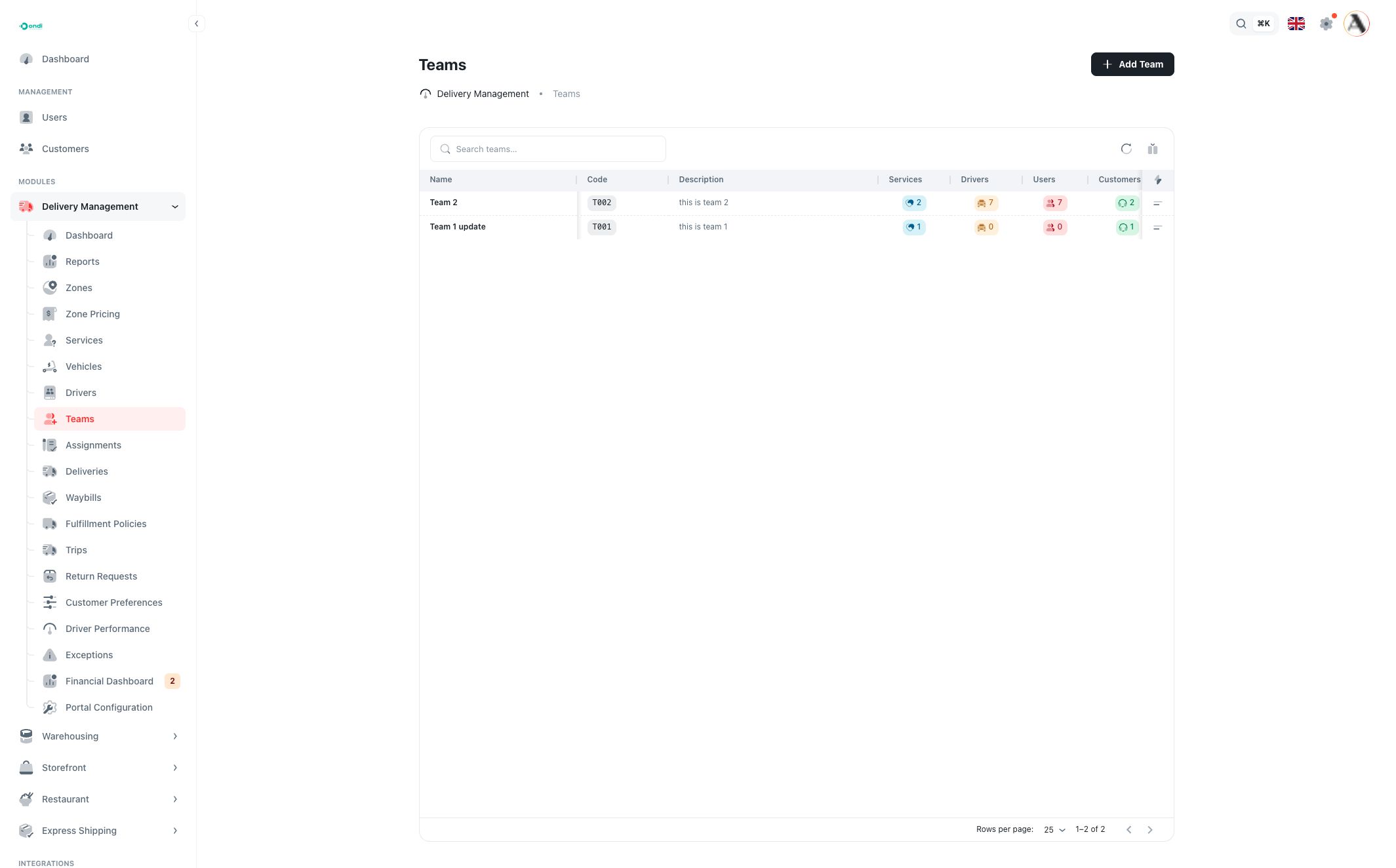
Team list
The list shows each team with its code, description, and member counts.
Use the table to review:
- Name: the team name.
- Code: the team code.
- Description: the team's purpose.
- Services: delivery services assigned to the team.
- Drivers: drivers assigned to the team.
- Users: tenant users assigned to the team.
- Customers: customers assigned to the team.
- Created: when the team was created.
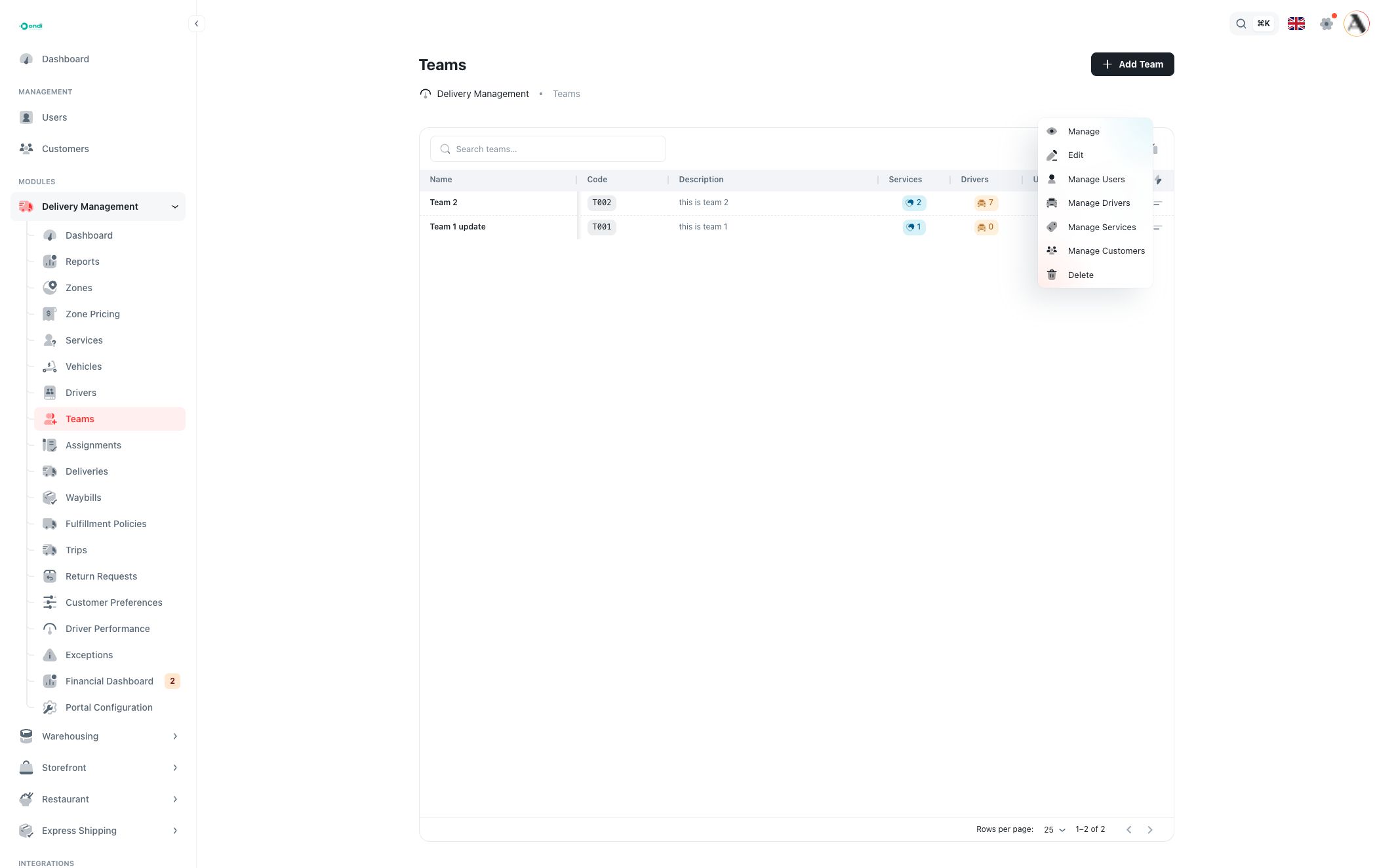
Search finds teams by name, code, or description. Use Columns to show or hide fields. The row action menu contains Manage, Edit, Manage Users, Manage Drivers, Manage Services, Manage Customers, and Delete.
Create or edit a team
Click Add Team to create a team. Editing uses the same modal.
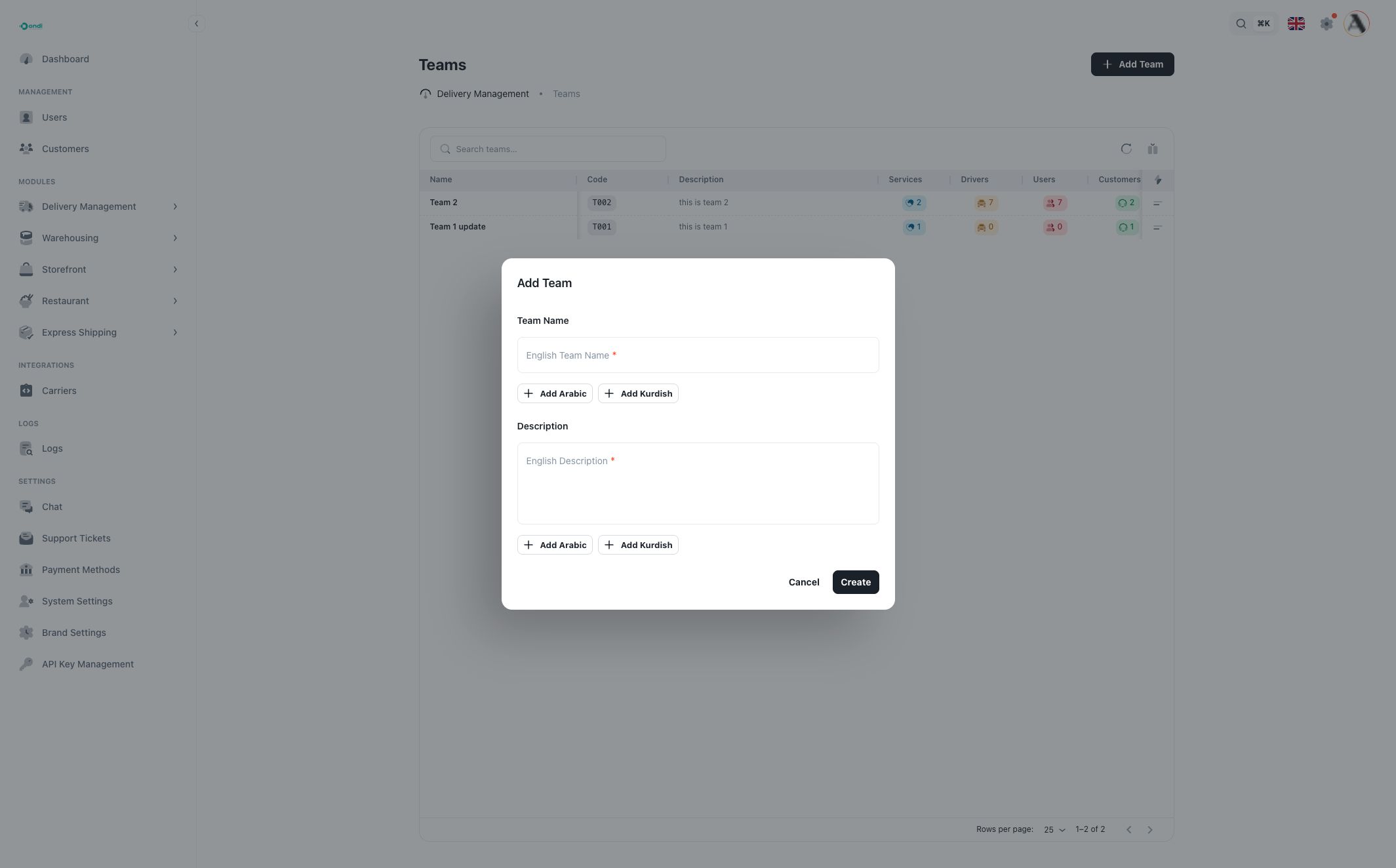
English team name and description are required. Arabic and Kurdish labels can be added when the tenant uses those languages.
Use short names that operations staff can recognize quickly, such as a city team, fleet group, service group, or customer contract group.
Team detail page
Open a team row or choose Manage from the row action menu.
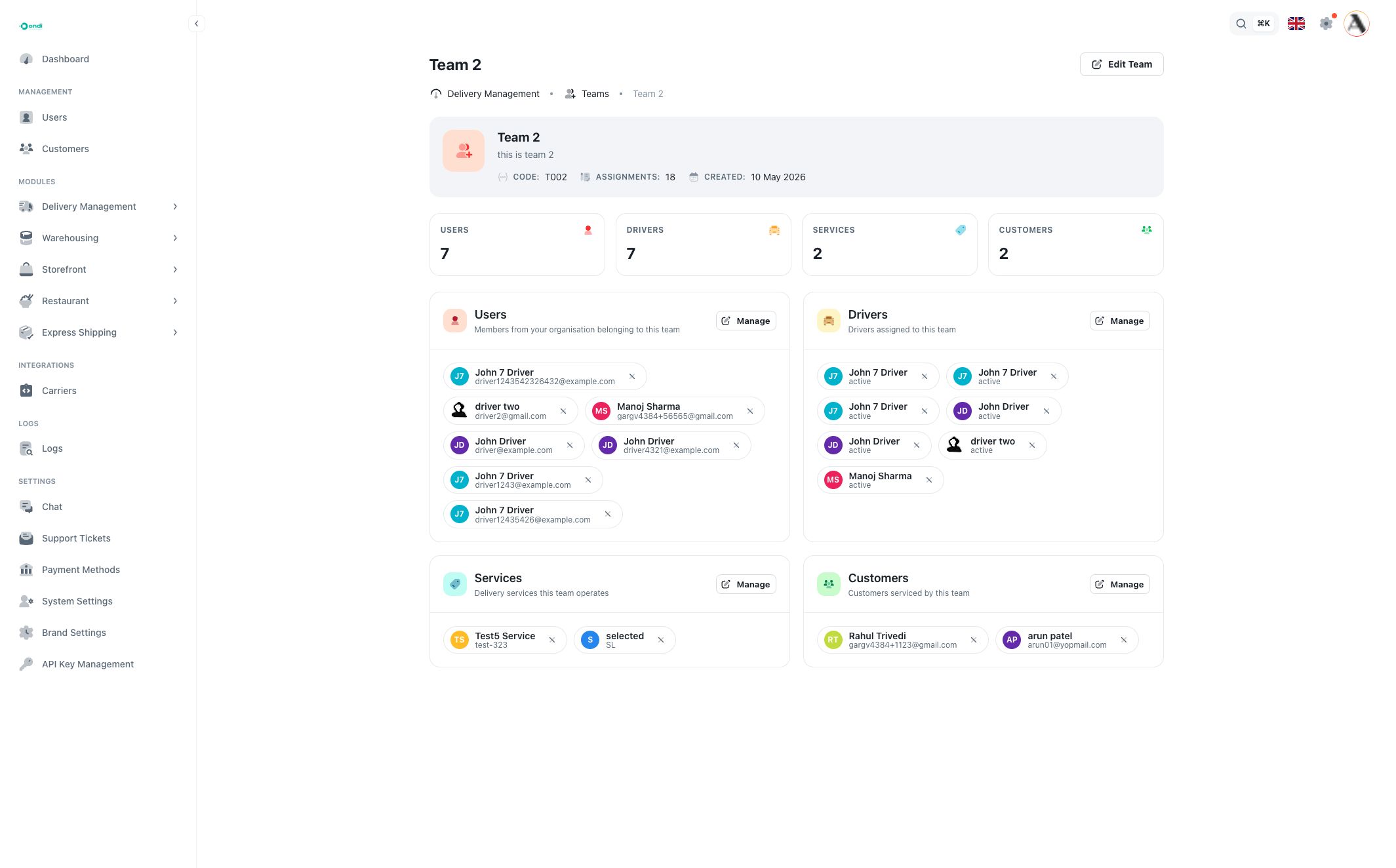
The detail page shows the team name, description, code, total assignment count, created date, and four member sections:
- Users: tenant staff or operational users in the team.
- Drivers: drivers assigned to the team.
- Services: delivery services the team operates.
- Customers: customers serviced by the team.
Each section has a Manage button. Existing members appear as chips or compact cards. Removing a member removes that entity from the team relationship; it does not delete the entity itself.
Manage team members
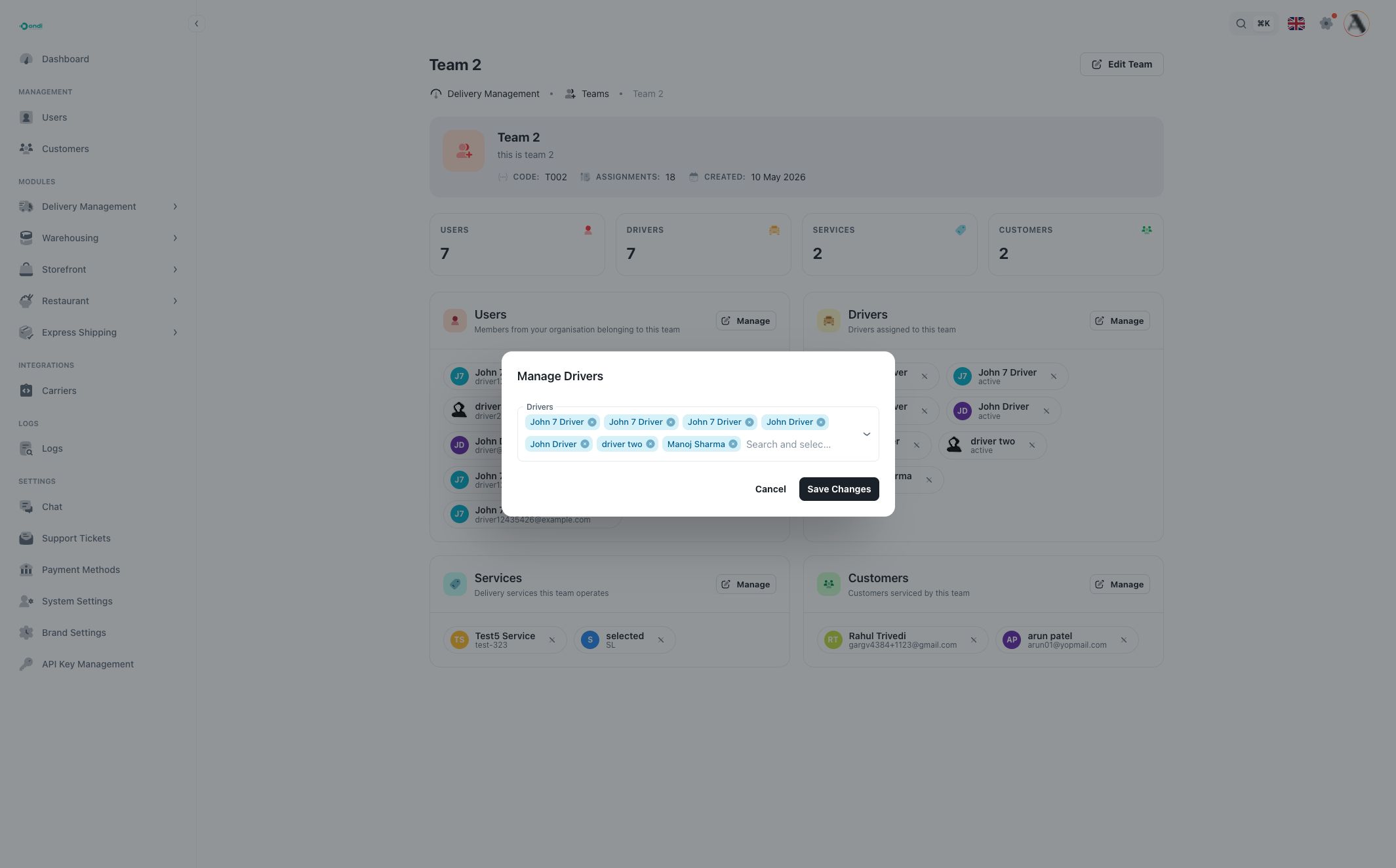
The manage modal changes depending on the section:
- Manage Users searches tenant users.
- Manage Drivers searches drivers.
- Manage Services searches active delivery services.
- Manage Customers searches customer users.
Select the entities that should belong to the team, then save changes.
How teams connect to services and drivers
A Delivery Service can be assigned to all teams or selected teams. If assigned to selected teams, only those teams operate that service.
A Driver can be assigned to all teams or selected teams. This helps restrict driver pools by operation, contract, or service line.
Customers and users can also be added to teams. This is useful when customer access, service access, or internal responsibility should follow an operational group.