Customers List
Open Management -> Customers to see customer records for the tenant. Customers can be individuals or businesses. They may appear because they were created by an admin, invited by an admin, placed orders, or were added through a module workflow.
What you see on the page
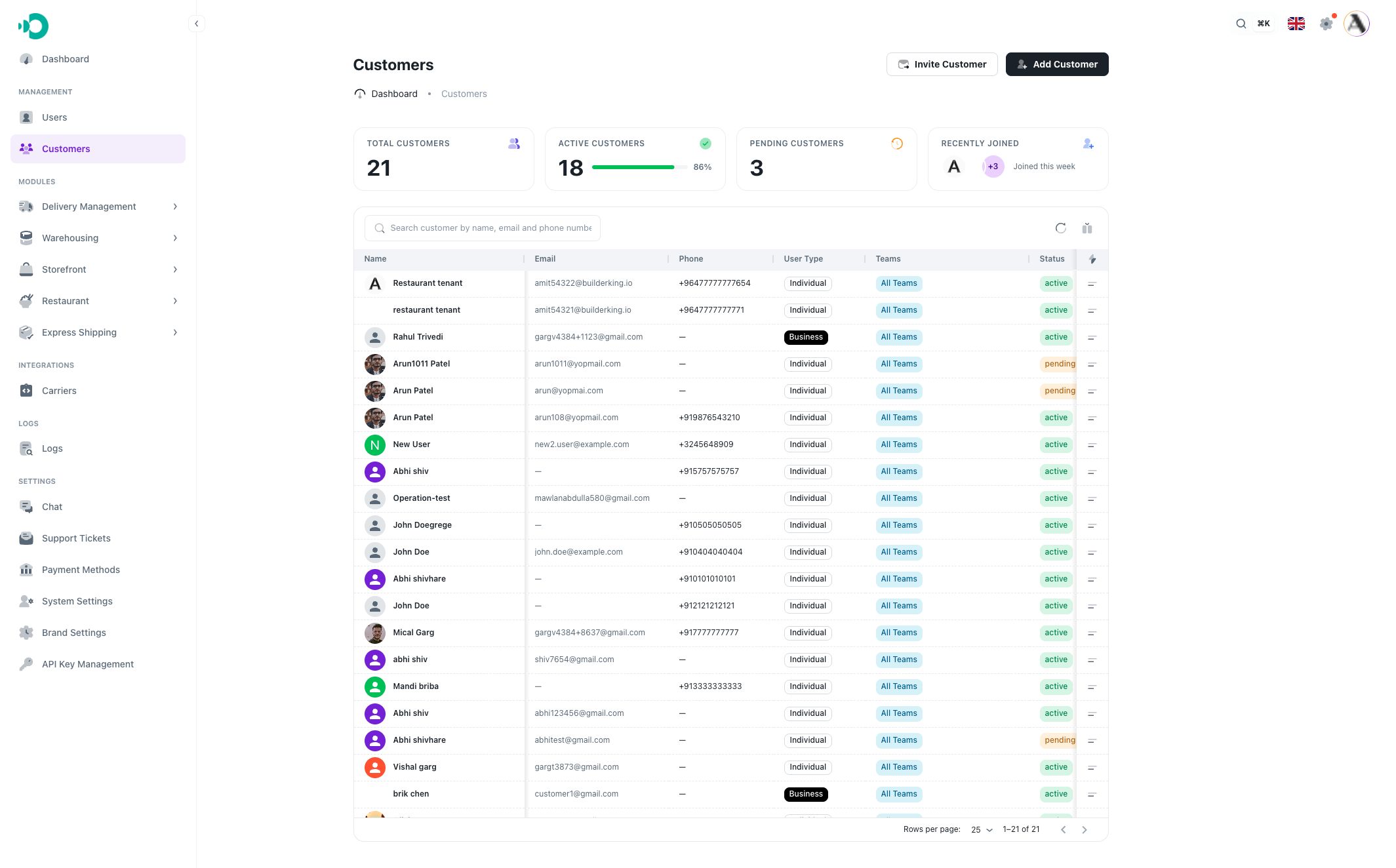
The top summary cards show:
- Total Customers: all customers in the current tenant customer list.
- Active Customers: customers with active status.
- Pending Customers: customers not fully active yet.
- Recently Joined: the newest customer records.
Table columns
The default customers table includes:
- Name: the customer's profile name and avatar.
- Email: the customer email if available.
- Phone: the customer phone if available.
- User Type: Individual or Business.
- Teams: all teams or selected teams assigned to the customer.
- Status: active, pending, or inactive.
- Created At: when the customer record was created.
- Last Login: when the customer last signed in, if they use a portal.
Search and filters
Use the search field to find customers by name, email, or phone number.
Column filters are available for fields such as name, email, phone, user type, status, created date, and last login.
Customer actions
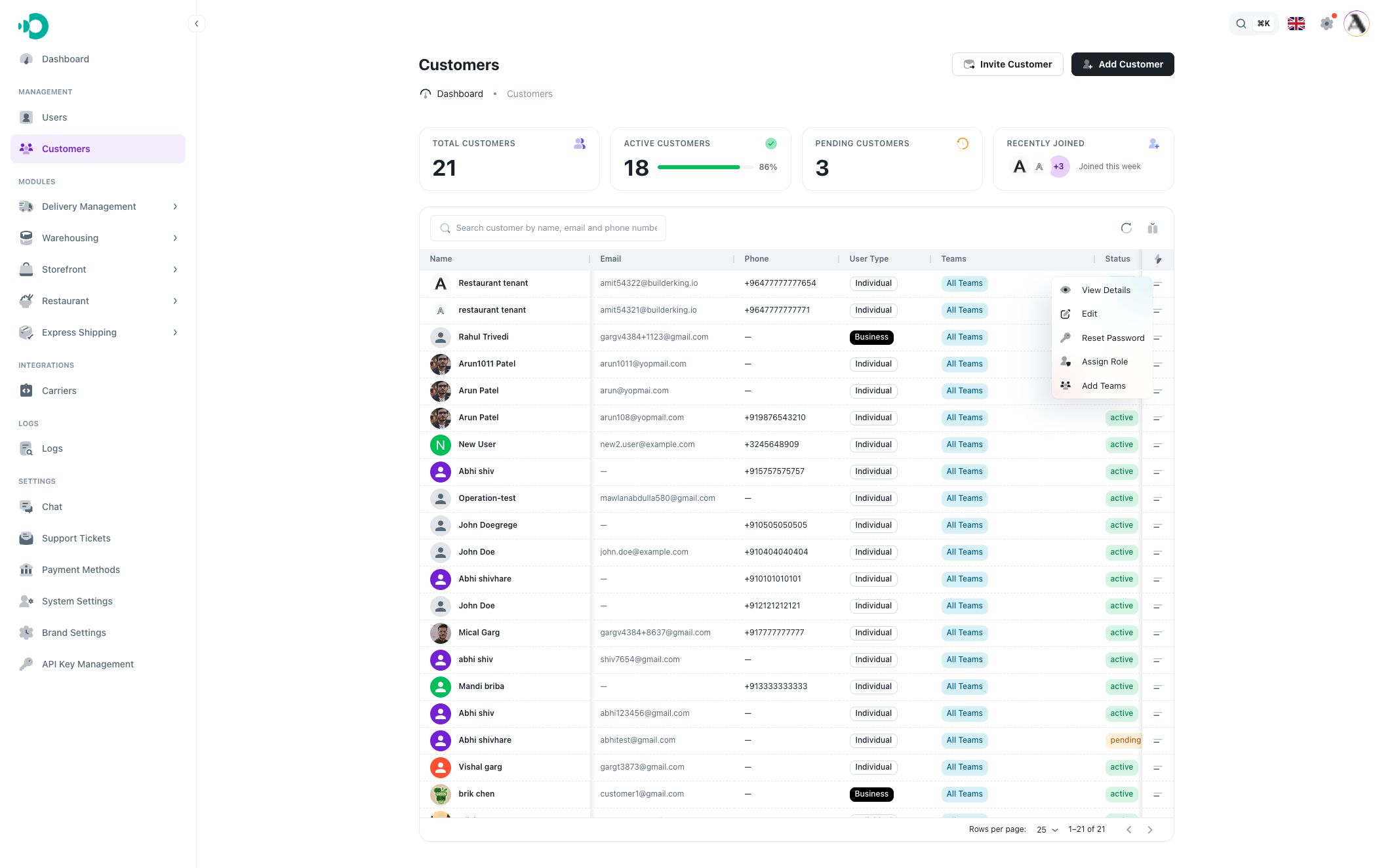
Each customer row has a context menu:
- View Details opens the full customer detail page.
- Edit updates name, status, or user type.
- Reset Password sets a new password when the customer uses customer-facing portals.
- Assign Role gives the customer an operational role when they also need staff/admin access.
- Add Teams assigns the customer to all teams or selected teams.
Individual and business customers
Individual customers are normal customer profiles.
Business customers can also use business integration features in the detail page, including API keys and webhooks. These tabs only appear when the customer is a business-type record.