Customer Detail
The customer detail page uses the same profile detail layout as users, but the tabs change based on the customer's type.
Open it from Management -> Customers by clicking a customer row or using View Details in the row menu.
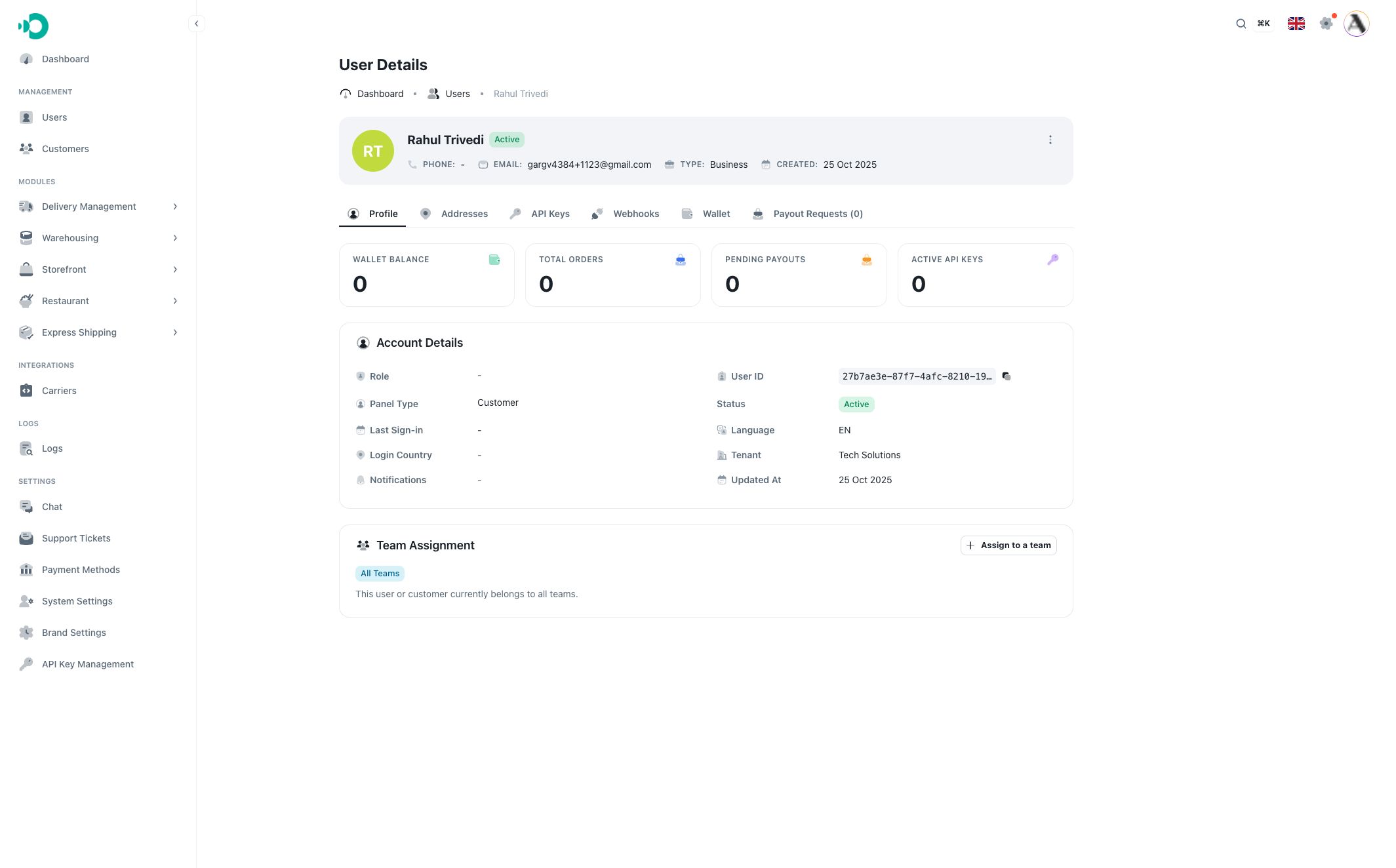
Header
The header shows:
- Customer avatar or initials.
- Full name.
- Status.
- Phone.
- Email.
- User type: individual or business.
- Created date.
- Actions menu.
Use the actions menu to edit, reset password, assign a role, or update teams.
Profile tab
The Profile tab shows:
- Wallet balance.
- Total orders.
- Pending payouts.
- Active API keys.
- Account details such as user ID, panel type, status, language, tenant, and updated date.
- Team assignment.
For customers, the panel type is usually Customer.
Addresses tab
The Addresses tab lists the customer's saved addresses.
Customers may use these addresses for delivery, billing, shipping, customer portal orders, or support context.
You can:
- Add an address.
- Edit an address.
- Set an address as primary.
- Delete an address.
- Search and filter addresses.
- Show optional location, contact, flag, and delivery columns.
API Keys tab
The API Keys tab appears for business-type customers.
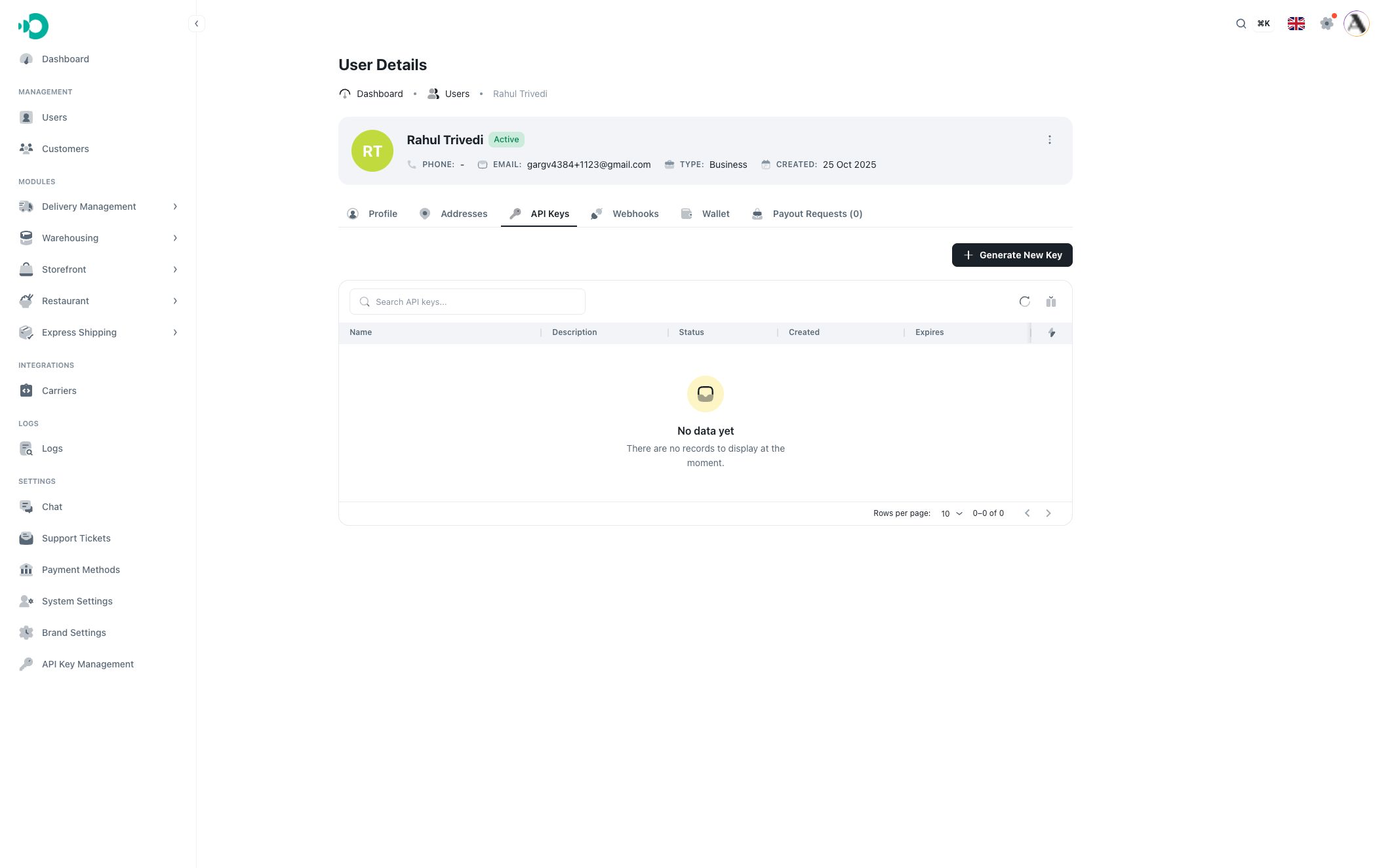
Use it when a business customer needs API access connected to their customer account.
The table shows:
- Key name.
- Description.
- Status: active or revoked.
- Created date.
- Expiration date.
- Optional last used date and key ID.
Row actions include:
- Edit: update name, description, expiration, active status, or MCP access settings.
- Revoke: disable the key so apps using it stop working.
Generate New Key
Click Generate New Key to create a key for the business customer.
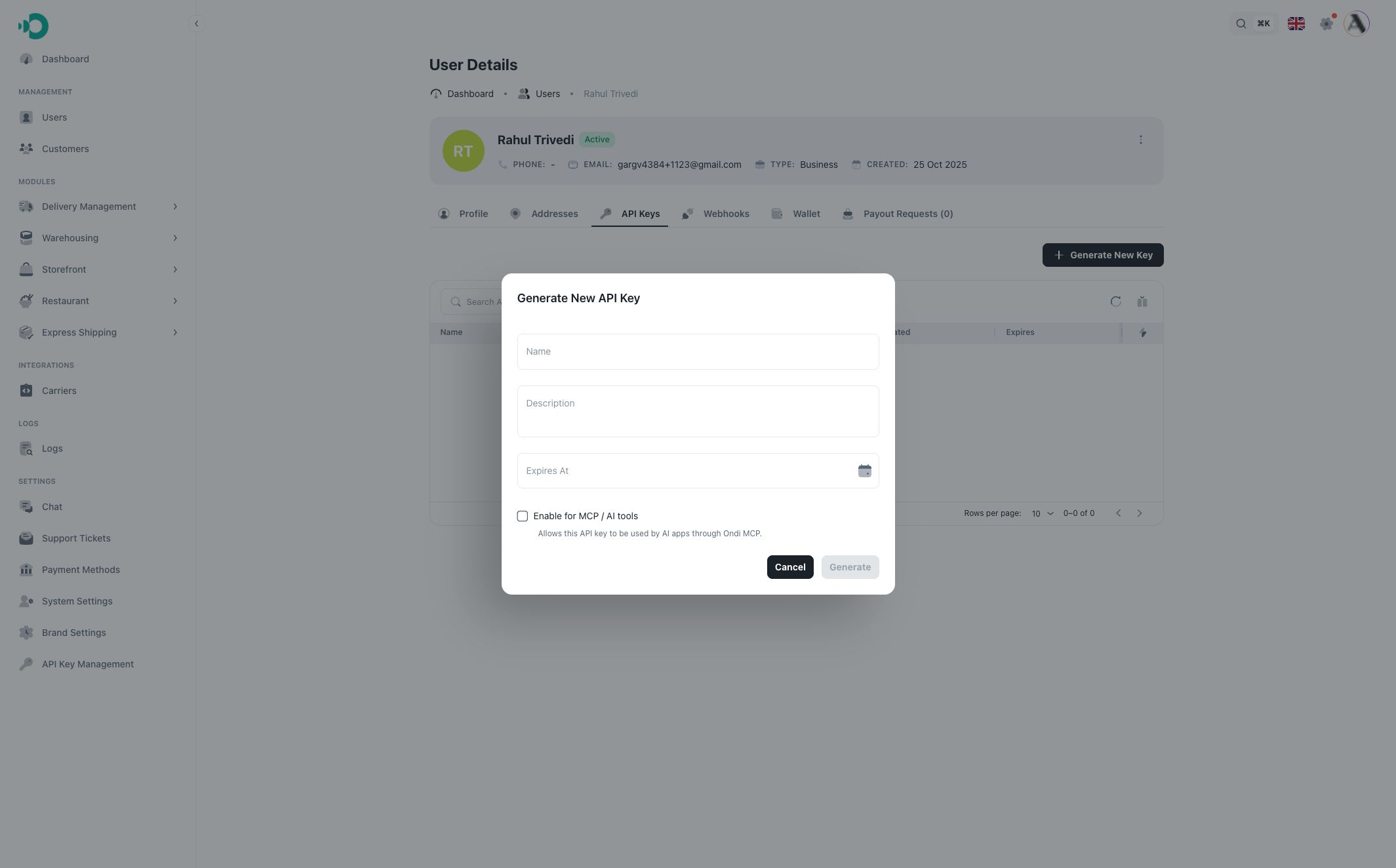
The dialog includes:
- Name.
- Description.
- Expiration date.
- MCP access option.
After generating a key, copy it immediately. For security, generated API keys are normally shown only once.
Webhooks tab
The Webhooks tab appears for business-type customers.
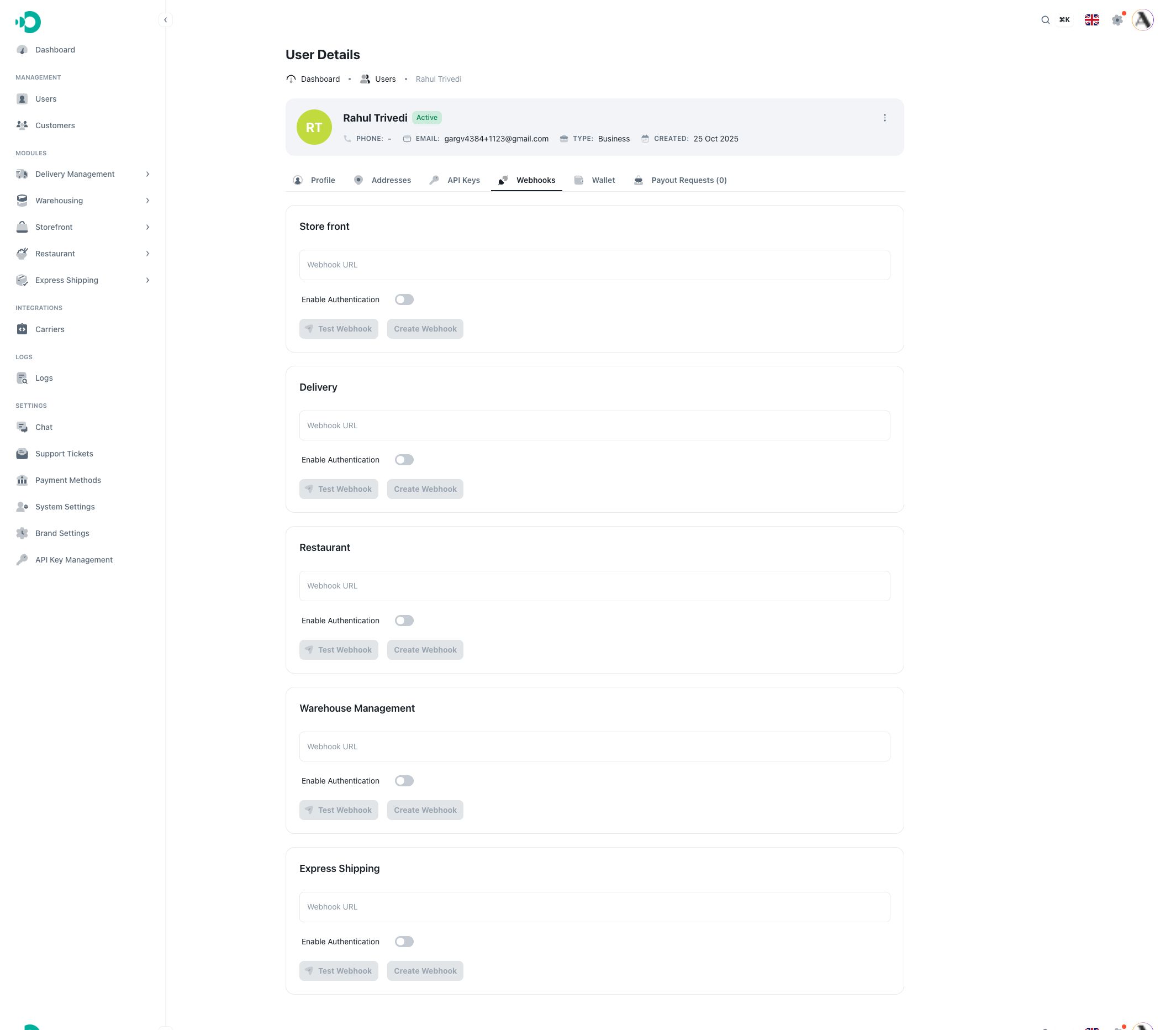
Webhooks let a business customer receive event updates for enabled modules.
Each module card can include:
- Webhook URL.
- Authentication toggle.
- Authorization header key.
- Authorization header value.
- Test Webhook action.
- Create Webhook or Save Changes action.
Always test the webhook before saving. The save action is enabled only after a successful test.
Wallet tab
The Wallet tab shows the customer's wallet balance and transactions.
It includes:
- Current balance.
- Total credited.
- Total debited.
- Credit and debit transaction rows.
- Transaction date and description.
Use this tab when reviewing wallet movement for a customer.
Payout Requests tab
The Payout Requests tab shows payout request activity for the customer.
It includes:
- All, pending, approved, and rejected counts.
- Search.
- Status filter.
- Requested-date filter.
- Amount, wallet balance, order count, status, and requested date.
- Approve or reject actions for pending requests.
Individual customer behavior
Individual customers do not show API Keys or Webhooks. They still have profile, addresses, wallet, payout requests, and team assignment.