Record Actions, Roles, and Teams
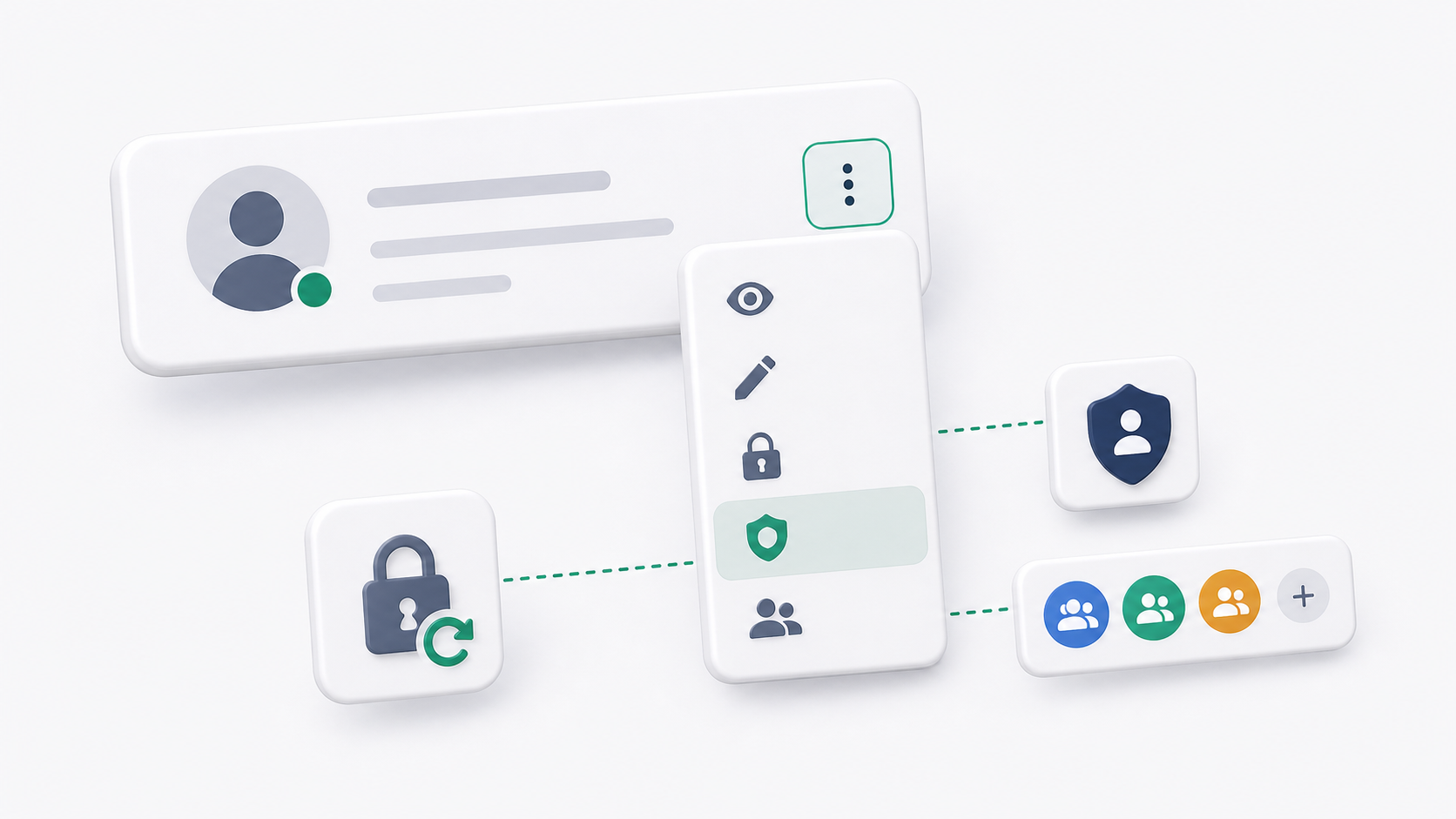
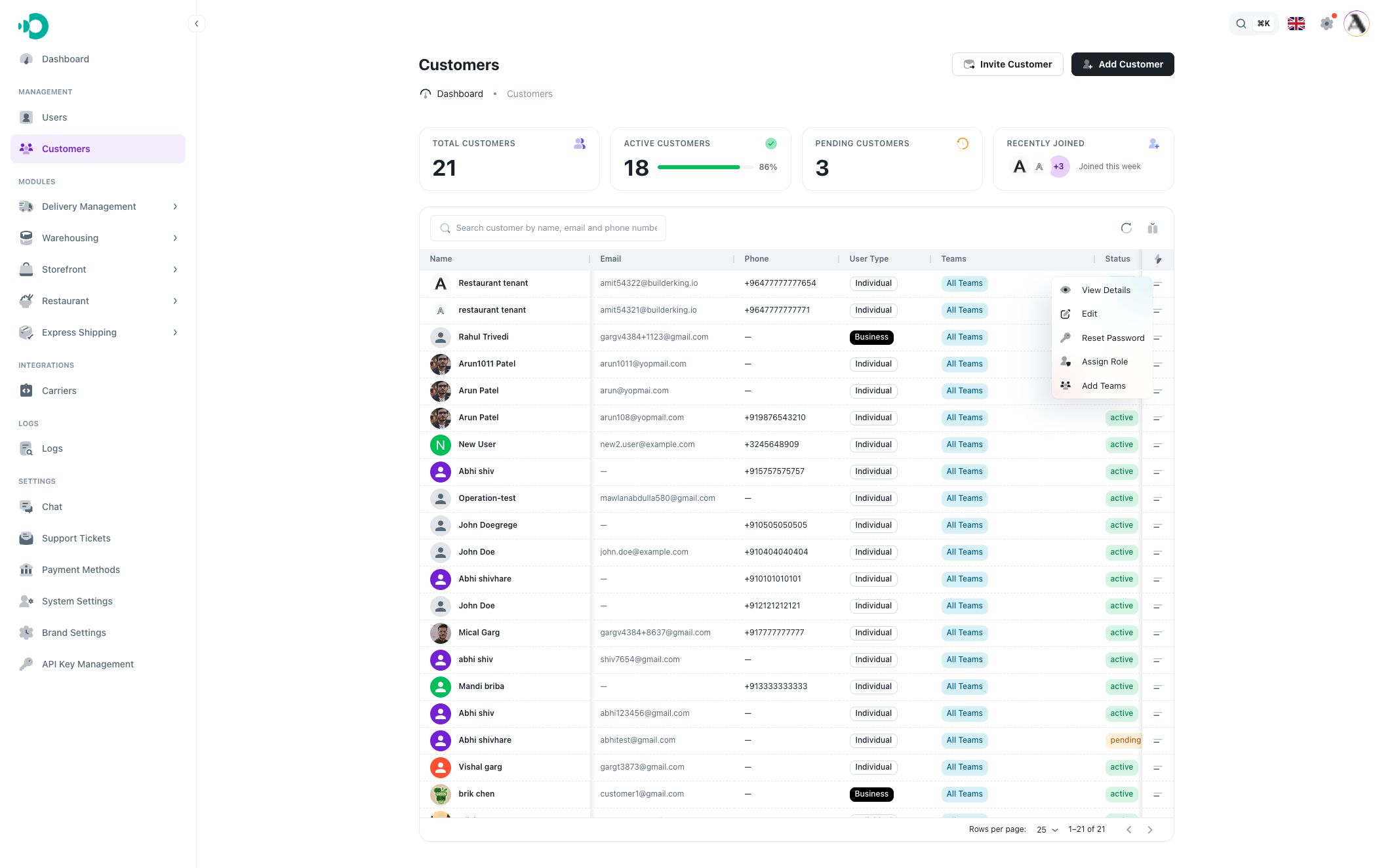
Users and customers both have a context menu. The actions are mostly the same because both records use the same account profile system.
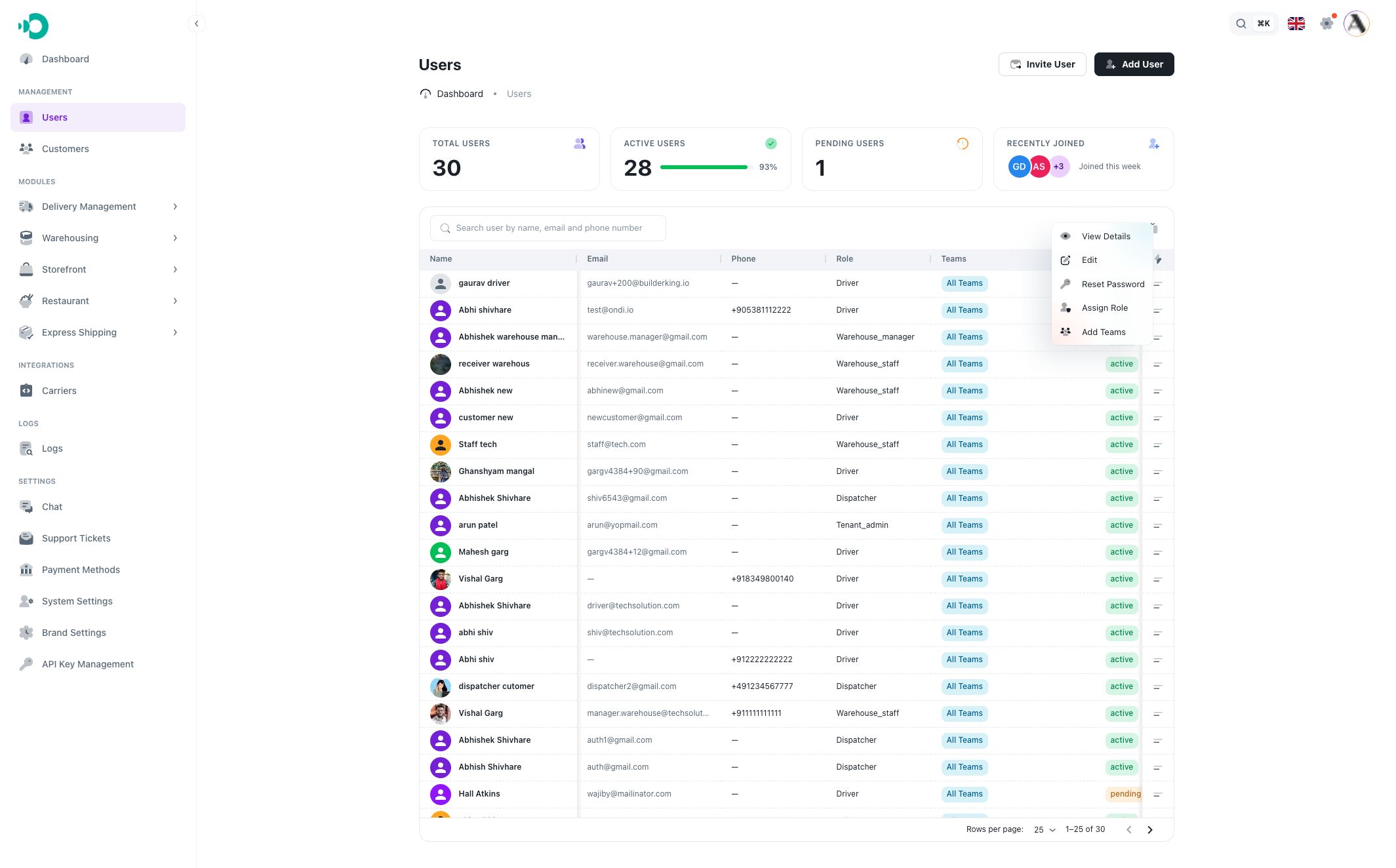
Context menu actions
Use the row menu on a user or customer record to open these actions:
- View Details: opens the profile detail page.
- Edit: updates first name, last name, status, and user type.
- Reset Password: sets a new password for the account.
- Assign Role: assigns or changes the tenant role.
- Add Teams: assigns the record to all teams or selected teams.
Detail page actions
The detail page also has an actions menu in the profile header.
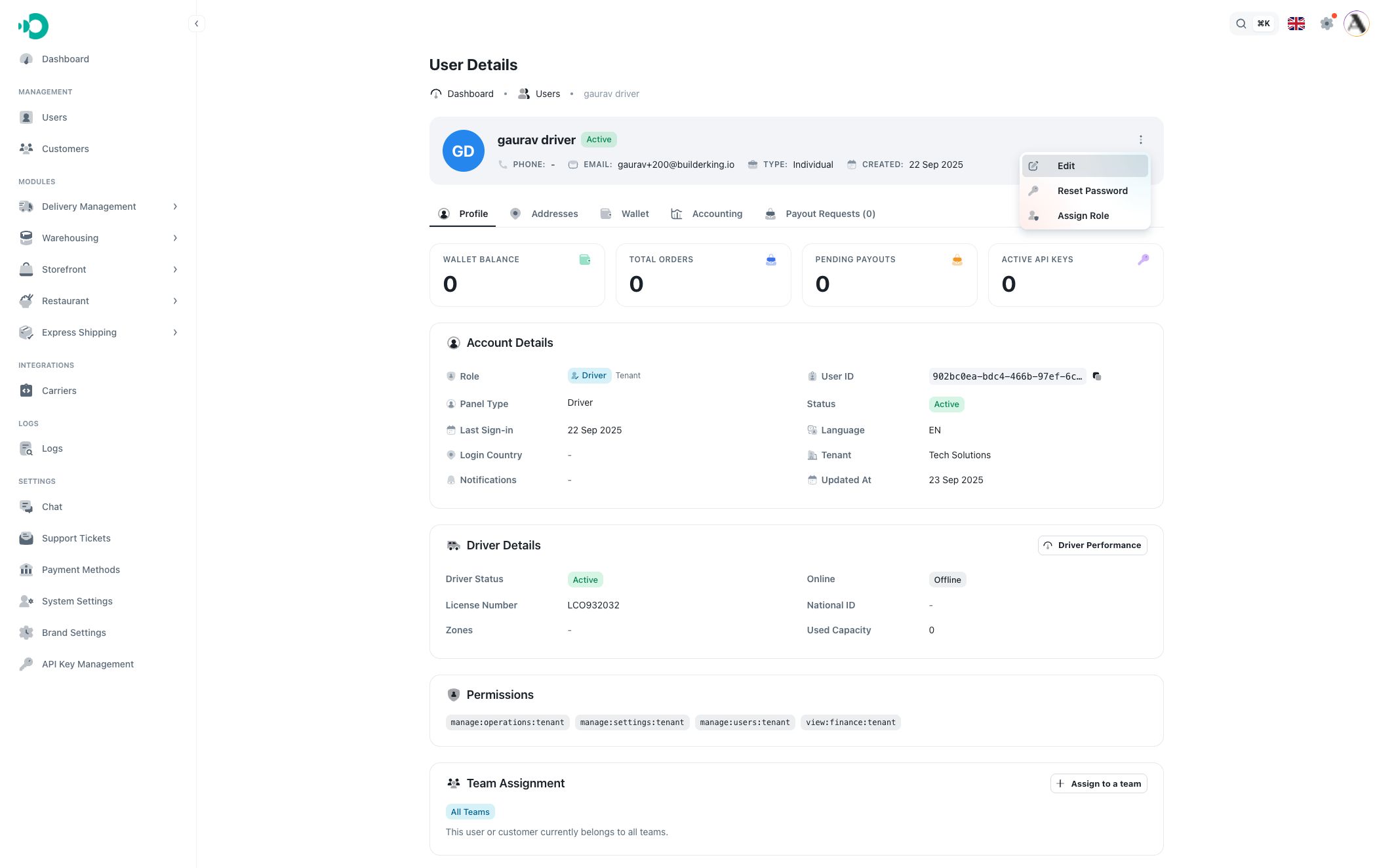
Use it when you are already reviewing a specific record and need to edit, reset the password, or assign a role without returning to the list.
Edit
Edit lets you update:
- First name.
- Last name.
- Status: active or inactive.
- User type: business or individual.
Use status carefully. Inactive users and customers may lose access depending on the portal and backend rules.
Reset Password
Reset Password is for accounts that need a new password set by an admin.
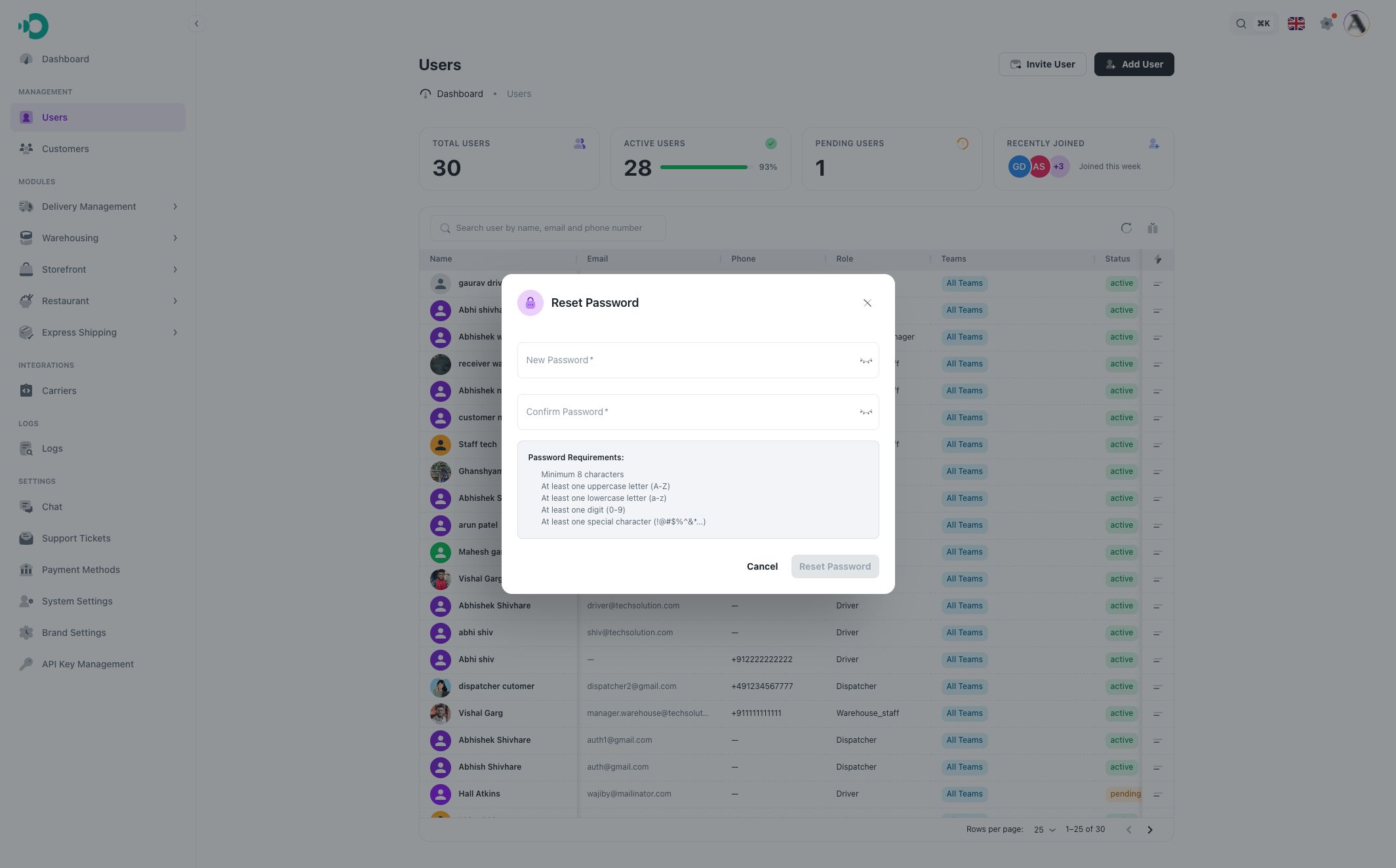
The new password must meet the password rules:
- Minimum 8 characters.
- At least one uppercase letter.
- At least one lowercase letter.
- At least one digit.
- At least one special character.
Assign Role
Assign Role lets you choose a role from the tenant roles list.
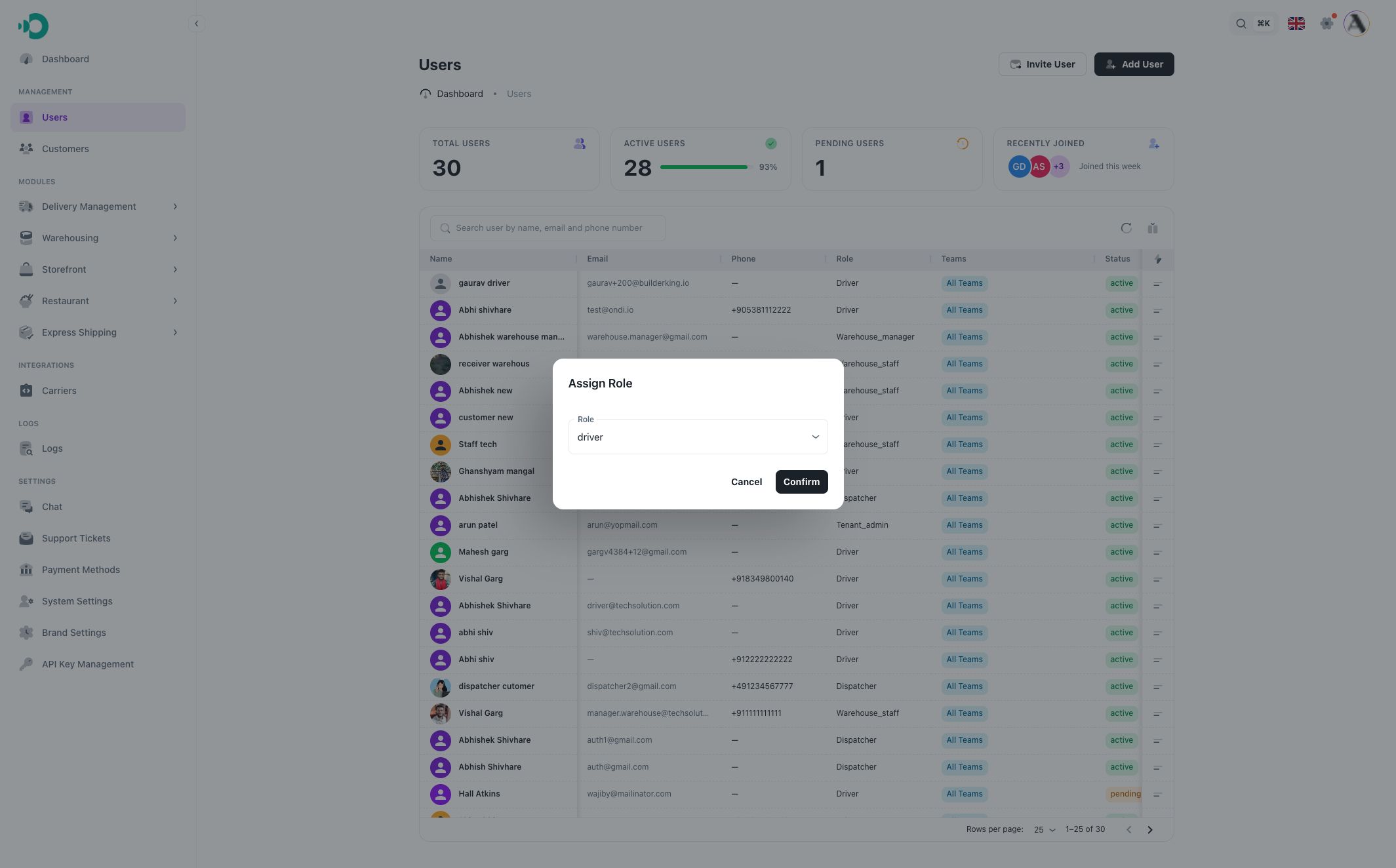
Use roles only when the person needs operational access. For example, a driver role may show driver-related views and permissions, while a tenant admin role may allow broader management access.
Leaving a role empty during Add or Invite creates a customer-only account. Assigning a role later can turn that record into a role-based operational user.
Assign Teams
Add Teams opens the team assignment modal.
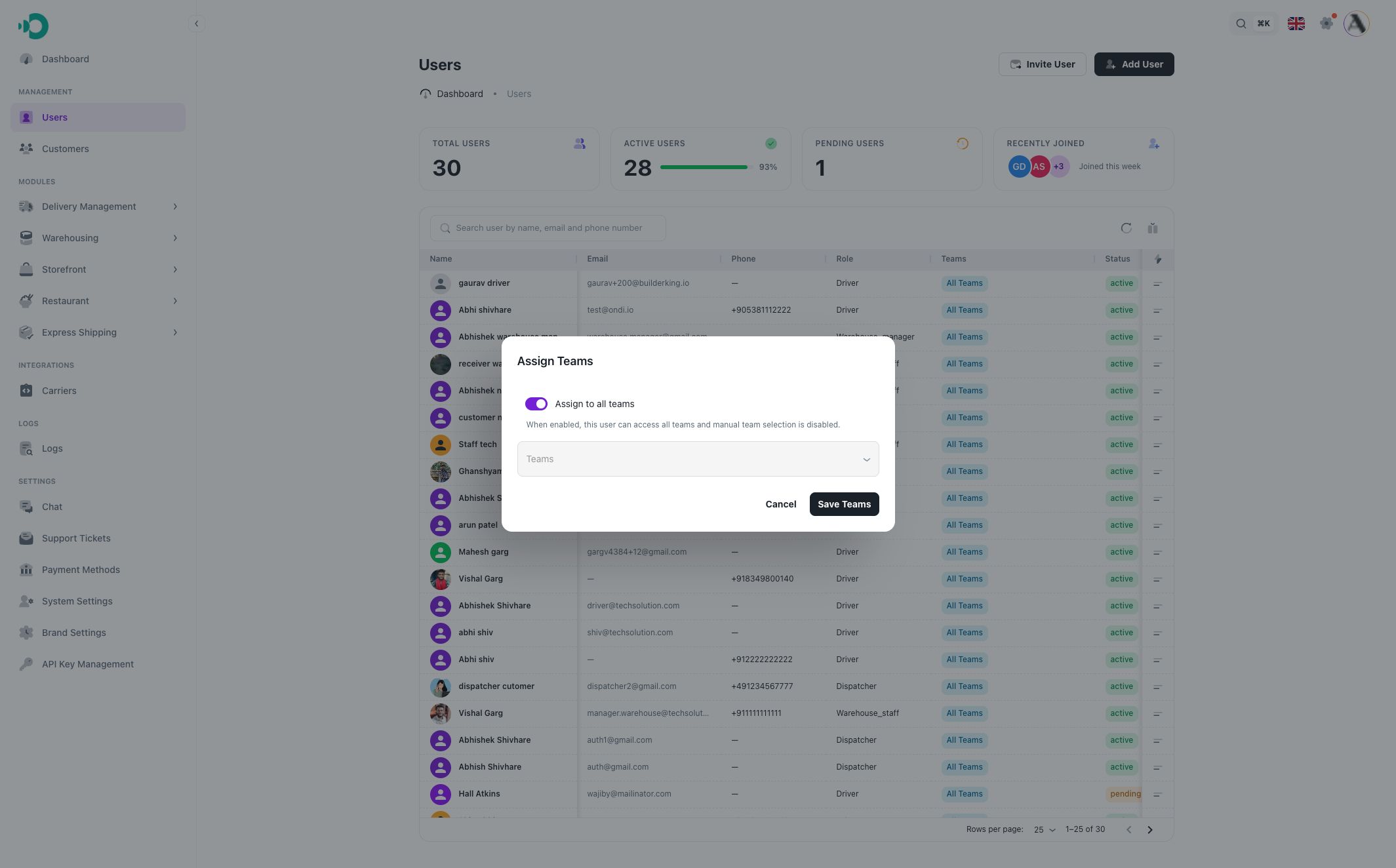
You can choose:
- Assign to all teams: the record is available across all teams.
- Selected teams: the record is limited to the teams you choose.
On the detail page, the Team Assignment section shows whether the record belongs to all teams or selected teams. Selected team chips can be removed from the detail page.