Dispatcher Overview
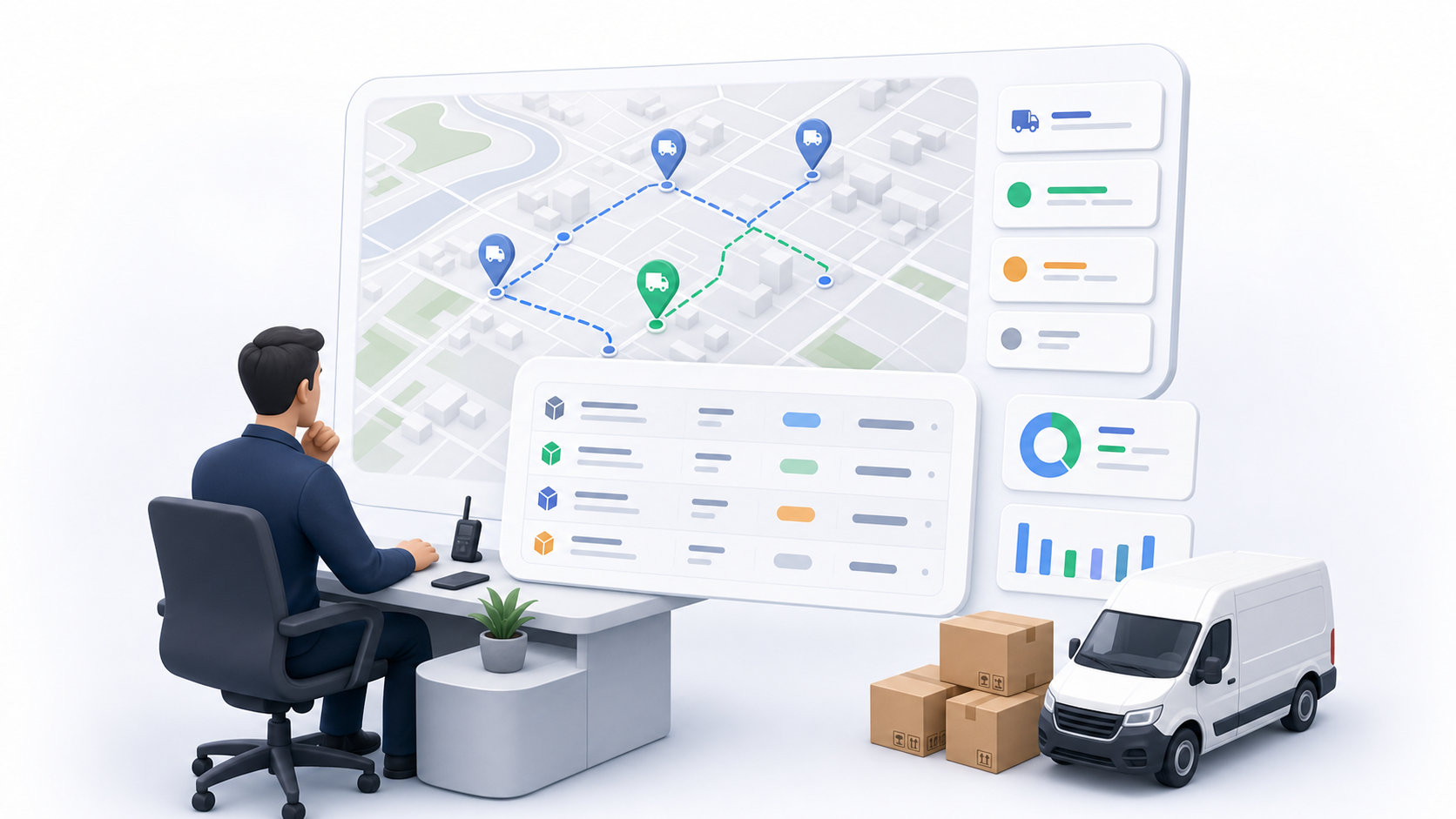
The dispatcher console is the live control room for last-mile delivery work. It lets dispatchers create orders, monitor drivers, assign work, update delivery progress, manage route-based operations, communicate with customers and drivers, and respond to support tickets.
Dispatchers sign in with a dispatcher account and land in a dedicated dispatcher view. This view is separate from the tenant admin setup pages. It is designed for day-to-day operations: fast search, map visibility, table management, driver monitoring, and action controls.
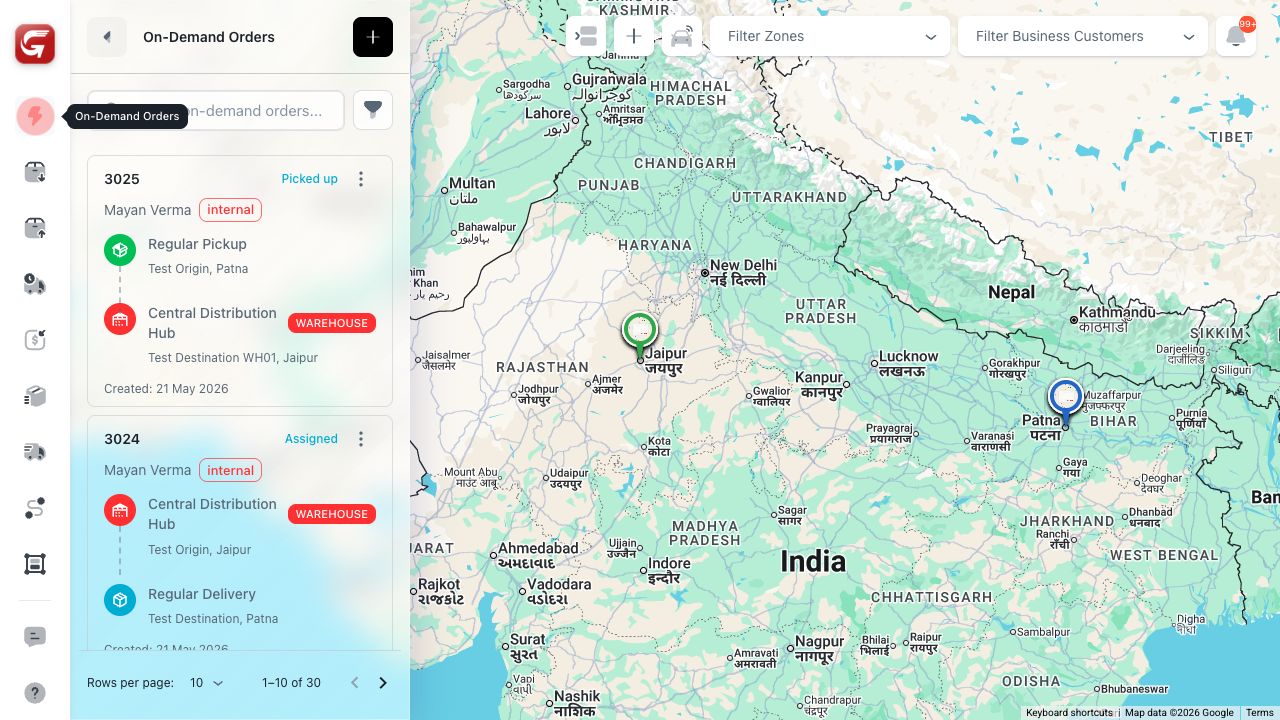
What Dispatchers Can Manage
| Area | What it is used for |
|---|---|
| On-Demand Orders | Immediate point-to-point deliveries that need quick dispatch. |
| Pickup Orders | Pickup work that collects packages from an origin, usually for warehouse or hub handling. |
| Delivery Orders | Final delivery work from a warehouse, hub, business, or sender to a receiver. |
| Pickup & Delivery Orders | End-to-end work that may include pickup, staging, and final delivery. |
| Waybills | Grouped deliveries moved under one waybill, often for carrier or transfer control. |
| Trips | Driver run sheets with multiple stops sequenced for execution. |
| Routes | Reusable pickup/dropoff patterns with assigned drivers and route sessions. |
| Bulk Operations | Batch status updates, driver assignment, route assignment, labels, receipts, and bulk order import. |
| Driver Monitor | Live driver list, availability, assignments, completed work, and sequence control. |
| Chat | Conversations linked to orders, support tickets, customers, drivers, and team members. |
| Support | Customer portal and storefront tickets that dispatchers can read, assign, and respond to. |
| Notifications | Operational alerts such as status changes, driver changes, and unread updates. |
The dispatcher can see and operate only inside the dispatcher role view. Configuration pages such as zone setup, delivery services, vehicles, and system settings are managed outside the dispatcher console by users with the relevant admin permissions.
Daily Dispatcher Workflow
- Open the dispatcher console and choose the order type that matches the work queue.
- Use Map View for live spatial decisions, driver visibility, zone filtering, and order location context.
- Use Table View for scanning many orders, sorting, filtering, editing columns, and running row actions.
- Open the order details before taking high-impact actions such as assignment changes, status changes, cancellation, or return handling.
- Monitor drivers from the driver panel and adjust upcoming order sequence when needed.
- Use bulk tools when the same action applies to many orders.
- Use chat, notifications, and support tickets to keep customers, drivers, and internal teams aligned.
Key Concepts
Delivery status shows where the order is in the delivery lifecycle. Common values include Pending, Assigned, Picked Up, In Transit, Delivered, Cancelled, and Returned.
Assignment status shows whether a driver has active responsibility for the order. For example, an order can be pending with no driver, assigned to a driver, picked up by that driver, or returned from a driver workflow.
Carrier type controls who executes the delivery. Internal orders are handled by the tenant's own drivers. Prime, external, and hybrid orders may involve other carrier flows and can limit which driver actions are available.
Zones are geographic service areas. Dispatchers use zones to filter the map, understand pickup/dropoff coverage, and avoid assigning work to a driver who does not match the expected service area.
Warehouses can be used as pickup points, dropoff points, staging locations, and route endpoints. When a warehouse appears in an order, it means the order touches an operational facility, not only a street address.
Remit collections are the COD and driver cash remittance workflows. They already have their own guide under Remit Collections, so this dispatcher guide only links to them where payment collection affects delivery work.
Use the map for live dispatch decisions and the table for operational control. The two views show the same delivery work, but each is optimized for a different job.