Bulk Operations
Bulk Operations let dispatchers apply the same action to many orders. Use bulk tools when the selected orders share the same operational outcome.
Bulk actions are powerful. Always validate the selected records before executing.
Bulk Actions Menu
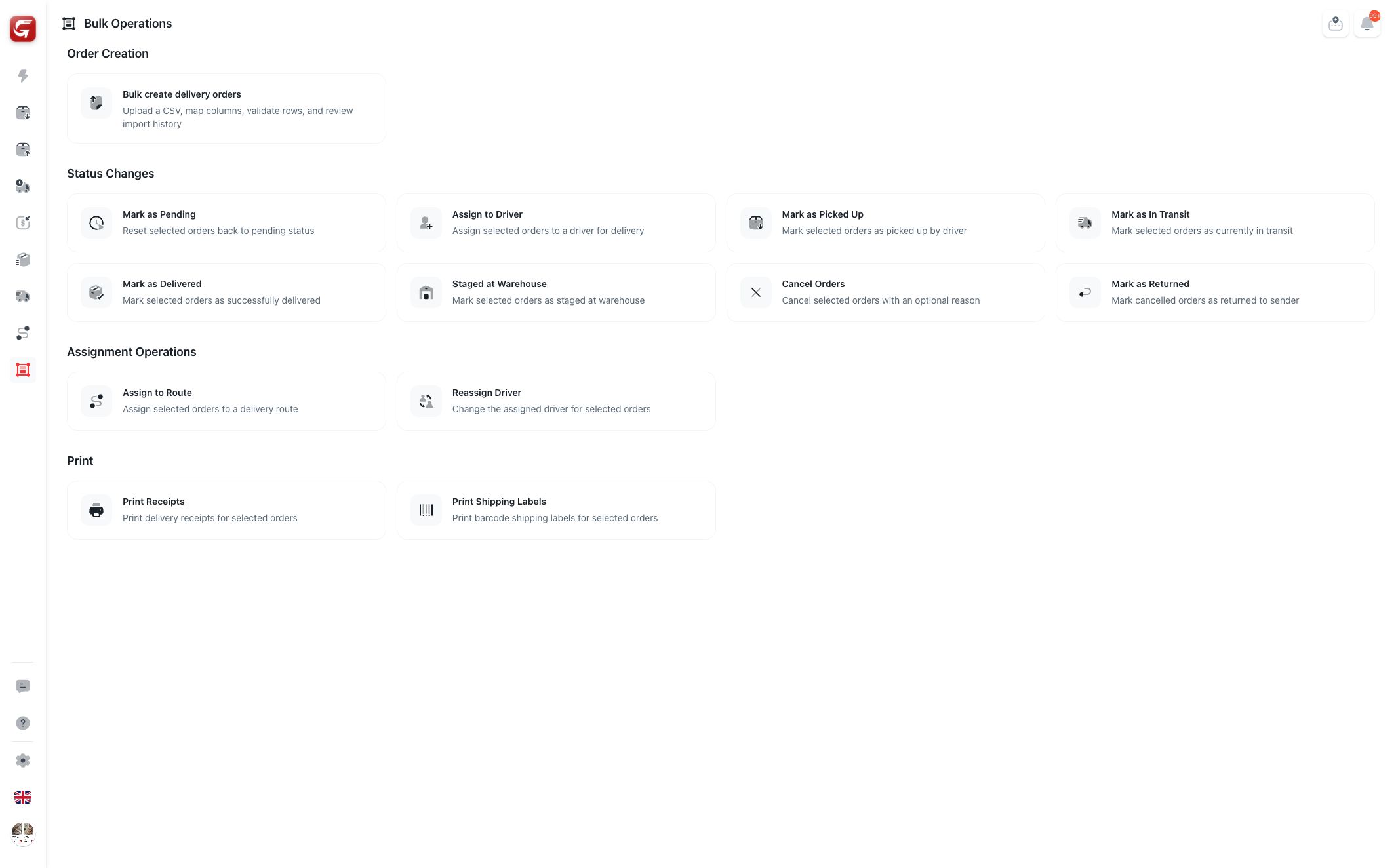
Bulk operations are grouped into:
| Group | Actions |
|---|---|
| Order Creation | Bulk create delivery orders from CSV or XLS. |
| Status Changes | Mark as pending, assign to driver, picked up, in transit, delivered, staged at warehouse, cancelled, or returned. |
| Assignment Operations | Assign to route or reassign driver. |
| Print receipts or shipping labels. |
Bulk Operation Workspace
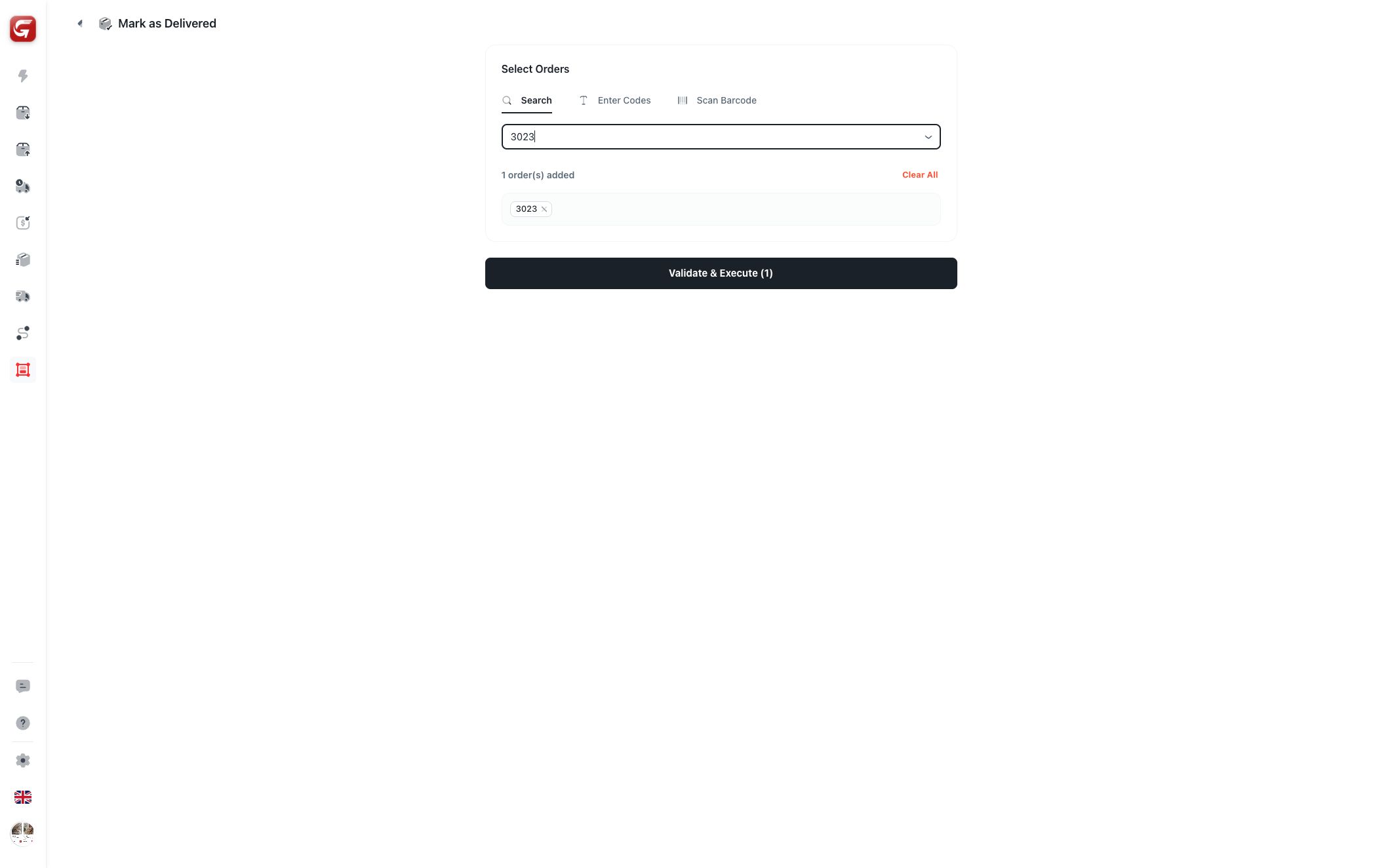
Most bulk actions use a shared workspace:
| Tab | What it does |
|---|---|
| Search | Find orders by delivery code or customer name. |
| Enter Codes | Manually enter delivery codes. |
| Scan Barcode | Add orders by barcode scanning workflow. |
The system warns about duplicates and lets dispatchers clear the selected list.
After orders are selected, use Validate & Execute. Validation checks whether each order can receive the selected action.
Do not execute a bulk operation just to test the screen. Bulk operations update real staging records when submitted.
Validation Results
Before execution, the bulk modal separates valid and failed records.
Use validation results to:
- Remove failed records.
- Review why an order cannot be updated.
- Add required driver, route, or reason fields.
- Confirm the final action count.
The result can be successful, partially successful, or failed.
Print Actions
Print actions prepare output instead of changing delivery status.
Use print actions for:
- Delivery receipts.
- Shipping labels.
- Barcode labels.
After printing is prepared, dispatchers can view, download, or download all available files.
Bulk Delivery Order Import
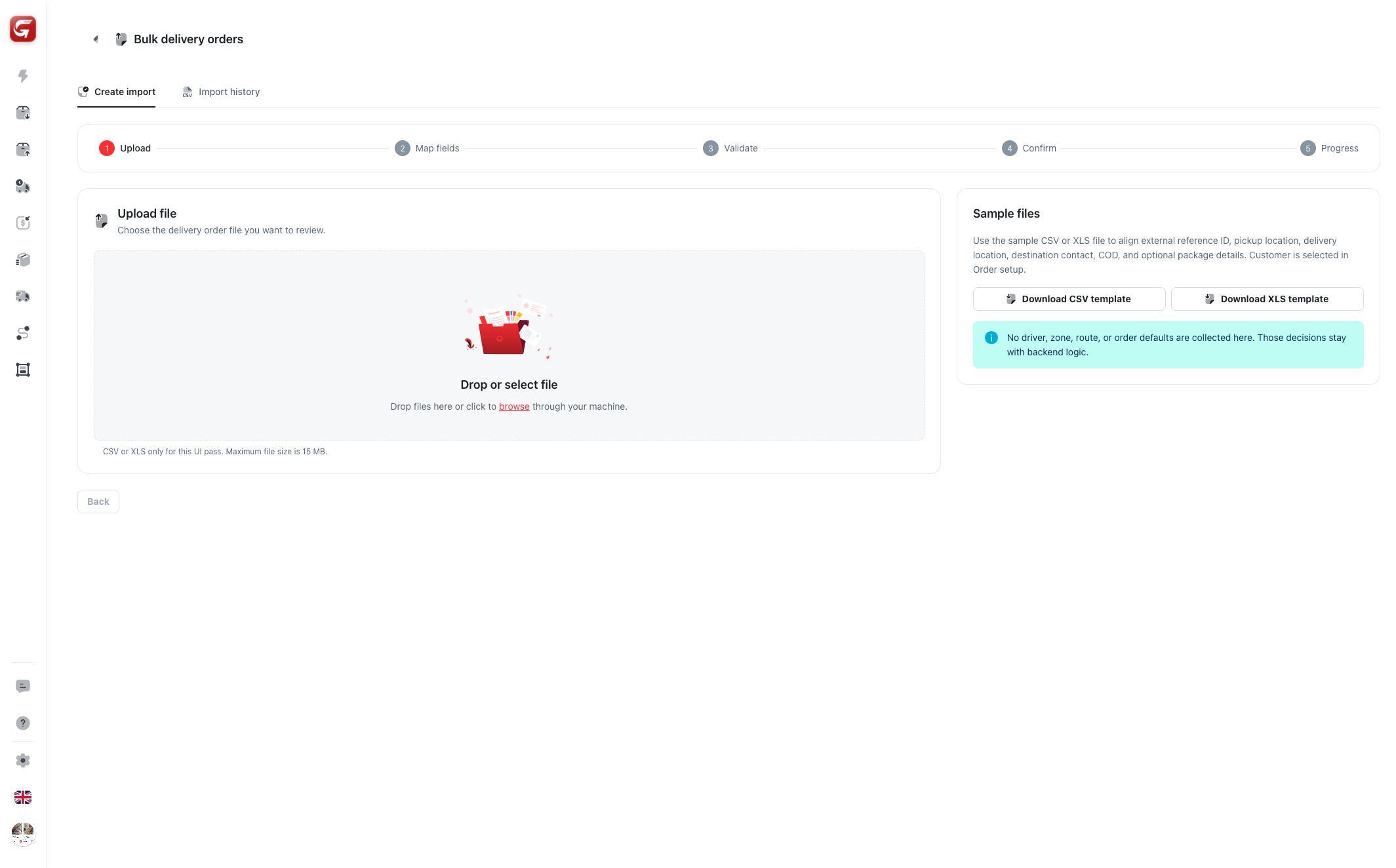
Bulk delivery order import creates many delivery orders from a spreadsheet.
The import flow has five steps:
- Upload: Upload CSV or XLS, up to the allowed file size.
- Map fields: Match file columns to Ondi order fields.
- Validate: Check rows before creating orders.
- Confirm: Review accepted and failed rows.
- Progress: Track the import job.
The page also includes import history so dispatchers can review previous import jobs and download result files.
Required Import Data
The upload template expects required delivery data, including:
- External reference ID.
- Pickup address, latitude, longitude, city, and country.
- Delivery address, latitude, longitude, city, and country.
- Delivery contact name and phone.
Optional values can include COD amount, package instructions, and package items.
Order setup values such as customer, order type, service, payer type, and payment method are selected in the import flow, not stored as driver or route defaults in the spreadsheet.
Bulk import creates orders. It does not automatically decide the driver, route, zone, or operational dispatch plan.