Sign In and Access
Drivers must sign in before they can see assigned work. The app checks that the user is a valid driver for the tenant and that the driver account can use the mobile app.
Driver profiles, contact details, license information, status, teams, zones, and assigned vehicles are managed in Drivers. Tenant-level access and delivery settings are covered in Portal Configuration.
Sign In With Email
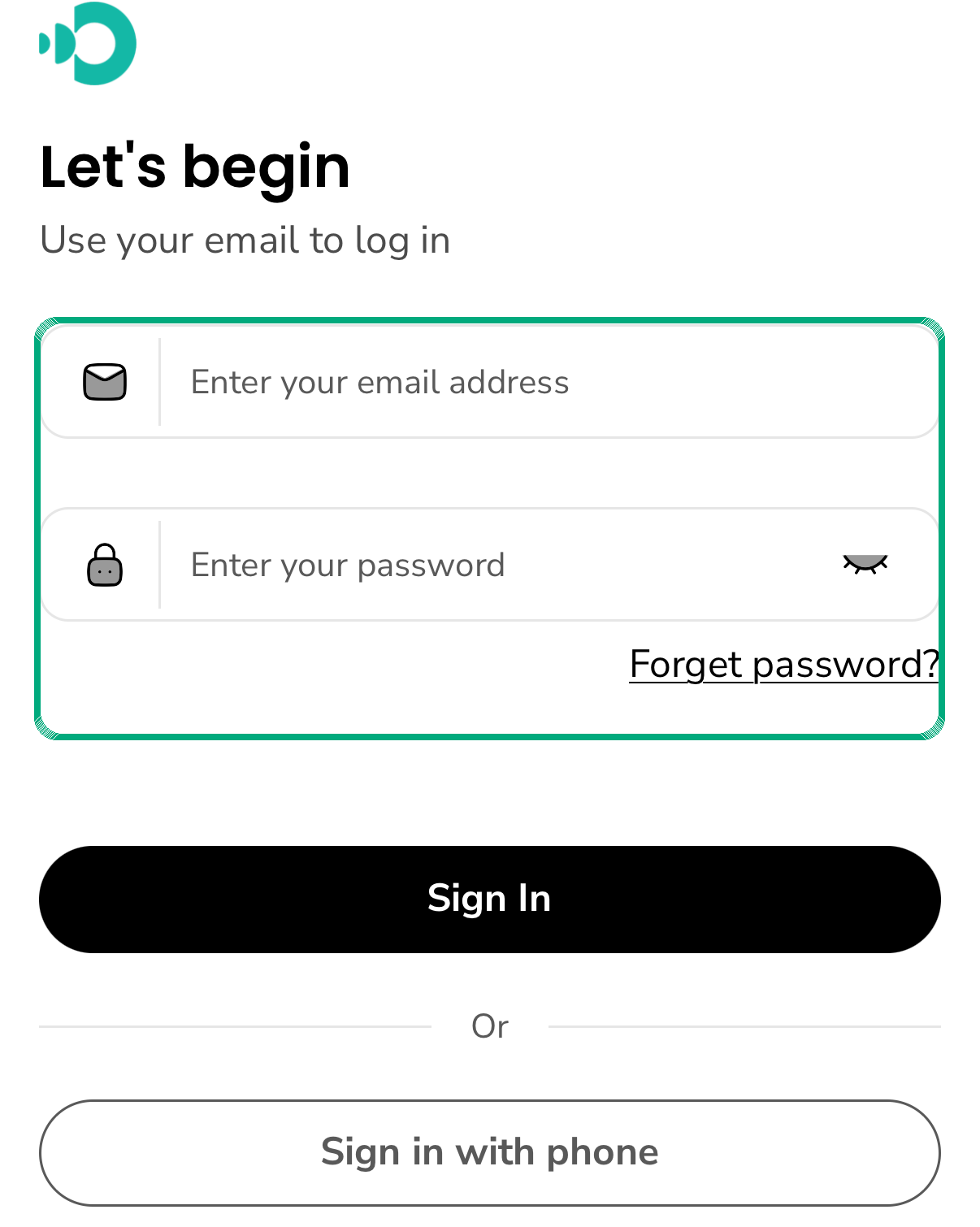
- Open the Driver App.
- Enter the email address given by the dispatcher or tenant admin.
- Enter the password.
- Tap Sign In.
- Wait until the app opens the driver home screen.
If the password field has an eye icon, tap it when you need to check what you typed.
Sign In With Phone
Some tenants allow phone sign-in. If your operation uses phone access:
- Tap Sign in with phone.
- Enter the phone number registered on your driver profile.
- Follow the verification steps shown by the app.
If the phone sign-in option does not work, use email sign-in or contact the dispatcher.
Forgot Password
Use Forget password? when you cannot remember your password. The reset only works for an email or phone number connected to a valid account.
If you changed your phone number or email, ask the dispatcher or tenant admin to update your driver profile before trying again.
What The App Checks
After sign-in, the app checks:
- The tenant subscription and setup are active.
- The signed-in user belongs to the correct tenant.
- The signed-in user is a driver, not a dispatcher or tenant admin.
- The driver profile exists.
- The driver is active enough to use the app.
- The app is configured for the current tenant environment.
If any check fails, the app can block access or keep the driver away from operation screens.
Access Depends On Driver Setup
A driver may sign in successfully but still not see work if the profile setup does not match the operation. Ask dispatch or tenant admin to check:
- Driver status in Drivers.
- Assigned vehicle in Vehicles.
- Team membership in Teams.
- Zone coverage in Zones.
- Assignment rules in Assignments.
Common Access Problems
| What the driver sees | What it usually means | What to do |
|---|---|---|
| Sign-in fails | Email or password is wrong, or the account is not active. | Re-enter the details and contact dispatch if it still fails. |
| The app signs in but shows no work | The driver may not be assigned, live, available, or matched to the right zone/team/vehicle. | Check live status and ask dispatch to review the assignment. |
| Driver screens do not load | The session may be old or invalid. | Sign out and sign in again. If still blocked, ask dispatch to refresh the driver profile. |
| You signed in as the wrong user type | The account may be for dispatcher, admin, staff, or customer use. | Use the driver account provided for mobile operations. |
Sign Out
Sign out from the Account area when:
- You are using a shared test device.
- Dispatch asks you to refresh your session.
- The app keeps showing old data.
- Your shift is complete and your company requires sign-out.
Do not share your driver login. Orders, COD, proof, and status changes are recorded against the signed-in driver.