Start Shift, Live Status, Map, and List
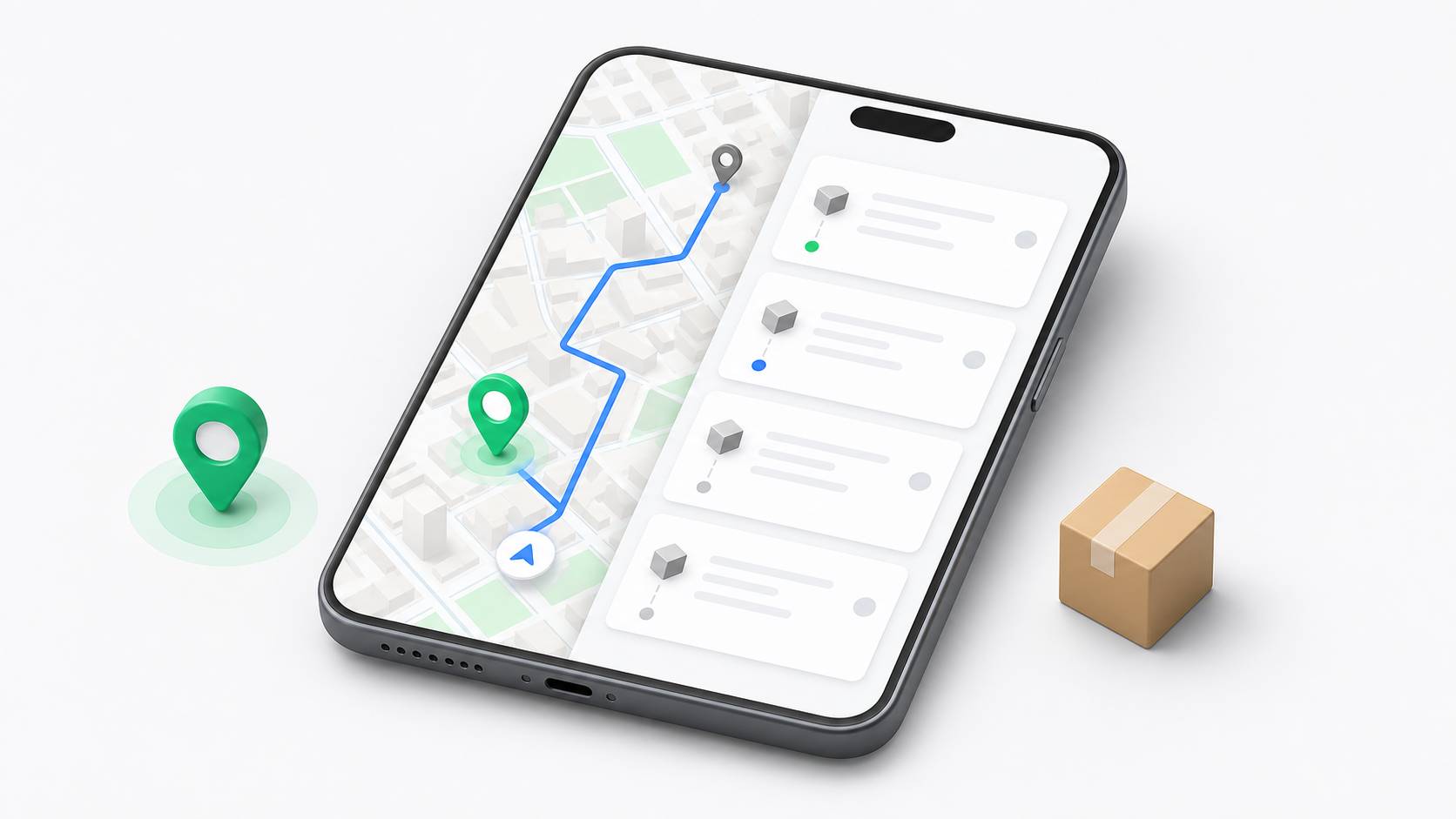
The For you tab is the driver home screen. Use it at the start of the shift and during the day to check live status, current position, orders, and notifications.
Dispatchers can monitor driver location, current assignments, completed work, and driver chat from Driver Monitor. If a driver is live but dispatch cannot see expected activity, review the driver profile and assignment setup.
Allow Location Access
The Driver App uses location so dispatchers can see where active drivers are and so the app can support map-based delivery work.
When iOS asks for permission:
- Choose the location option required by your company.
- Return to the Driver App.
- Wait for the home screen to finish loading.
- Go live when you are ready to work.
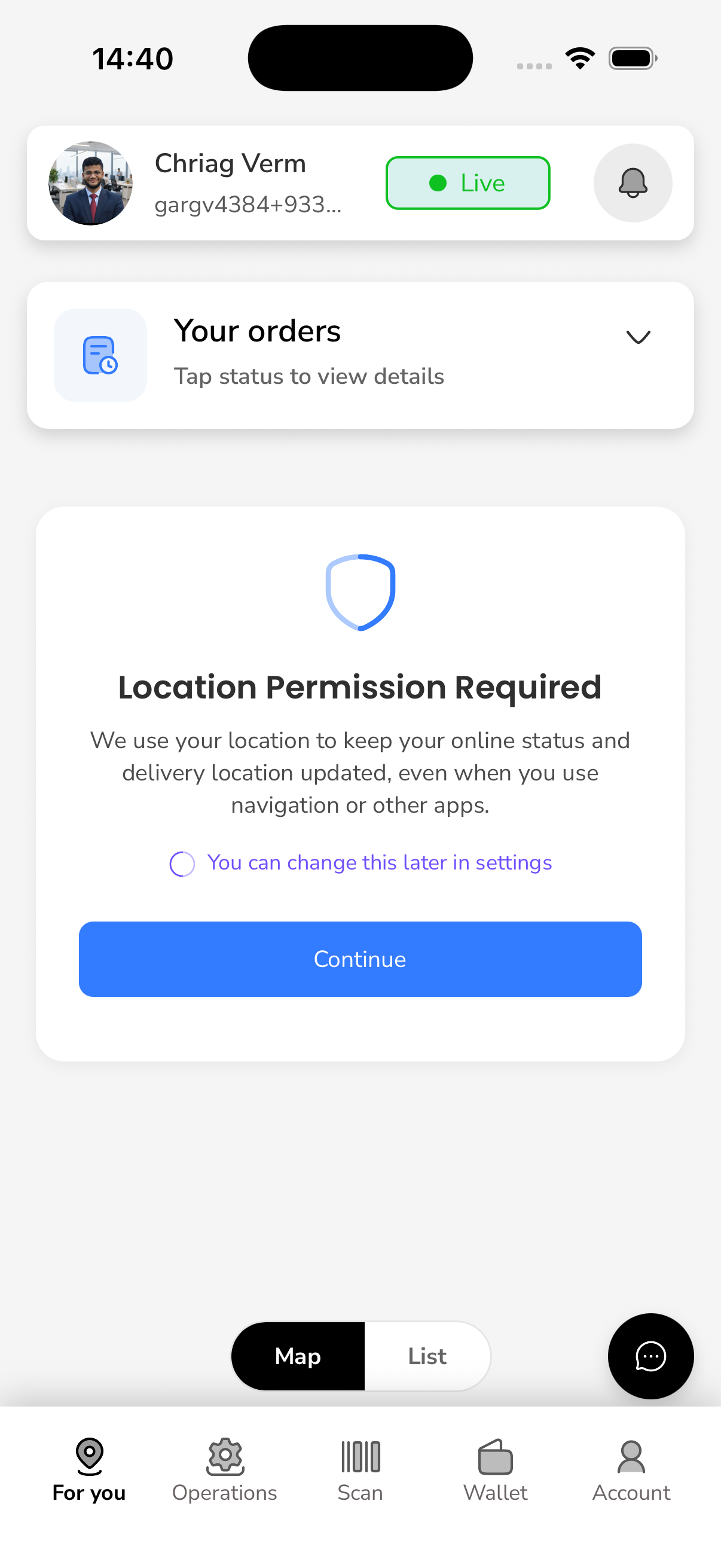
Some tenants require background location for driver tracking. If the app asks for stronger location permission, follow your company rule or ask dispatch.
Go Live
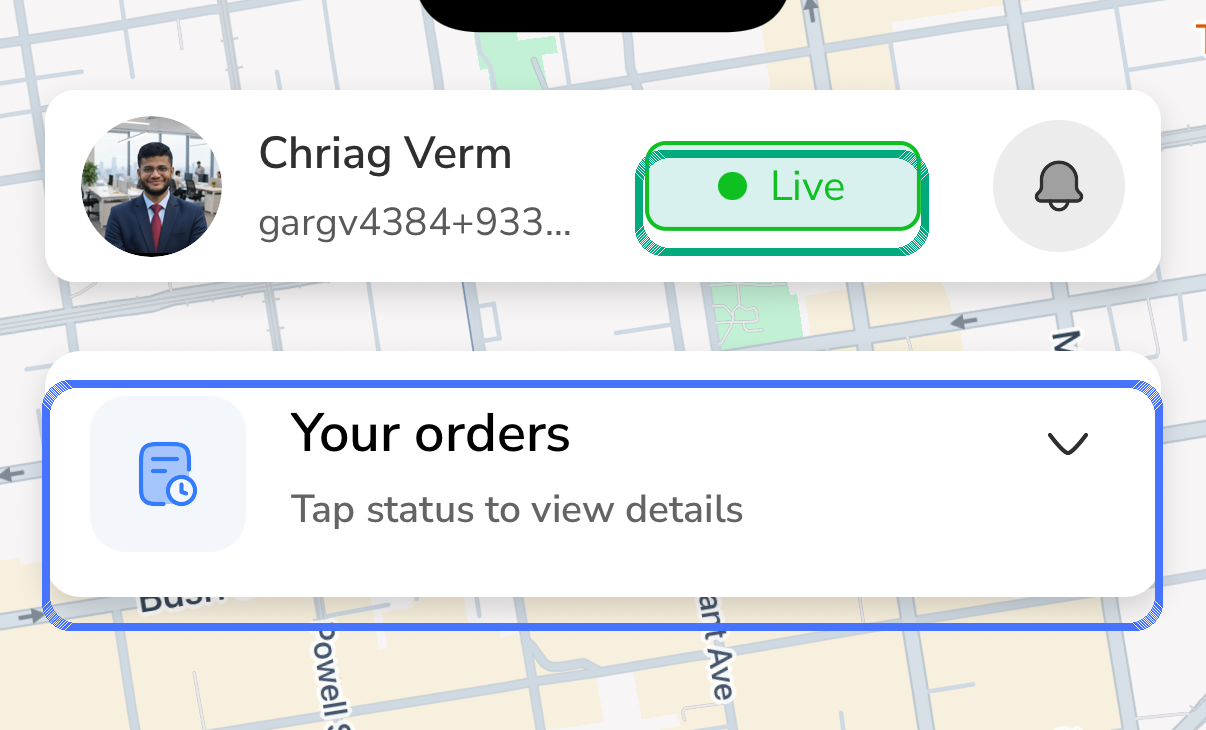
The Live control tells the operation that the driver is online. Drivers should go live only when they are ready to receive or work on deliveries.
Going live can depend on:
- Location permission.
- Driver profile status.
- Availability status.
- Vehicle setup.
- Tenant operation rules.
If live status does not turn on, check location permission and contact dispatch.
For setup review, see Drivers, Vehicles, and Assignments.
Use Map View
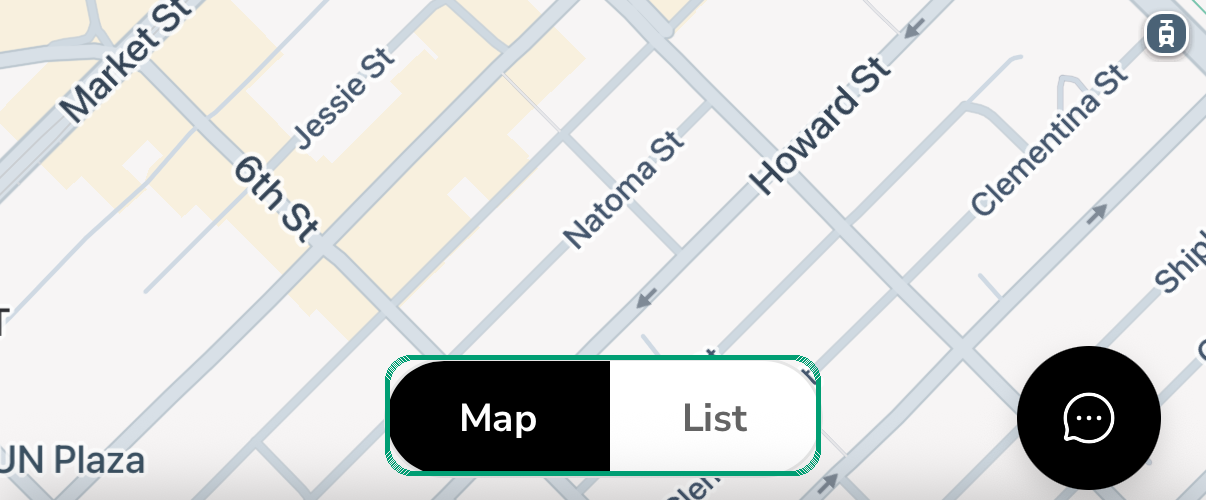
Map view shows the driver position and nearby operation context. It is useful when the driver wants to understand where current work is located.
Use map view to:
- Confirm the app knows your location.
- See work on a map when the tenant supports map markers.
- Open the list panel from the Your orders card.
- Switch to list view when you need order details.
Use List View
List view shows order cards in a simple sequence. It is usually easier for drivers who are actively working through stops.
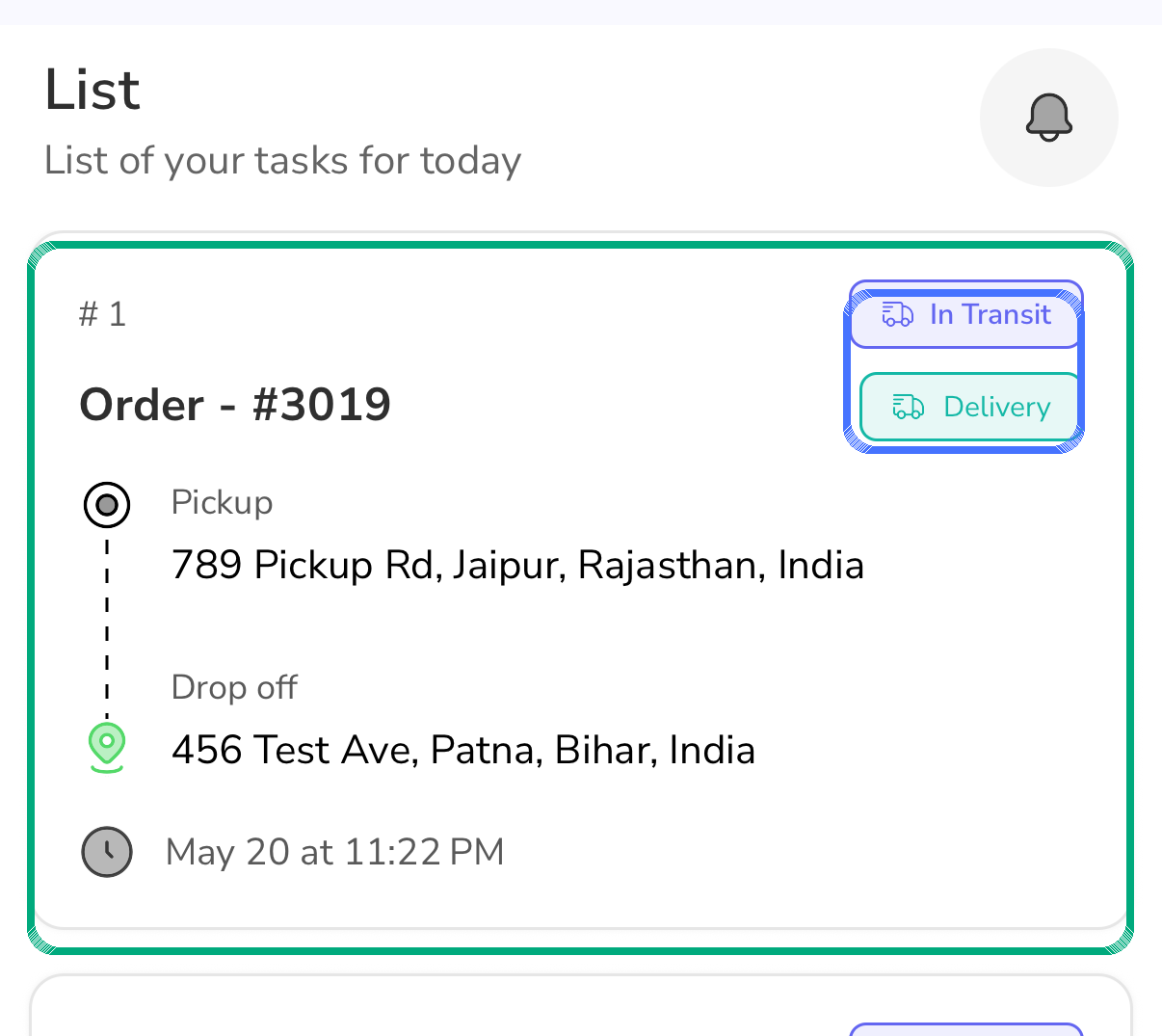
Each order card can show:
- Order number.
- Pickup location.
- Dropoff location.
- Delivery time.
- Current status, such as In Transit.
- Delivery type, such as Delivery or On Demand.
Tap a card to open order details.
Notifications On The Home Screen
The bell icon is used for driver notifications. Notifications can include assigned work, messages, and operation updates.
Check notifications when:
- A dispatcher says an order was assigned.
- A route, trip, or waybill was updated.
- You hear or see a mobile notification but do not know what changed.
If You Do Not See Work
Work may be missing from the home screen when:
- You are not live.
- You are not available.
- No orders are assigned to you.
- Work is assigned as a waybill, trip, or route session instead of a single order.
- Your team, zone, or vehicle does not match the work.
- The order is assigned to another driver.
- The app session is old and needs sign-out/sign-in.
If dispatch assigned work but you cannot see it, open Operations and check Orders, Waybills, Trips, and Route sessions. Some grouped work appears there instead of the home list.
Where Missing Work Is Managed
| Missing item | Where dispatch or admin should check |
|---|---|
| Single order | Dispatcher order lists and assignment actions. |
| Waybill | Dispatcher waybills or Waybill Lifecycle and Returns. |
| Trip | Dispatcher trips or Trip Execution and Returns. |
| Route session | Dispatcher delivery routes or Route Sessions and Orders. |