Waybills
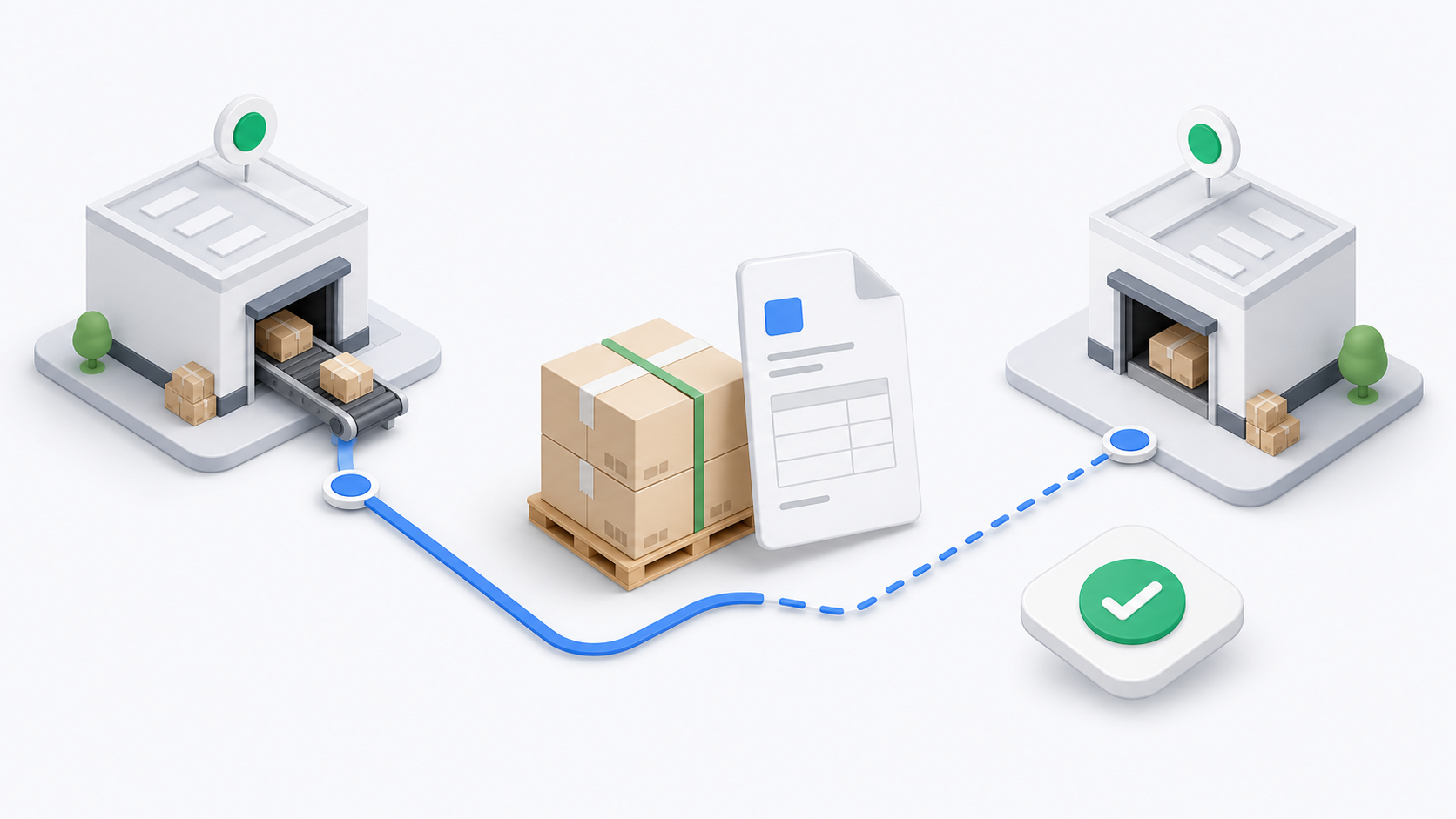
A waybill groups multiple deliveries into one movement record. Drivers use waybills when several packages move together between an origin and destination, such as warehouse to branch, hub to zone, or driver handover.
Drivers complete assigned waybills in the mobile app. Dispatchers and tenant admins create, edit, seal, assign, and manage waybills in the portal. See Waybills Overview, Create and Edit Waybills, and Dispatcher Waybills.
What Drivers Can See
Drivers see waybills assigned to them. A waybill assigned to another driver normally does not appear in the mobile app.
Waybill visibility can depend on:
- Assigned driver.
- Tenant.
- Waybill status.
- Whether the waybill is active or cancelled.
- Whether the driver is still responsible for the waybill movement.
Open Assigned Waybills
- Tap Operations.
- Tap Waybills.
- Wait for the list to load.
- Use the status filters.
- Tap a waybill card to open the detail page.
Status filters can include All, Sealed, Picked Up, In Transit, Received, Closed, and Cancelled.
Read The Waybill Detail Page
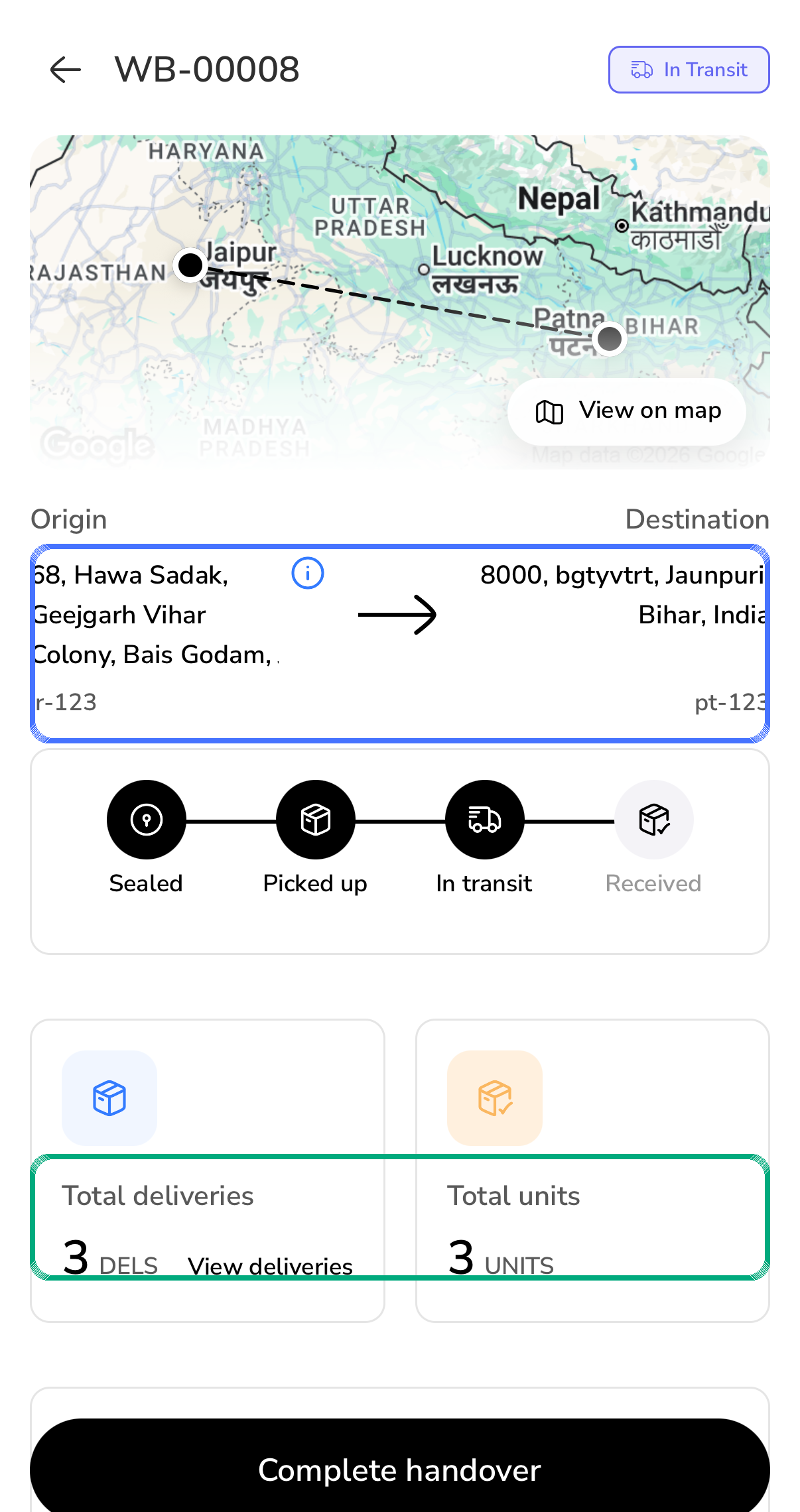
The waybill detail page can show:
- Waybill number.
- Current status.
- Origin and destination.
- Map preview.
- Movement timeline.
- Total deliveries.
- Total units.
- Return breakdown.
- Delivery list access.
- The next waybill action.
Waybill Status Sequence
| Status | What it means | Driver action |
|---|---|---|
| Sealed | The waybill is ready and locked for movement. | Mark it picked up after receiving the waybill packages. |
| Picked Up | The driver has collected the waybill. | Mark it in transit when leaving with the waybill. |
| In Transit | The waybill is moving to destination. | Complete handover when the destination receives it. |
| Received | The destination has received the waybill. | No normal driver movement action. |
| Closed | The waybill is finished. | Review only. |
| Cancelled | The waybill is not active. | Contact dispatch if you still have packages from it. |
Complete A Waybill Handover
When the waybill is In Transit, the app can show Complete handover.
- Confirm the destination is correct.
- Confirm the receiver or receiving team is present.
- Tap Complete handover.
- Capture receiver signature.
- Add at least one shipment photo.
- Add a note if needed.
- Submit the handover.
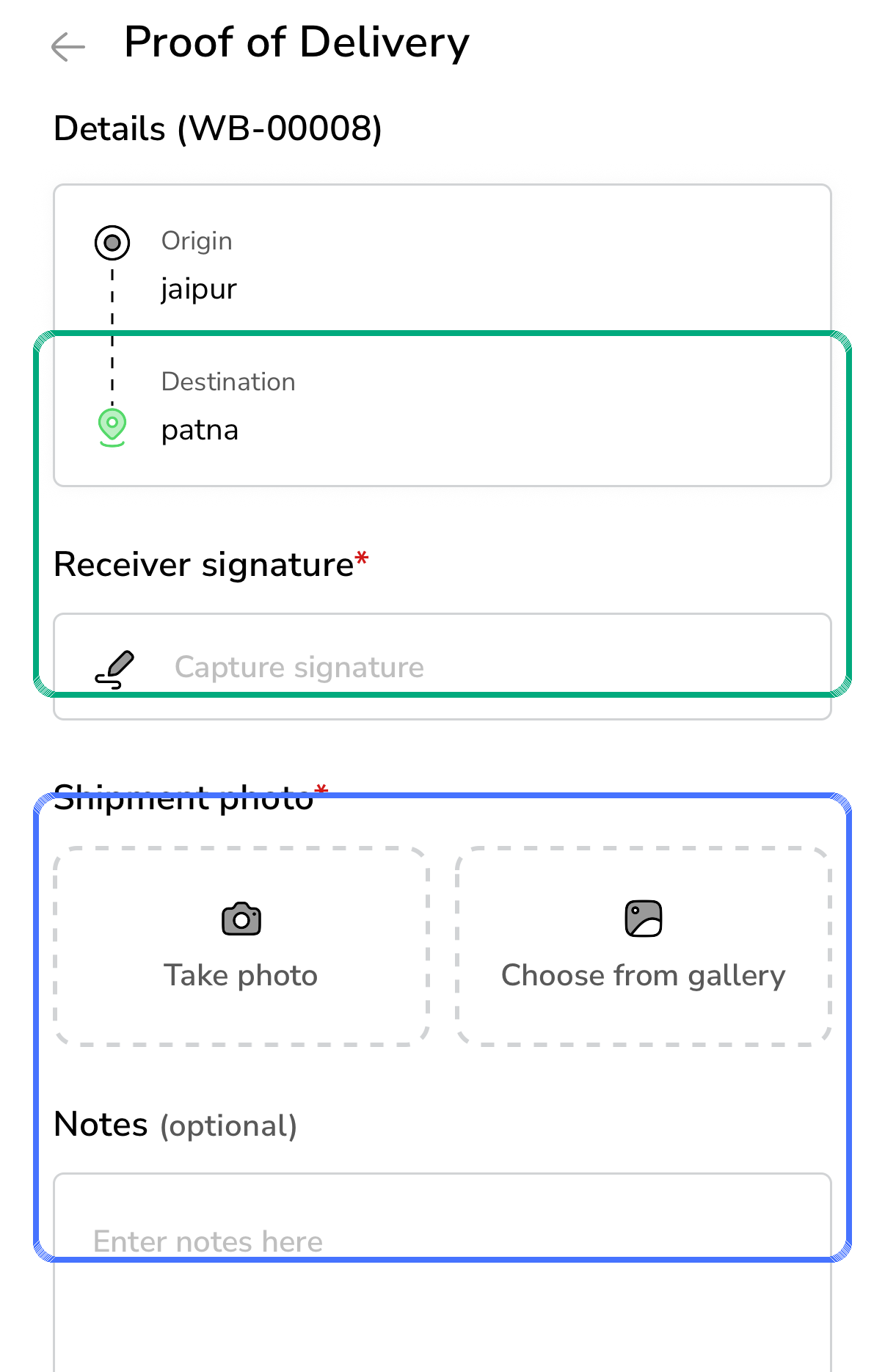
Do not complete handover before the receiving location accepts the packages. Handover proof means the waybill was physically received.
View Deliveries Inside A Waybill
Open View deliveries from the waybill detail page to see the packages inside the waybill.
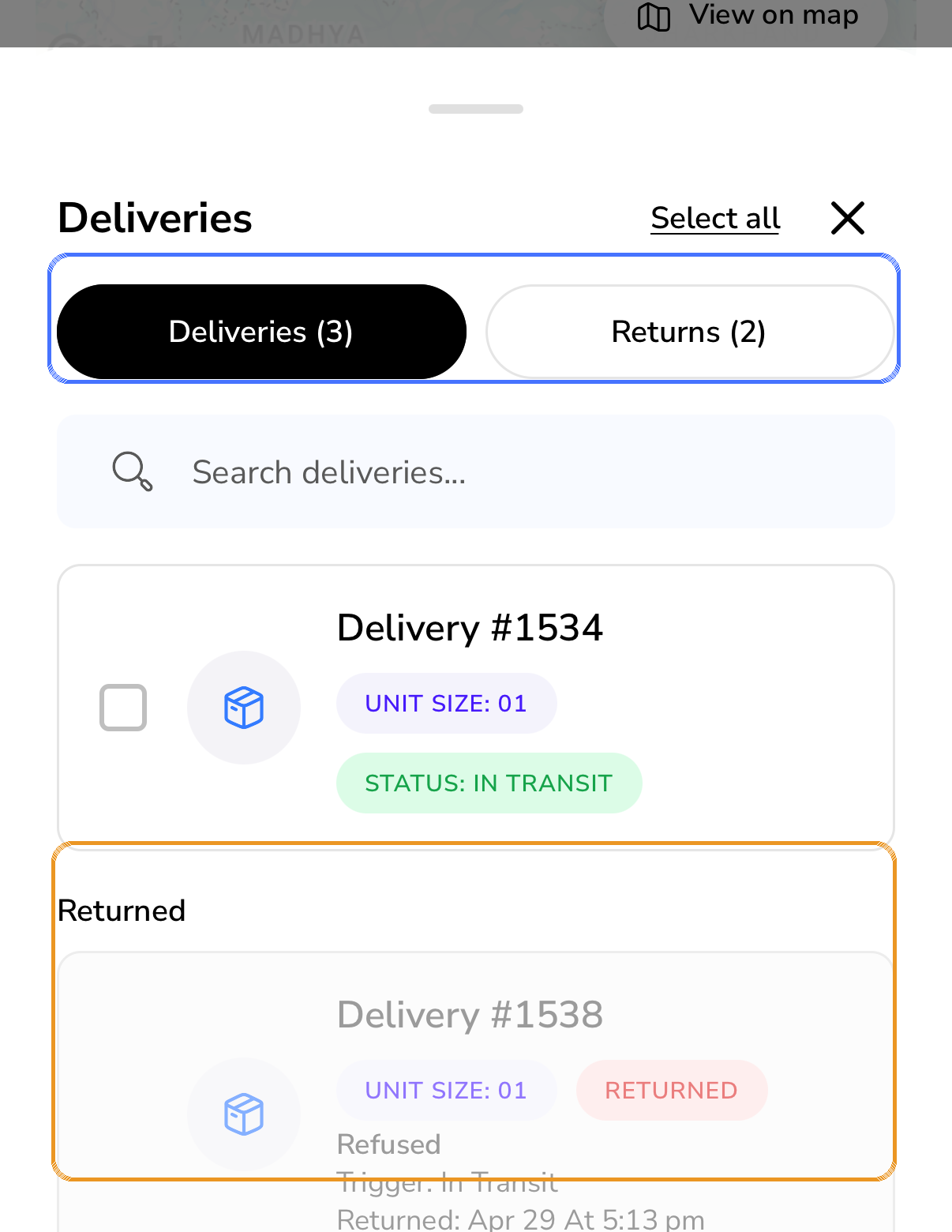
The sheet can show:
- Deliveries: active deliveries included in the waybill.
- Returns: returned deliveries or deliveries already marked for return.
- Search box for finding a delivery.
- Selection checkbox for returnable rows.
Return Deliveries From A Waybill
Use the return flow only when a delivery inside the waybill must be returned instead of continuing normally.
- Open the waybill.
- Tap View deliveries.
- Select the delivery that should return.
- Tap the return action.
- Choose the return reason.
- Add notes or photos when required.
- Confirm the return.
Common return reasons include refused, wrong address, damaged, lost, undeliverable, cancelled by customer, QC fail, rejected at destination, and other.
Drivers cannot freely add or remove deliveries from a sealed waybill in the mobile app. Dispatchers and tenant admins manage waybill membership in the portal.
For the portal-side lifecycle, including assignment, dispatch, receipt, closure, cancellation, and partial returns, see Waybill Lifecycle and Returns.
If A Waybill Does Not Match Your Packages
Contact dispatch when:
- A package is missing.
- A package is extra and not listed.
- The destination is wrong.
- The receiver refuses the handover.
- A delivery inside the waybill needs a return but the app does not show a return action.
Supervisor Reference
| Question | Reference |
|---|---|
| What is a waybill and when should it be used? | Waybills Overview |
| How is a waybill created or sealed? | Create and Edit Waybills |
| How are assignment, receipt, closure, and returns handled? | Waybill Lifecycle and Returns |
| How does the dispatcher use waybills day to day? | Dispatcher Waybills |