Create and Edit Waybills
Start a Waybill
Tenant admins can create a waybill from Tenant Admin -> Delivery Management -> Waybills -> Create. Dispatchers can create one from Dispatcher -> Waybills -> Create.
The create flow uses a step-by-step page:
- Add the waybill details.
- Add eligible deliveries.
- Seal the waybill or continue to the correct carrier action.
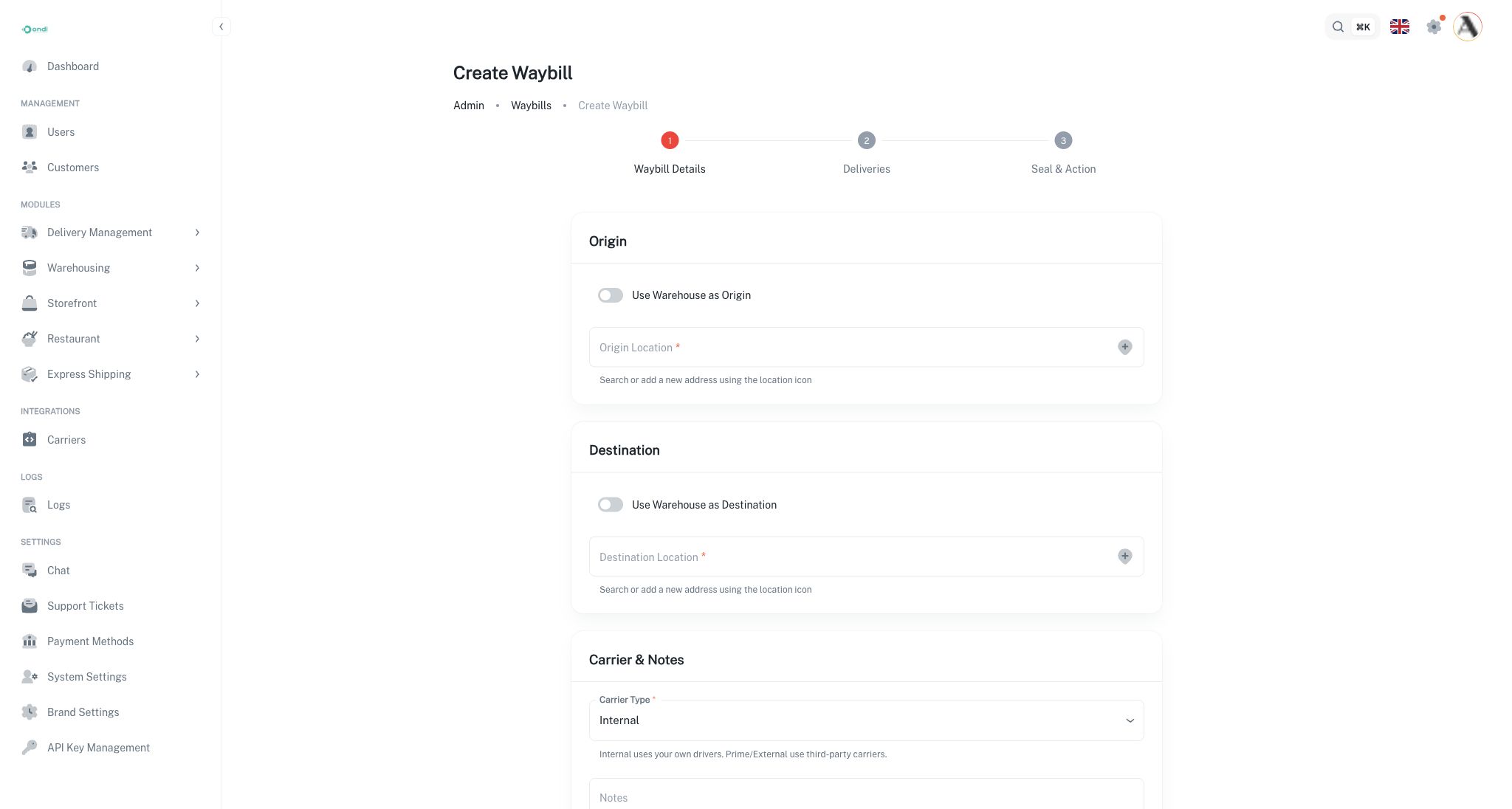
Step 1: Enter Waybill Details
The first step defines the batch movement itself.
- Select an origin type: warehouse or location.
- Select the origin warehouse or enter/select the origin location.
- Select a destination type: warehouse or location.
- Select the destination warehouse or enter/select the destination location.
- Choose the carrier type: internal, prime, or external.
- Add internal driver or vehicle information only when the waybill will use the tenant fleet.
- Add carrier reference information when a prime or external carrier is responsible.
- Add notes when operations needs handoff instructions, receiving instructions, or carrier context.
The origin and destination must each be complete and must represent exactly one place. A waybill cannot have multiple origins or multiple destinations.
Step 2: Add Deliveries
The deliveries step lets you search for eligible delivery orders and add them to the manifest.
Use this step to:
- Search eligible deliveries.
- Review pickup and delivery location previews.
- Confirm the delivery belongs in this batch.
- Add the delivery to the waybill.
- Remove a delivery from the waybill while the status is still drafted.
Only drafted waybills allow delivery membership changes. Once the waybill is sealed, the delivery list becomes locked to protect the chain of custody.
Step 3: Seal the Manifest
Sealing confirms the manifest and prevents accidental changes to the included deliveries. You should seal only after origin, destination, carrier, and deliveries have been checked.
After sealing:
- Internal waybills can be assigned to a driver.
- Prime and external waybills can be dispatched manually.
- Deliveries can no longer be added or removed through the normal edit flow.
Edit a Drafted Waybill
Open the waybill from the list and select Edit. Editing is intended for drafted waybills. You can adjust details such as origin, destination, carrier type, references, notes, and the delivery list before sealing.
When you edit, check that the carrier type still matches the operational plan. Switching between internal and external handling can change which follow-up actions are available after sealing.
Common Validation Rules
- A waybill must have one origin and one destination.
- Origin and destination can be warehouses or locations.
- Deliveries must be eligible and must belong to the same tenant.
- Deliveries already locked by another active waybill cannot be added.
- Hybrid parent deliveries are not used as executable waybill children.
- The delivery list is locked once the waybill leaves drafted status.
Best Practice
Build the waybill only after the batch is operationally clear. Confirm the destination receiver, the carrier type, and the physical package count before sealing. Sealing too early can block easy corrections and may require a cancellation or return flow to fix operational mistakes.