Route Sessions
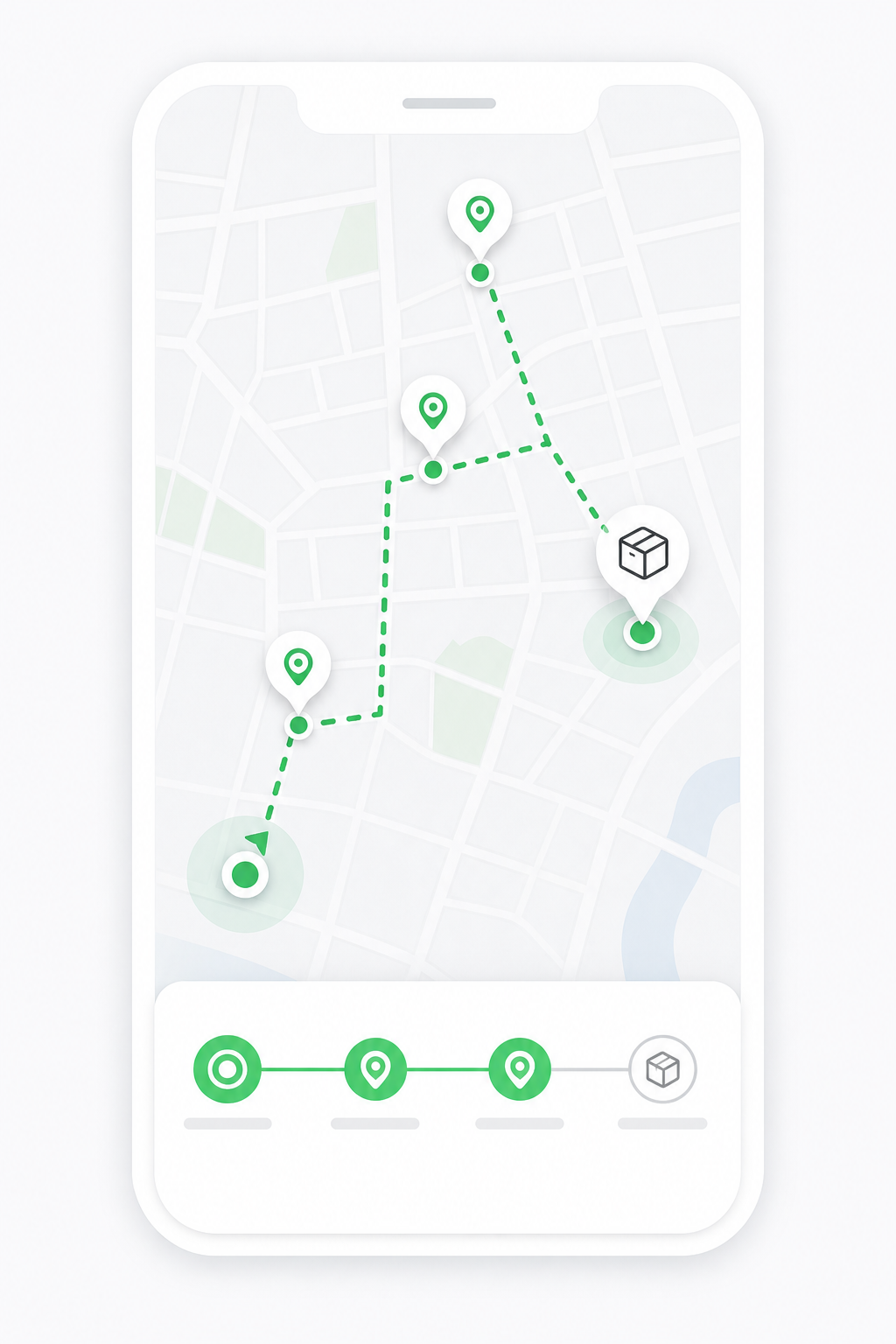
A route session is a route execution assigned to a driver. It is used when dispatch wants the driver to work a planned route as one route-level flow.
Drivers work route sessions assigned to them. Dispatchers and tenant admins create reusable routes, assign drivers, add deliveries to sessions, and review route progress in the portal. See Delivery Routes Overview, Create and Manage Routes, and Dispatcher Delivery Routes.
What Drivers Can See
Drivers see route sessions assigned to them. If a route session is assigned to another driver, it normally does not appear in the Driver App.
Route session visibility depends on:
- Assigned driver.
- Route session status.
- Tenant and driver profile.
- Whether the route session is still active.
For portal-side route session order membership, session status, removed orders, and cancellation, see Route Sessions and Orders.
Open Assigned Route Sessions
- Tap Operations.
- Tap Route sessions.
- Use the status filters.
- Tap a route session card when you need to review it.
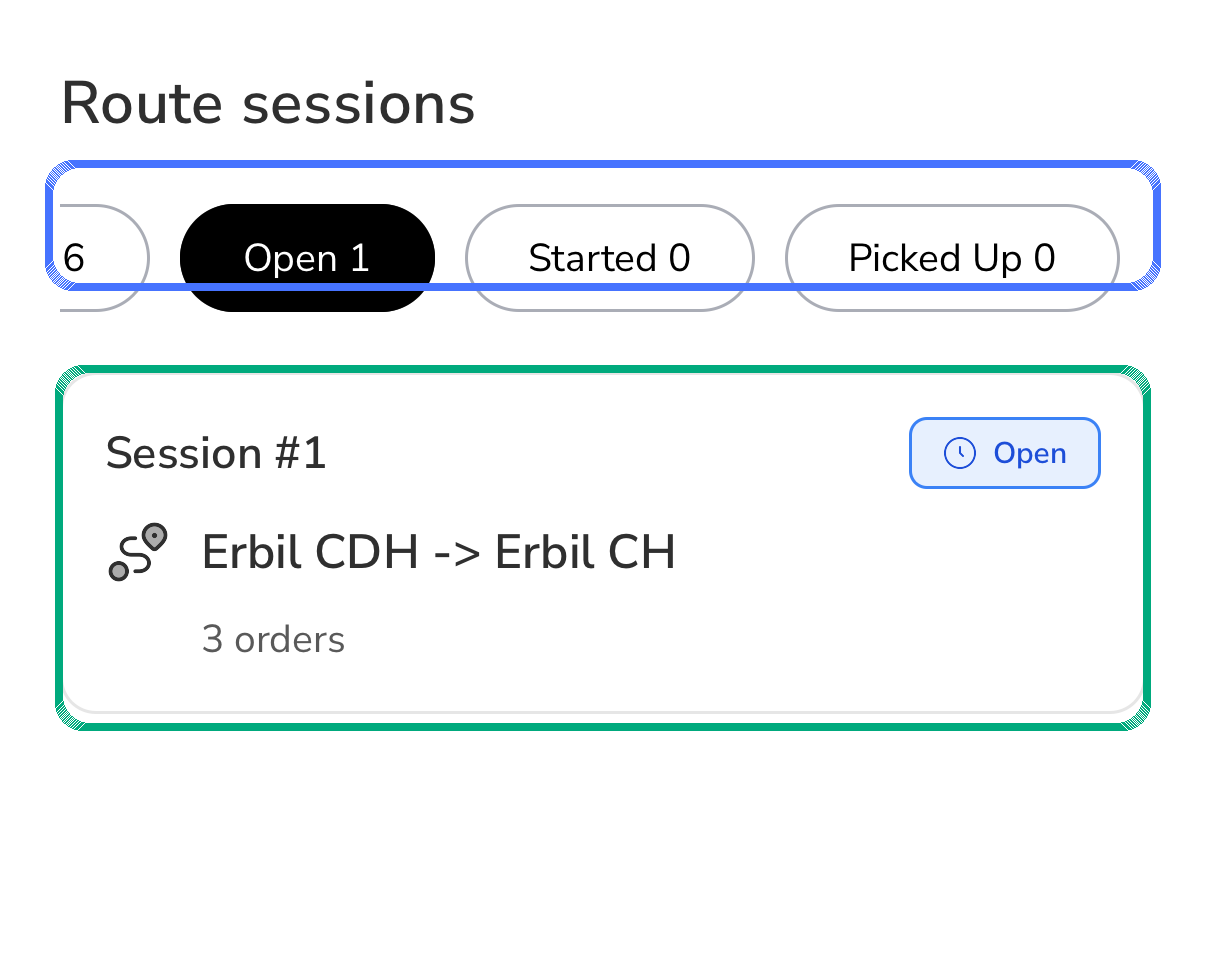
Filters can include:
- All.
- Open.
- Started.
- Picked Up.
- In Transit.
- Completed.
- Cancelled.
Read A Route Session Card
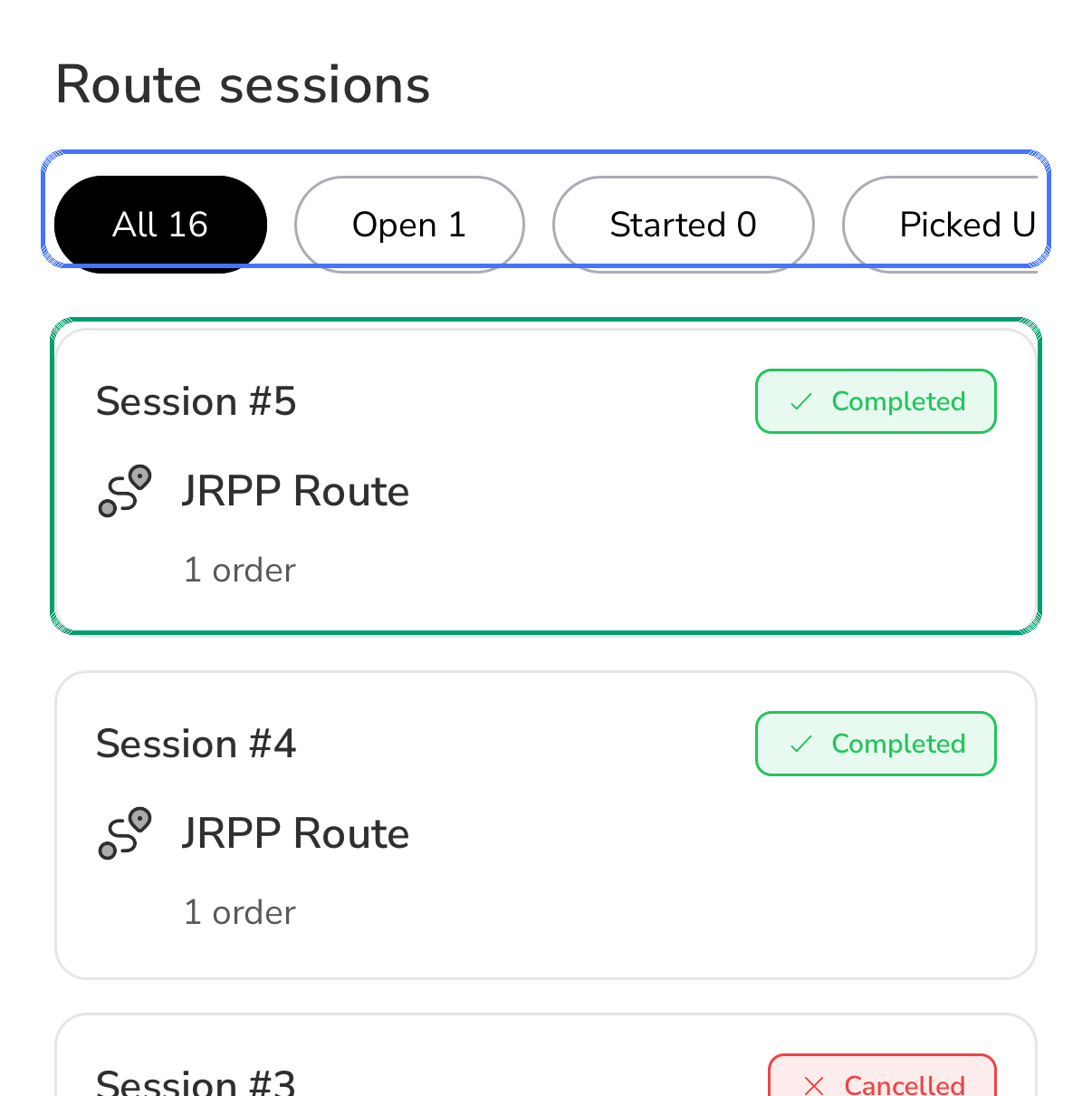
A route session card can show:
- Session number.
- Route name or origin-to-destination name.
- Number of orders.
- Current route session status.
If a route session shows zero orders, contact dispatch before starting it.
Route Session Lifecycle
| Status | Driver action | What it means |
|---|---|---|
| Open | Start Route | The route is assigned and ready to begin. |
| Started | Mark Picked Up | The driver has started route work and is confirming package pickup. |
| Picked Up | Mark In Transit | Packages are with the driver and the route is moving. |
| In Transit | Mark All Delivered | The route-level work is complete. |
| Completed | No normal action | The route session is finished. |
| Cancelled | No normal action | The route session is no longer active. |
Complete Route Work
Use this sequence:
- Open Route sessions.
- Confirm the route session is assigned to you.
- Confirm the route name and order count.
- Start the route when you are ready.
- Mark picked up after route packages are collected.
- Mark in transit when leaving with the route packages.
- Complete each delivery according to its order requirements.
- Capture POD and COD on individual orders when required.
- Mark all delivered only when route delivery work is complete.
Do not mark all delivered if a route still has refused, unpaid, missing, or undelivered packages. Contact dispatch first.
Route Sessions And Individual Orders
Route sessions control the route-level progress. Individual orders can still require:
- Pickup proof.
- Proof of delivery.
- COD collection.
- Customer call or chat.
- Return or cancellation handling.
- Dispatcher exception handling.
Open the related order when package-level details are needed.
Dispatchers can review route setup and route sessions in Dispatcher Delivery Routes. Driver progress can also be monitored from Driver Monitor.
When A Route Action Is Blocked
A route action can be blocked when:
- You are not the assigned driver.
- You are not live, active, or available.
- The route session is already completed or cancelled.
- The route has no valid orders.
- The route status is not ready for that action.
- Dispatch changed the route while you were viewing it.
Supervisor Reference
| Question | Reference |
|---|---|
| What is a route session? | Delivery Routes Overview |
| How are reusable routes created and assigned? | Create and Manage Routes |
| How are deliveries added to or removed from a route session? | Route Sessions and Orders |
| How does dispatch manage routes from the dispatcher console? | Dispatcher Delivery Routes |