Create and Manage Routes

Create a Route
Open Dispatcher -> Delivery Routes and select Create Route.
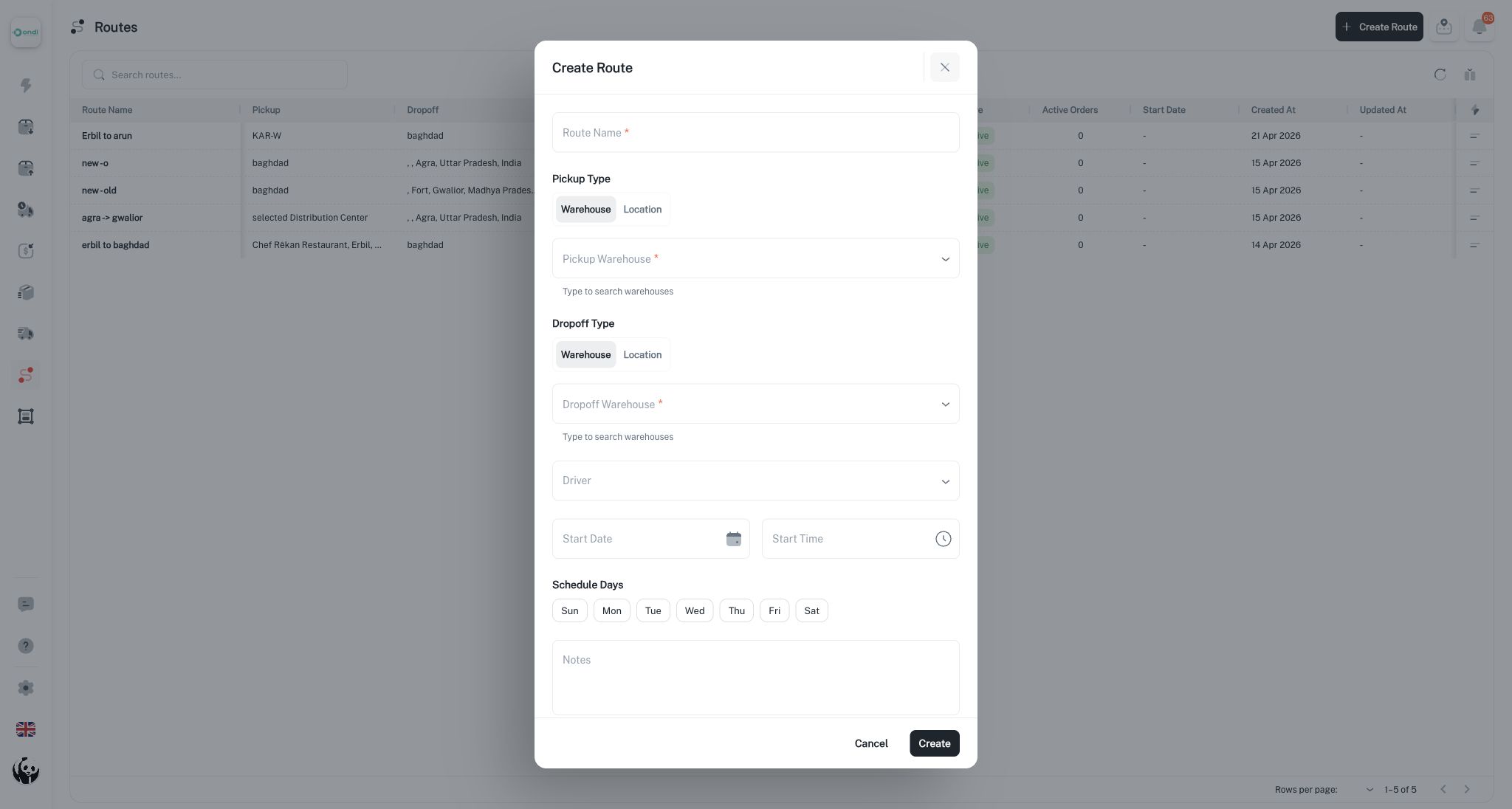
The create form defines the reusable lane:
- Enter a route name that is unique for the tenant.
- Select an origin type: warehouse or location.
- Select the origin warehouse or enter/select the origin location.
- Select a destination type: warehouse or location.
- Select the destination warehouse or enter/select the destination location.
- Select a driver when the route is ready for assignment.
- Set start date, schedule time, and schedule days when the route should follow a recurring operating pattern.
- Add notes for dispatcher context.
Origin and destination must each be exactly one warehouse or one location. A route cannot have multiple origins or destinations.
Assign or Switch the Driver
A route must have a driver before deliveries can be assigned to it. The driver is copied into the route session so the correct person receives the active work.
Use driver actions when:
- A route was created without a driver and now needs one.
- The assigned driver is unavailable.
- The route should move to another driver for the next session.
Changing the route driver also updates open or started route sessions and their assignments so current dispatcher data stays aligned.
Edit Route Details
Use edit when route configuration changes before or between operational sessions. Common edits include the name, schedule, notes, origin, destination, or driver.
Be careful when changing origin or destination on a route that already has operational history. Existing sessions preserve their execution records, but future assignments should match the new lane definition.
Delete or Deactivate a Route
Routes with active open or started sessions should not be removed because they still hold executable work. Complete, cancel, or clear the active sessions first, then remove or deactivate the route if it is no longer used.
List Tools
The route list supports operational filtering and sorting. Dispatchers can search and filter by route name, origin, destination, driver, schedule, status, active state, active orders, start date, created date, and updated date.
Use these controls to find:
- Assigned routes without active work.
- Routes with active orders.
- Routes for a specific driver.
- Routes beginning on a specific schedule.
- Old lanes that should be reviewed or deactivated.
Keep route names operational, not generic. A good name should help dispatchers recognize the lane without opening the detail panel.