Order Lifecycle, POD, and COD
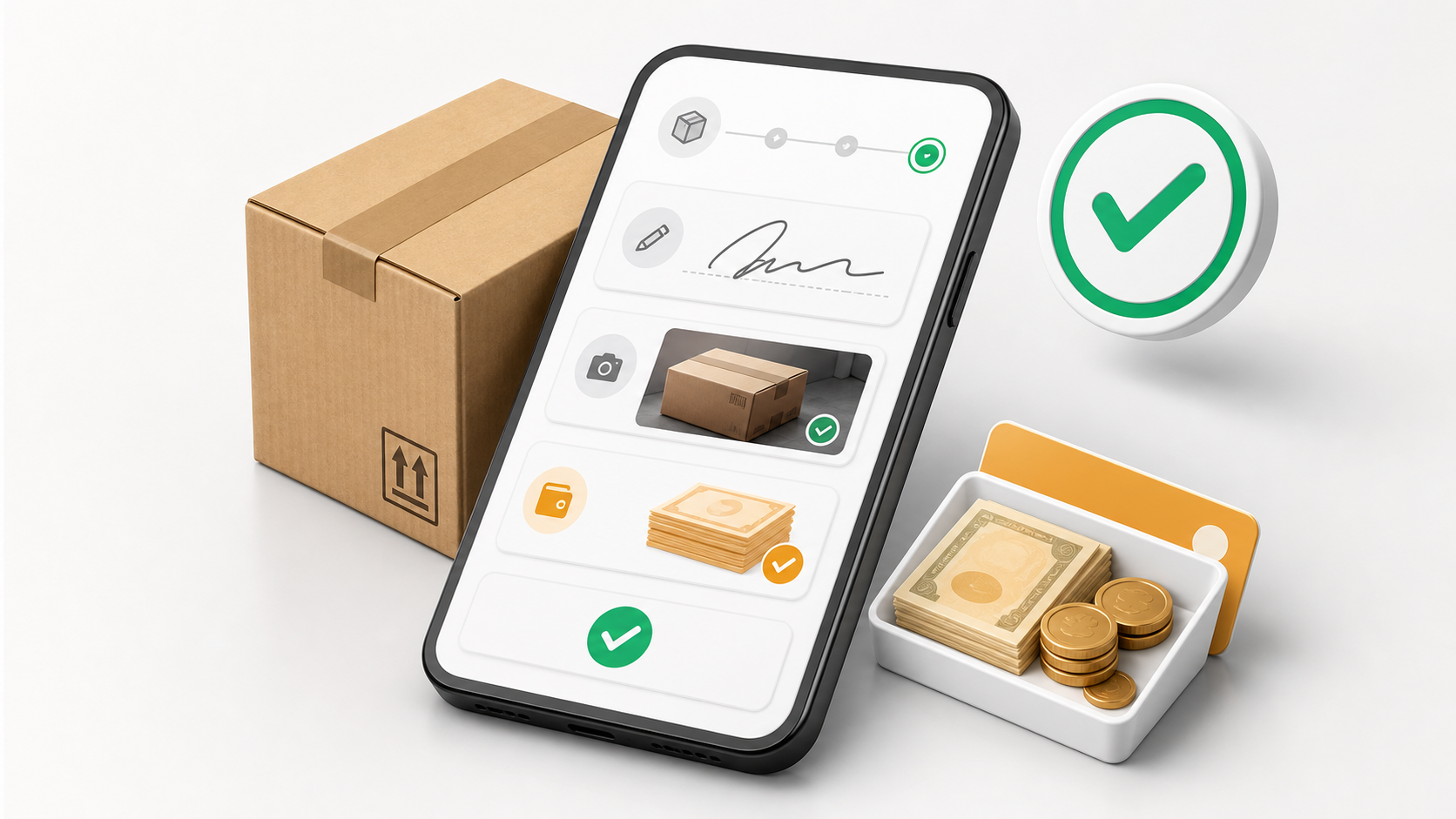
An order moves through a clear sequence. The app shows the next button based on the current status and the tenant rules.
The exact buttons and proof fields depend on assignment rules, delivery status, and service policy. For admin and dispatcher context, see Assignments, Assignment and Status Actions, and Fulfillment Policies.
Full Order Sequence
The standard sequence is:
- Order is assigned or made available.
- Driver accepts, self-assigns, or starts the order.
- Driver travels to pickup.
- Driver confirms pickup.
- Driver moves the order in transit.
- Driver travels to dropoff.
- Driver collects COD or fee if shown.
- Driver captures required proof.
- Driver completes the delivery.
- COD appears in Wallet or COD collections when cash was collected.
Assignment And Start Actions
| Button | When it appears | What the driver should do |
|---|---|---|
| Accept | Dispatch assigned an order and driver acceptance is required. | Accept if you can take the order. |
| Reject | Dispatch assigned an order and driver acceptance is required. | Reject only when you cannot take it. |
| Self-Assign | The tenant allows drivers to claim eligible unassigned work. | Claim the order only if you can complete it. |
| Start Delivery | The order is assigned or accepted. | Start when you are ready to move toward pickup. |
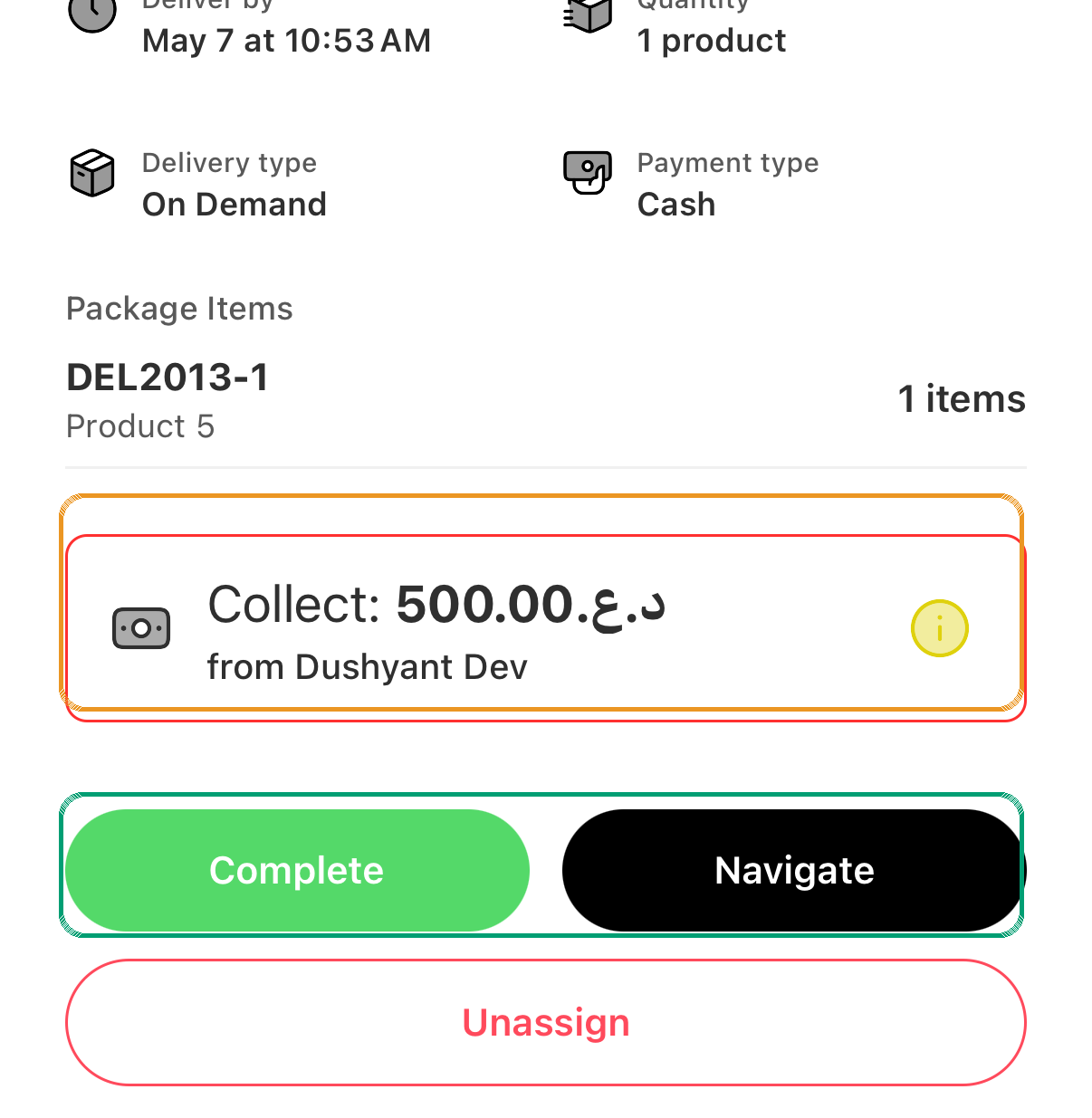
| Unassign | Tenant settings allow driver self-unassign. | Use only for valid reasons, and explain the reason when asked. |
Tenant admins control whether drivers can self-assign, accept/reject, or unassign themselves. If a button is missing, it may be disabled by tenant policy.
Pickup Step
When the app shows Pick Up, you are expected to collect the package from the pickup location.
Before tapping Pick Up:
- Confirm the package label or order number.
- Check item count if the package list is visible.
- Confirm the pickup address or sender.
- Capture pickup proof if the app asks for it.
Some services require pickup proof. In that case, tapping Pick Up opens a Confirm pickup screen instead of immediately moving to the next status.
Pickup proof can include:
- Pickup signature.
- Pickup package photo.
- Pickup note.
Pickup proof requirements come from the service or fulfillment policy. See Fulfillment Policies when the driver app asks for proof that the team did not expect.
In Transit Step
After pickup, the app may show In Transit. Tap it when the package is with you and you are ready to move toward the dropoff.
Use Navigate when you need the phone navigation app to open the next address.
Complete Dropoff Without POD
Some services do not require customer signature or package photo at delivery. In that case, the completion page focuses on delivery details, optional note, and any cash or fee instruction.
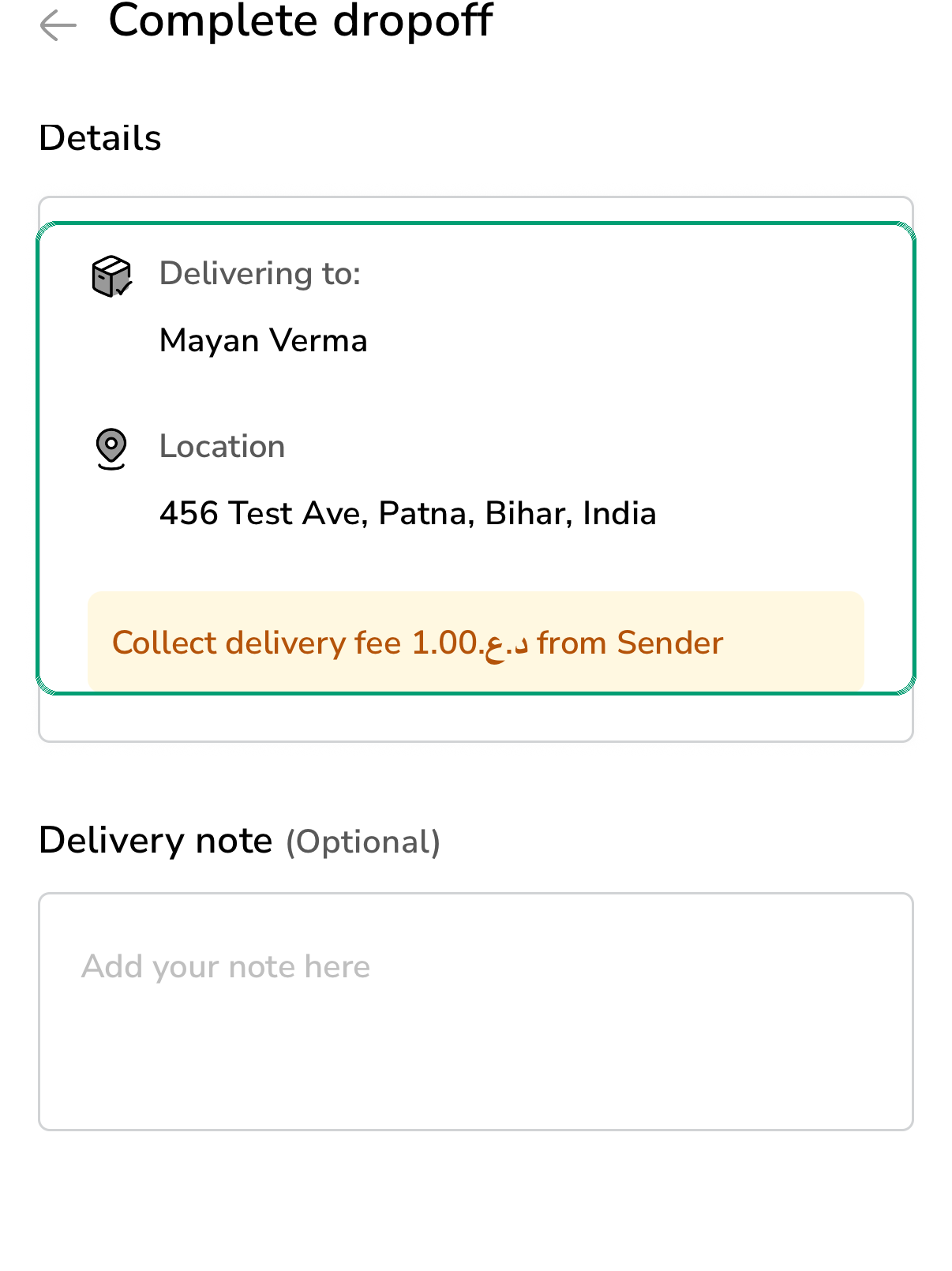
Use this page to:
- Confirm the receiver or customer.
- Confirm the dropoff location.
- Review COD or delivery fee instructions if shown.
- Add a note when needed.
- Complete the delivery when the button is available.
Complete Dropoff With POD And COD
Other services require proof of delivery. The app marks required fields with an asterisk.
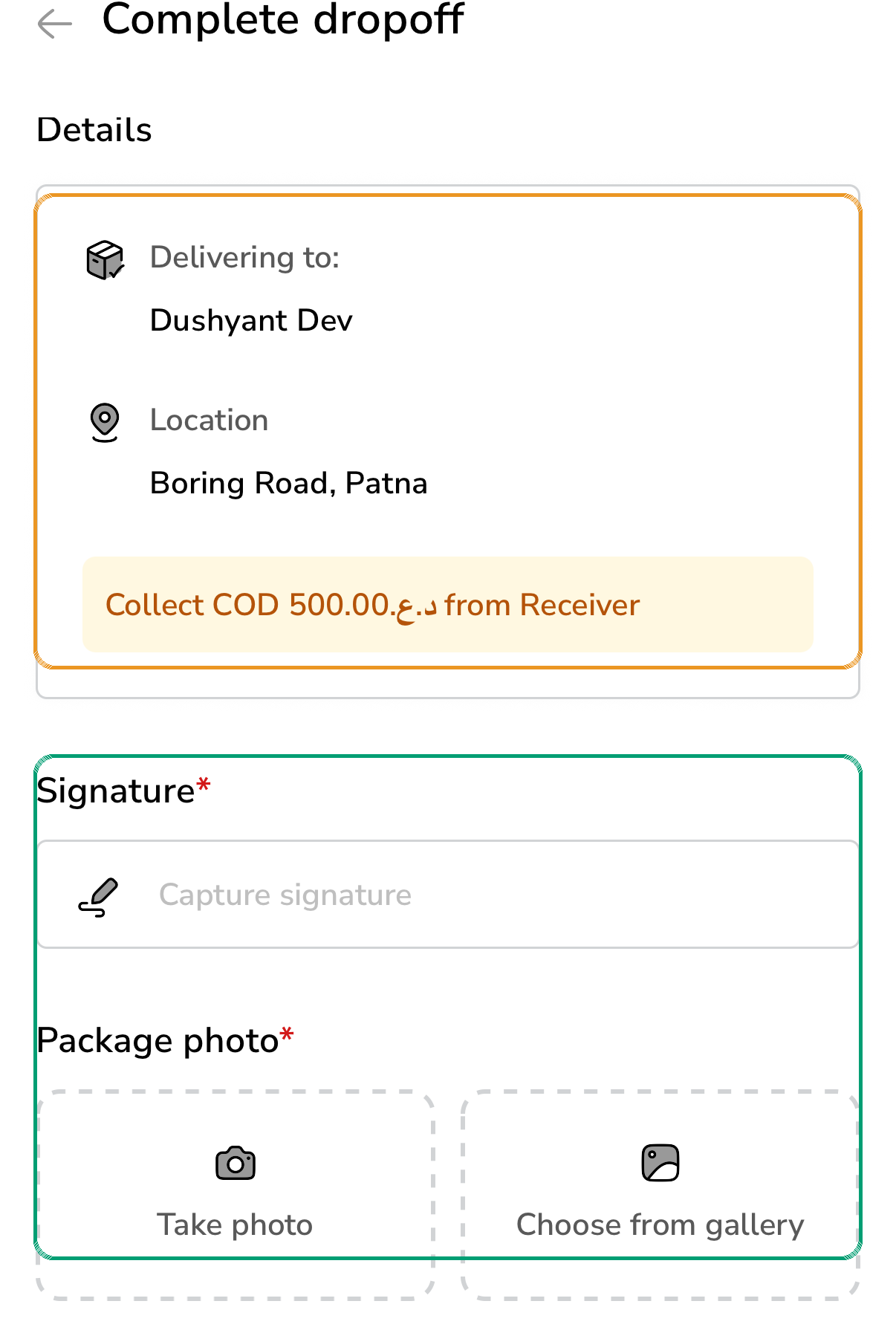
Required proof can include:
- Signature: Ask the receiver to sign on the phone.
- Package photo: Take a photo or choose one from the gallery.
- Delivery note: Usually optional, unless your process requires a note.
The Complete delivery button stays disabled until all required proof is added.
Capture required proof while you are still with the receiver. If you leave first, completion may be blocked later.
COD And Cash Collection
COD means Cash on Delivery. When the app shows a COD or fee amount, collect it before completing the delivery.
The app can show:
- Collect COD from the receiver.
- Collect delivery fee from the sender.
- Collect delivery fee from the receiver.
- A COD card in the order detail sheet.
After the order is completed, collected COD appears in the Wallet and COD collections screens.
Dispatch and finance can review the same cash flow in COD, Remittance, and Driver Settlement, Record Cash Remittance, and Driver App Wallet and COD.
If the customer cannot pay, do not mark the order delivered. Contact dispatch and follow the tenant exception or return process.
Replacement Return Collection
Some replacement orders ask the driver to deliver a new item and collect an old item from the customer at the same stop.
When this applies, the completion screen includes Return collection at customer stop.
Use:
- Collected when the customer gave the return item.
- Another issue outcome when the customer did not give the return item.
The app may ask for a return item photo or return notes.
Why Completion Can Be Blocked
Completion can be blocked when:
- Required signature is missing.
- Required photo is missing.
- The driver is not live, active, or available.
- The order is assigned to another driver.
- The order is locked inside an active waybill.
- The order status changed while the screen was open.
- COD or service policy needs dispatcher review.
If a no-POD order still shows a proof-related error during completion, contact dispatch or tenant admin. The service proof policy may need review.
Quick Troubleshooting
| Problem | What to check |
|---|---|
| Complete delivery button is disabled | Required proof, required photo, required signature, or required note is missing. |
| Navigate opens the wrong destination | Confirm whether the order is at pickup or dropoff stage. |
| COD amount is not clear | Open the order detail sheet and Wallet/COD after completion. |
| Package was picked up but delivery cannot continue | Contact dispatch before cancelling or returning. |
| Action button disappeared | Refresh the list or reopen the order. Another status change may have happened. |
Portal References For Supervisors
| Topic | Reference |
|---|---|
| Order creation and editing | Create and Edit Orders |
| Order status changes and cancellation | Assignment and Status Actions |
| Proof rules | Fulfillment Policies |
| COD operations | Cash Remittance |