Find and Open Orders
Orders are the main delivery jobs in the Driver App. An order tells the driver where to pick up, where to drop off, who the customer is, what package is included, and what payment or proof is needed.
Orders are created and managed from the dispatcher portal. See Create and Edit Orders, Order Lists, Filters, and Columns, and Order Details and Actions.
Open The Orders List
- Tap Operations.
- Tap Orders.
- Wait for the list to load.
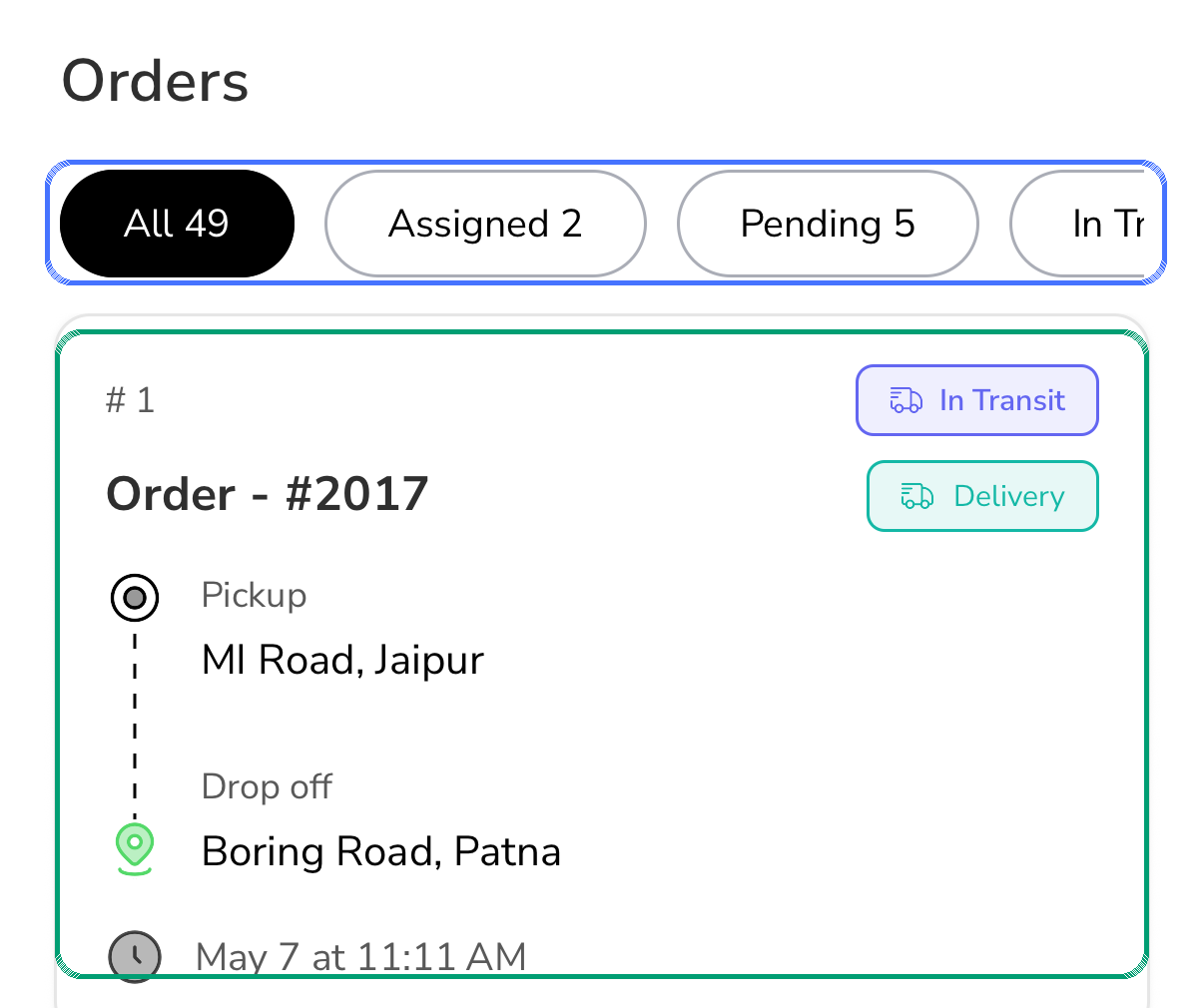
- Use the status filters at the top.
- Tap an order card to open its detail sheet.
Which Orders Appear
The Orders list can show:
- Orders assigned to the driver.
- Orders waiting for this driver to accept or reject.
- Orders the driver has already started.
- Delivered or cancelled orders still visible for review.
- Eligible unassigned orders, only when the tenant allows drivers to claim them.
The list does not show every order in the tenant. If another driver owns an order, it normally stays out of your list.
If a dispatcher expects the driver to see an unassigned order, review tenant assignment settings in Assignments and the dispatcher assignment rules in Assignment and Status Actions.
Order Filters
Use the filter chips at the top of the Orders screen.
| Filter | What it shows |
|---|---|
| All | All orders visible to you. |
| Assigned | Orders assigned to you but not finished. |
| Pending | Orders waiting for acceptance, assignment, or the next pending step. |
| In Transit | Orders already moving toward pickup or delivery. |
| Picked Up | Orders where the package was collected but delivery is not completed. |
| Delivered | Completed orders. |
| Cancelled | Cancelled orders. Some cancelled orders still need return handling if you have the package. |
If dispatch says an order is assigned but you cannot find it, try All, then Assigned, then Pending. If it is still missing, ask dispatch to confirm the assigned driver.
Read An Order Card
An order card gives a quick summary before you open it.
| Card item | Meaning |
|---|---|
| Order number | The delivery reference, such as Order - #2017. |
| Status badge | Where the order is in the delivery lifecycle, such as In Transit. |
| Delivery type badge | The service type, such as Delivery or On Demand. |
| Pickup | Where the package starts. |
| Drop off | Where the package should be delivered. |
| Time | Expected delivery time or service time shown by the operation. |
Open The Detail Sheet
Tap an order card to open the detail sheet.
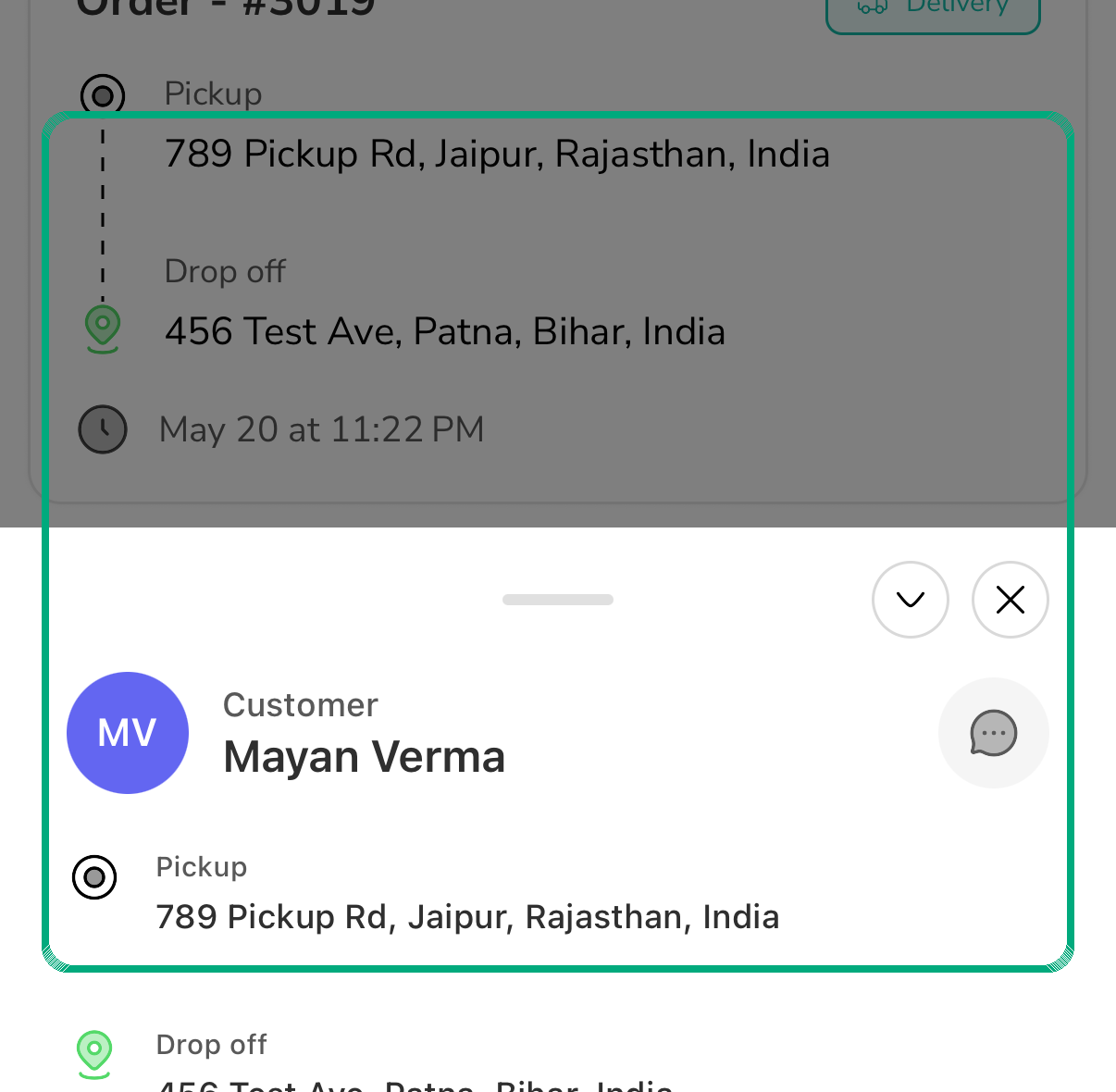
The detail sheet can show:
- Customer name.
- Chat and call buttons, when the current status allows communication.
- Pickup address.
- Dropoff address.
- Deliver-by time.
- Quantity.
- Delivery type.
- Payment type.
- Package items.
- COD or cash collection information.
- The next action buttons.
Payment And COD On The Detail Sheet
When the detail sheet shows a collection amount, collect it at the correct step.
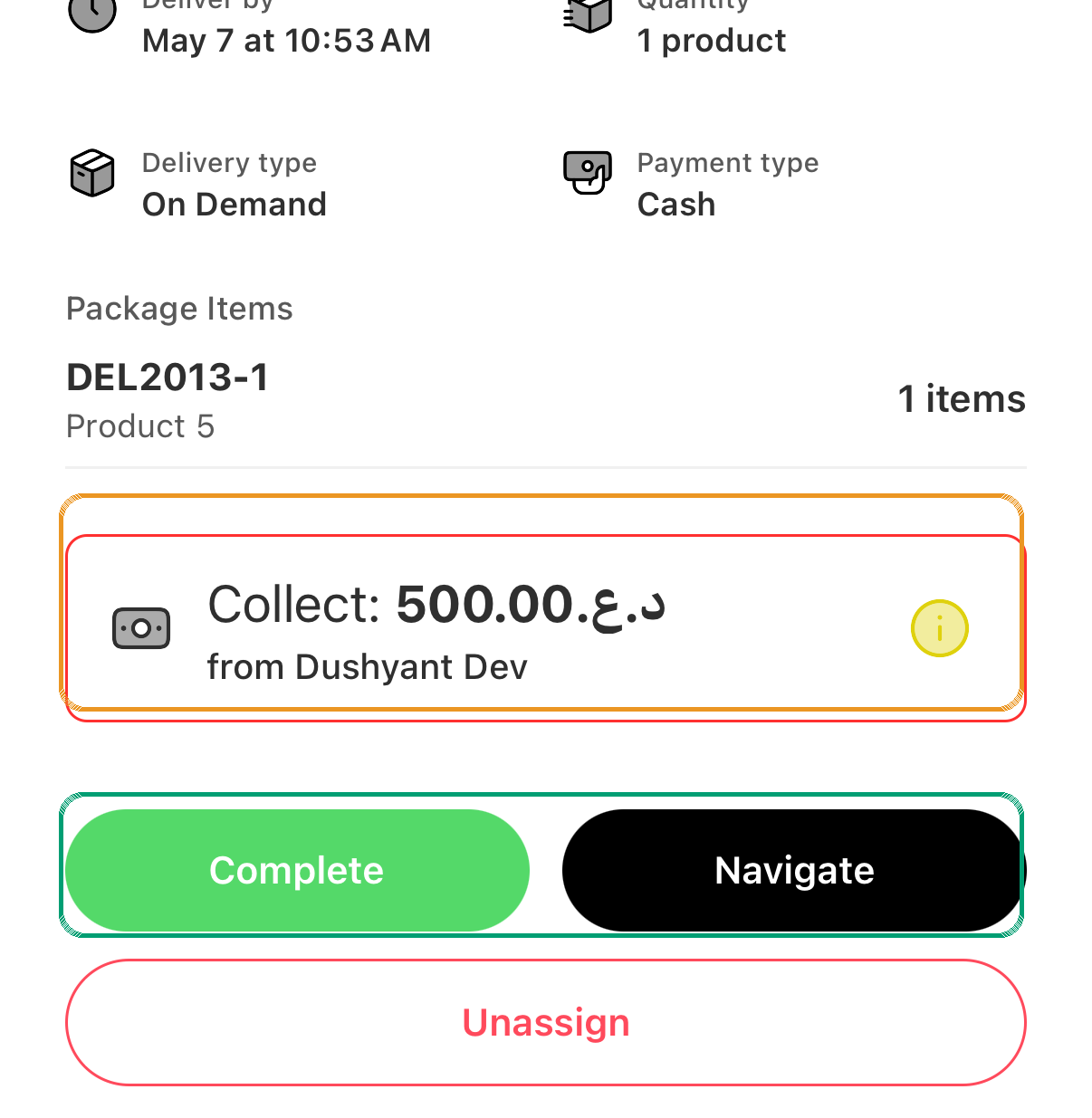
The app may ask you to collect:
- COD from the receiver.
- Delivery fee from the sender.
- Delivery fee from the receiver.
Do not complete a cash or COD order until the required amount is collected, unless dispatch tells you how to handle the exception.
Chat And Call Buttons
The detail sheet can show chat and call buttons near the customer name. These buttons usually appear only while the order is actionable.
Use them when:
- You need to confirm a pickup or dropoff detail.
- The customer is not present.
- The address needs clarification.
- Dispatch or tenant process allows direct customer contact.
If chat or call buttons are hidden, the order status may no longer allow customer communication.
When To Open The Dispatcher Docs
Use the driver page for mobile steps. Use the dispatcher pages when the question is about how the work was created or controlled:
| Driver question | Reference |
|---|---|
| Why did this order appear for me? | Assignment and Status Actions and Assignments. |
| Who created or edited this order? | Create and Edit Orders. |
| Why does the order show this status? | Order Details and Actions. |
| Why can I not find an order? | Order Lists, Filters, and Columns. |