Trips
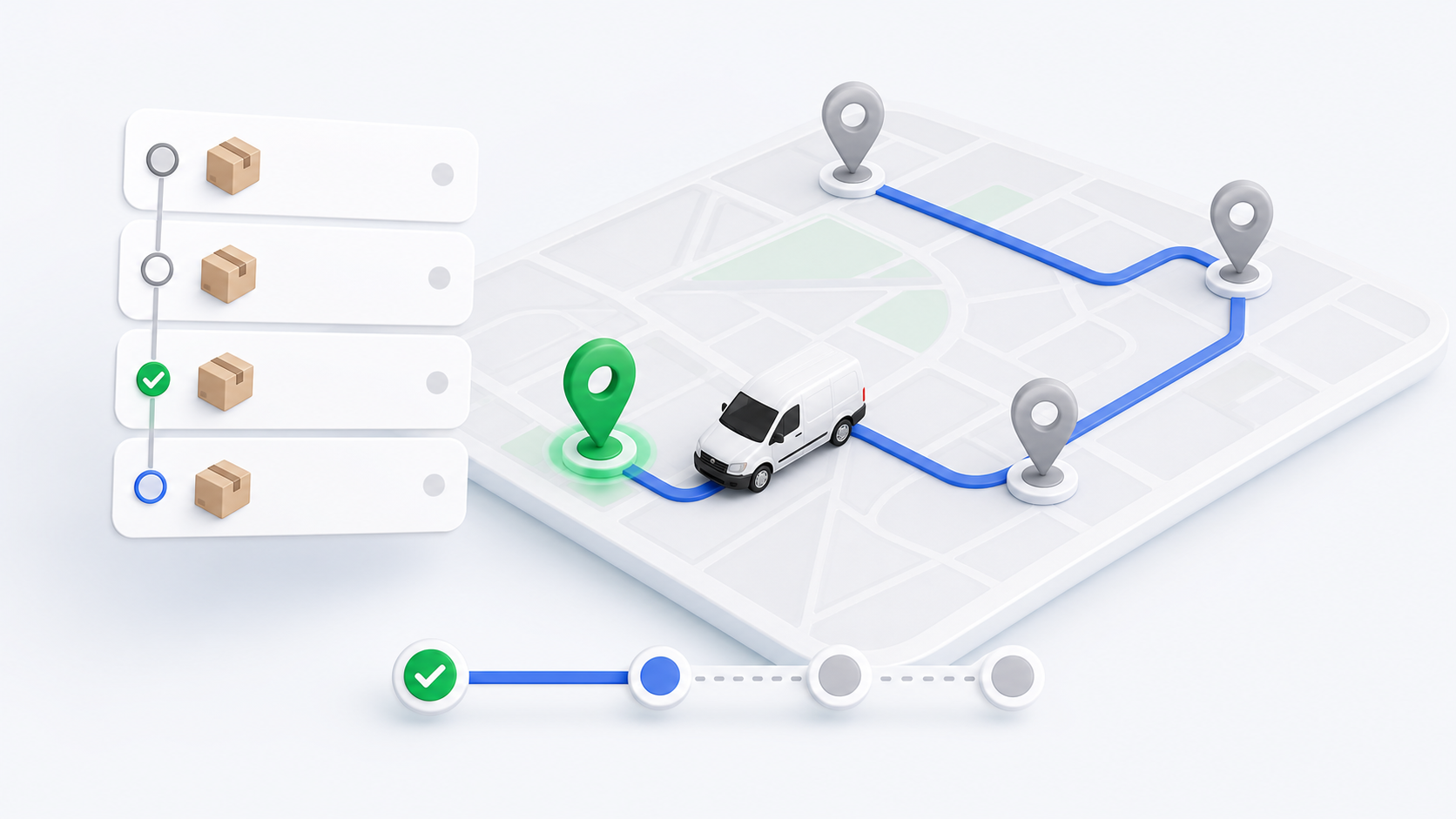
A trip is a planned group of delivery stops. Dispatchers use trips to organize work into a sequence. Drivers use the trip screen to understand the planned route and which deliveries belong to it.
Drivers review assigned trips and work the deliveries inside them. Dispatchers create trip plans, add deliveries, reorder stops, and review execution in the portal. See Trips Overview, Create and Edit Trips, and Dispatcher Trips.
What Drivers Can See
Drivers see trips assigned to them. A trip assigned to another driver normally does not appear in the mobile app.
Trip visibility can depend on:
- Assigned driver.
- Trip status.
- Included deliveries.
- Tenant, zone, team, or vehicle rules.
Open Assigned Trips
- Tap Operations.
- Tap Trips.
- Use the status filters.
- Tap a trip card.
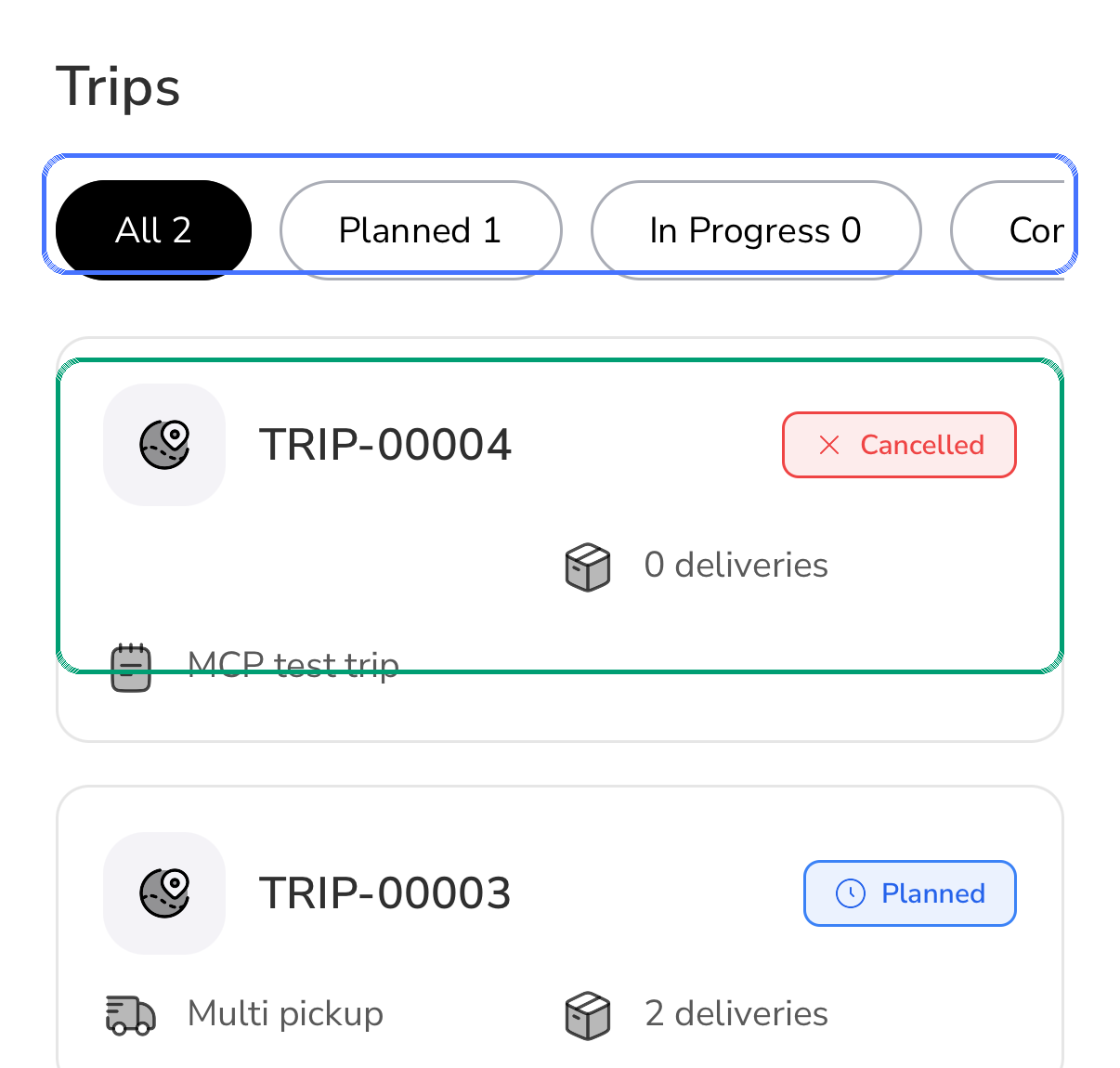
Trip filters can include:
- All.
- Planned.
- In Progress.
- Completed.
- Cancelled.
Read A Trip Card
A trip card can show:
- Trip number.
- Trip type, such as multi pickup.
- Current status.
- Delivery count.
- Trip note or title.
If a trip has zero deliveries, it is usually for review only until dispatch adds or updates deliveries.
Read The Trip Detail Page
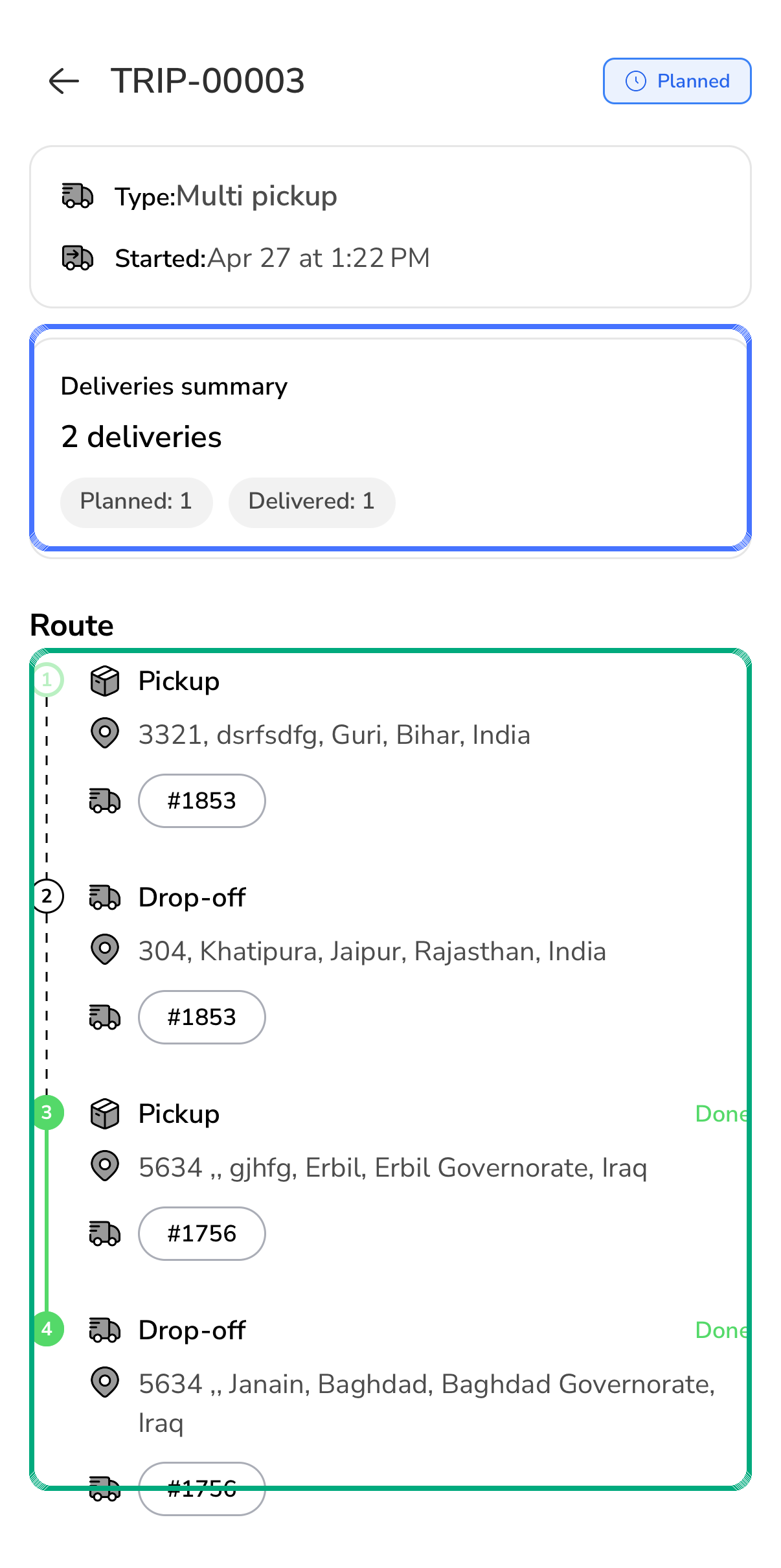
Trip detail can show:
- Trip number.
- Trip status.
- Trip type.
- Start time.
- Delivery summary.
- Planned and delivered counts.
- Route sequence.
- Pickup and dropoff stops.
- Delivery numbers attached to each stop.
How Drivers Work A Trip
In the mobile app, the trip mainly organizes delivery work. The driver usually acts on the deliveries inside the trip.
Use this sequence:
- Open the assigned trip.
- Review the route sequence.
- Check which stops are pickups and which are dropoffs.
- Open or identify the delivery number shown on the stop.
- Complete each delivery using the normal order lifecycle.
- Capture proof and COD when the delivery requires it.
- Recheck the trip detail to confirm the sequence and completed stops.
Trip status and delivery status are related but not the same. A trip can organize several deliveries, while each delivery still has its own pickup, dropoff, POD, COD, cancellation, or return rules.
For portal-side trip execution, stop projections, delivery outcomes, and returns, see Trip Execution and Returns.
If A Trip Looks Wrong
Contact dispatch when:
- The trip is assigned to you but packages are not ready.
- A stop is missing.
- A delivery number is not in your Orders list.
- The trip shows cancelled work you were not told about.
- The sequence does not match dispatch instructions.
- A delivery inside the trip needs return or exception handling.
Supervisor Reference
| Question | Reference |
|---|---|
| What is a trip and when should dispatch use one? | Trips Overview |
| How are trips created, edited, and reordered? | Create and Edit Trips |
| How are trip outcomes and returns reviewed? | Trip Execution and Returns |
| How does dispatch manage trips from the dispatcher console? | Dispatcher Trips |