View All Zones
The Zones list is the main place to review every configured delivery area.

KPI cards
The top cards summarize:
- Total Zones
- Active Zones
- External Zones
- Recently Added
Use these cards to understand service coverage and how much of it is connected to external carriers.
Search, columns, and table fields
Use the search box to find zones by name or code. The table shows important fields such as name, code, tags, status, carrier, internal setting, created date, external integration, inbound, outbound, population density, and updated date.
Some columns may be hidden until you open the column controls. Use the column menu when you need to review external integration, inbound, outbound, population density, or update dates.
Status changes
Click the status chip to activate or deactivate a zone. Ondi asks for confirmation before changing status.
When a zone is deactivated, it stops being used for new deliveries. Use this instead of deleting a zone when the area may be needed again later.
Row actions
Open the row action menu to use Pricing, Edit, or Delete.

Pricing opens the pricing rules connected to that zone.
Edit opens the zone form so you can change settings or the boundary.
Delete removes the zone after confirmation. Only delete a zone when it should no longer be referenced.
Map viewer
Click View Zones to open the full map view.

The map viewer shows all loaded zones on the map. Click a zone boundary to see details such as name, code, status, population density, internal setting, tags, description, and created date. The popover also includes an edit action.
Zone pricing modal
Choose Pricing from a zone row to see pricing rules connected to that zone.
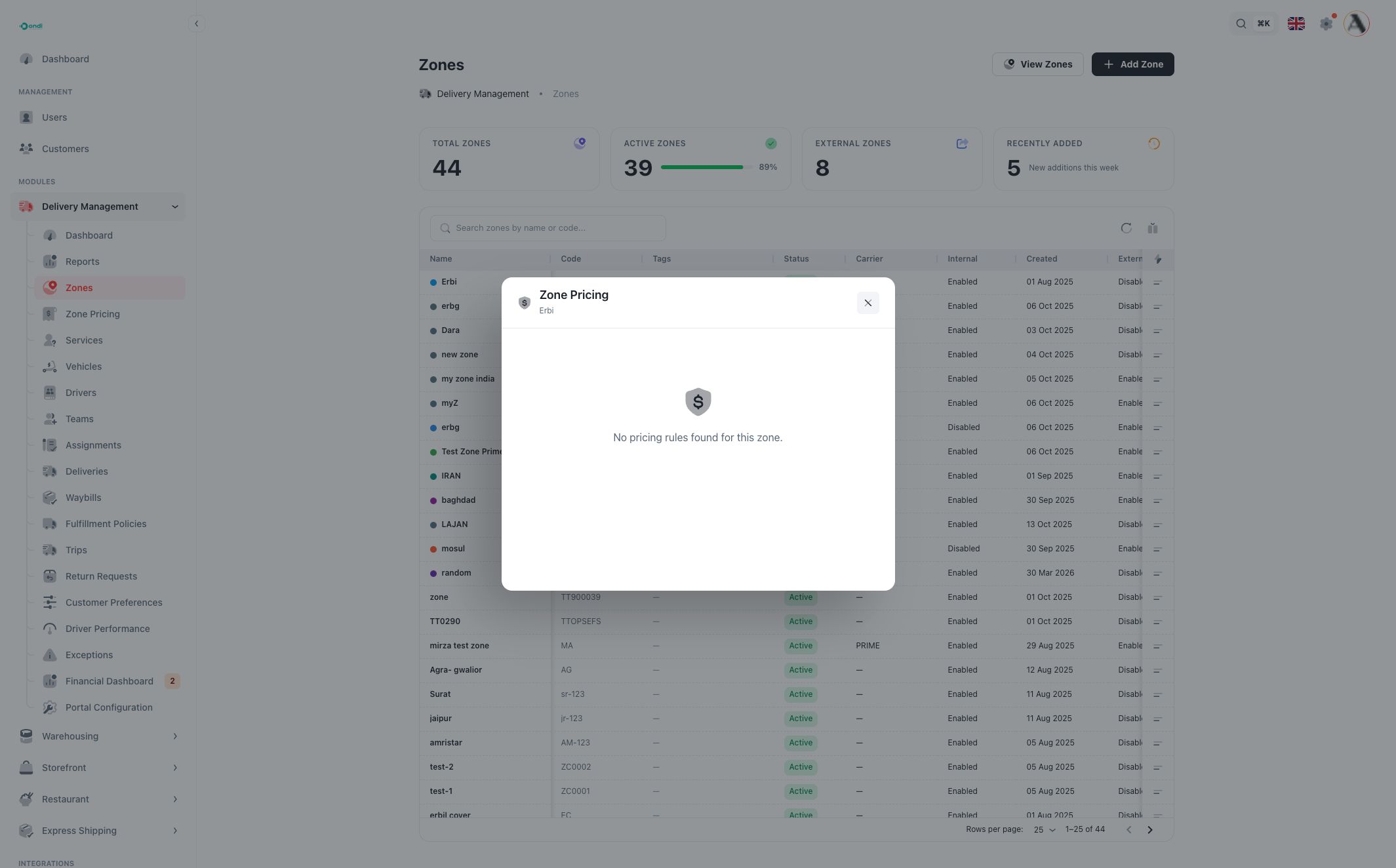
The modal can show pricing cards with service, origin, destination, base price, per-unit price, carrier price, transit time, effective period, and unit tiers. If no pricing rules are connected to the selected zone, Ondi shows an empty state.