Add products on the fly
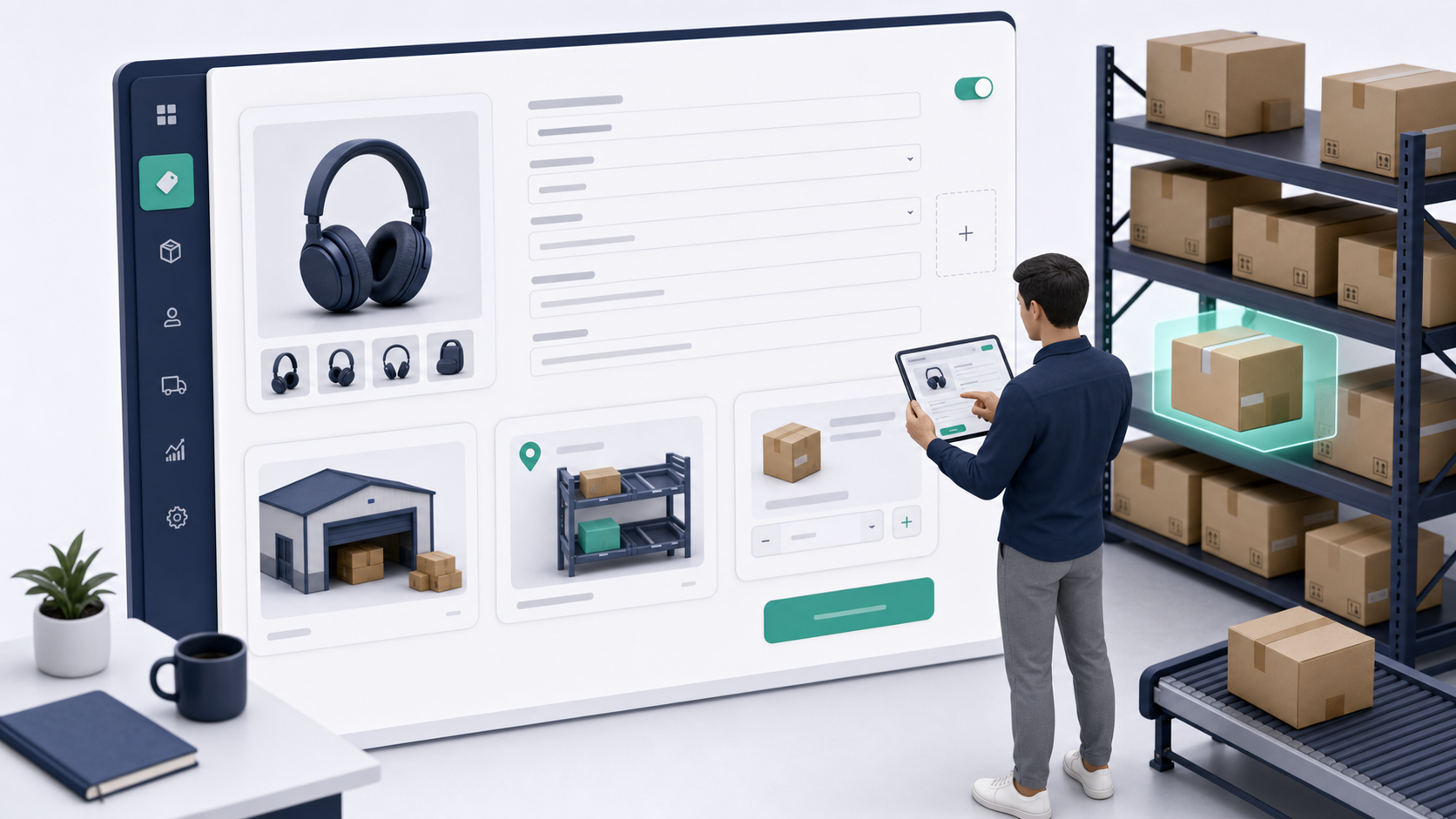
Use this path when you are building the Store Front catalog first and want Ondi to create the related warehouse inventory record while you add the product.
This is useful for fast setup when a tenant is starting a new store or adding a new product line that is not already created in Warehousing. It lets the admin create the customer-facing product and the initial inventory connection in one workflow.
How it works
When the product does not already exist in Warehousing, the product form can collect the warehouse, location, and initial quantity. Ondi then creates the storefront product and keeps it connected to the warehouse record.
The important part is that this still creates an operational inventory relationship. The product is not just a website listing. It must have a warehouse, location, and starting quantity that match the real physical stock.
Steps
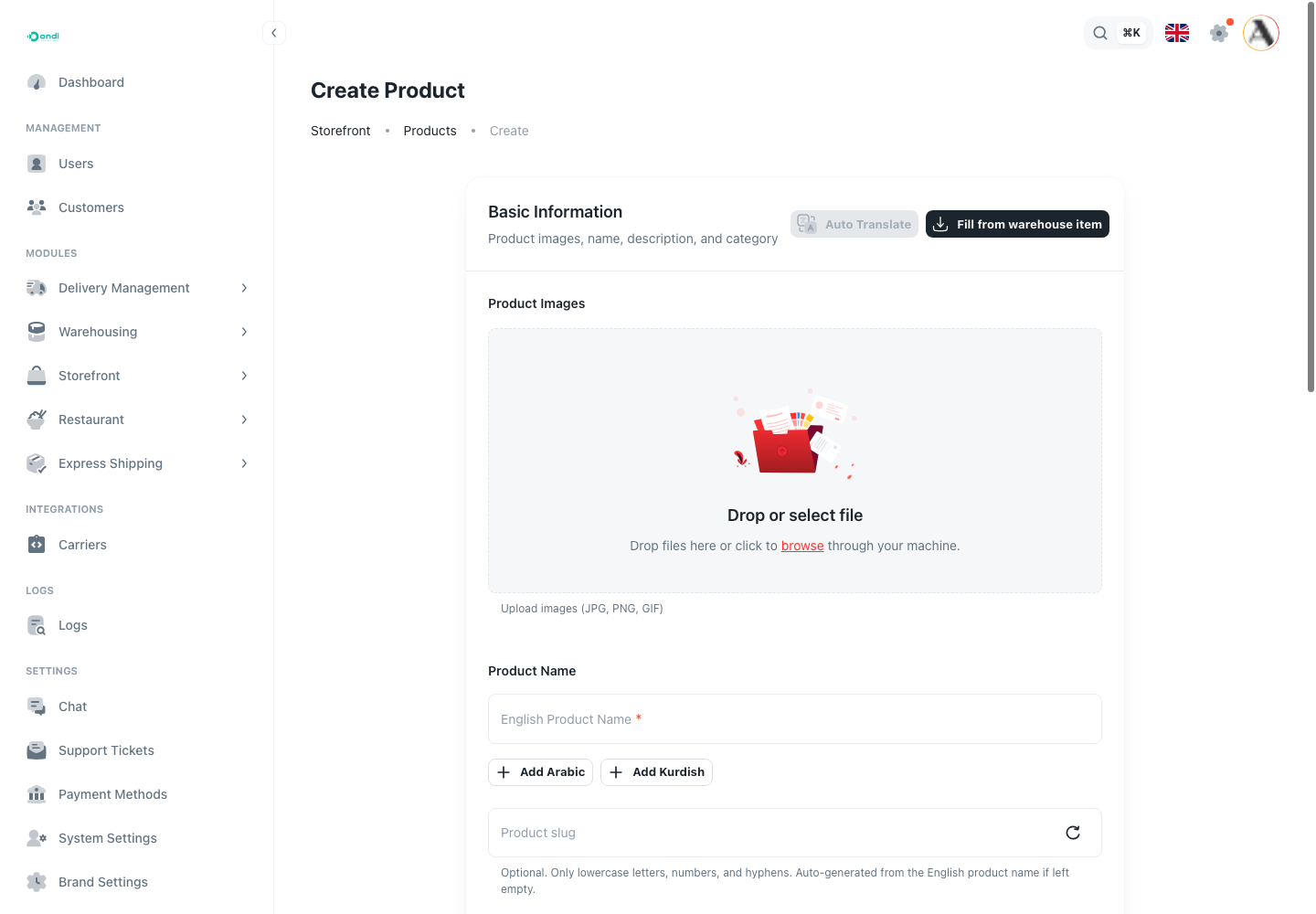
- Go to Storefront -> Products.
- Click Add Product.
- Keep the product as a new item instead of selecting an existing warehouse item.
- Add product images, name, description, category, brand, slug, and tags.
- Select the warehouse and location where the item will be stocked.
- Enter the initial inventory quantity.
- Add the customer-facing price.
- Save the product.
Use carefully
This is useful for fast setup, but the warehouse information still matters. Do not publish a product until the physical stock and location are correct.
After saving, review the inventory in Warehousing. The product should have a clear warehouse, location, and stock quantity before customers can order it.
When not to use this path
Do not use this path when the warehouse item already exists. In that case, link the Store Front product to the existing item instead. Creating another record can split stock history, confuse picking teams, and make reporting harder.
Where customers see the result
Customers see the product on the storefront once it is active and published. They do not know that the inventory record was created during product setup. The admin team sees the operational impact later when the order needs stock, fulfillment, and delivery.
Before publishing
Open the product detail page in the storefront preview and check the image, title, description, price, and stock behavior. Then open the related inventory stock page and verify the warehouse quantity and location.