Theme Editor
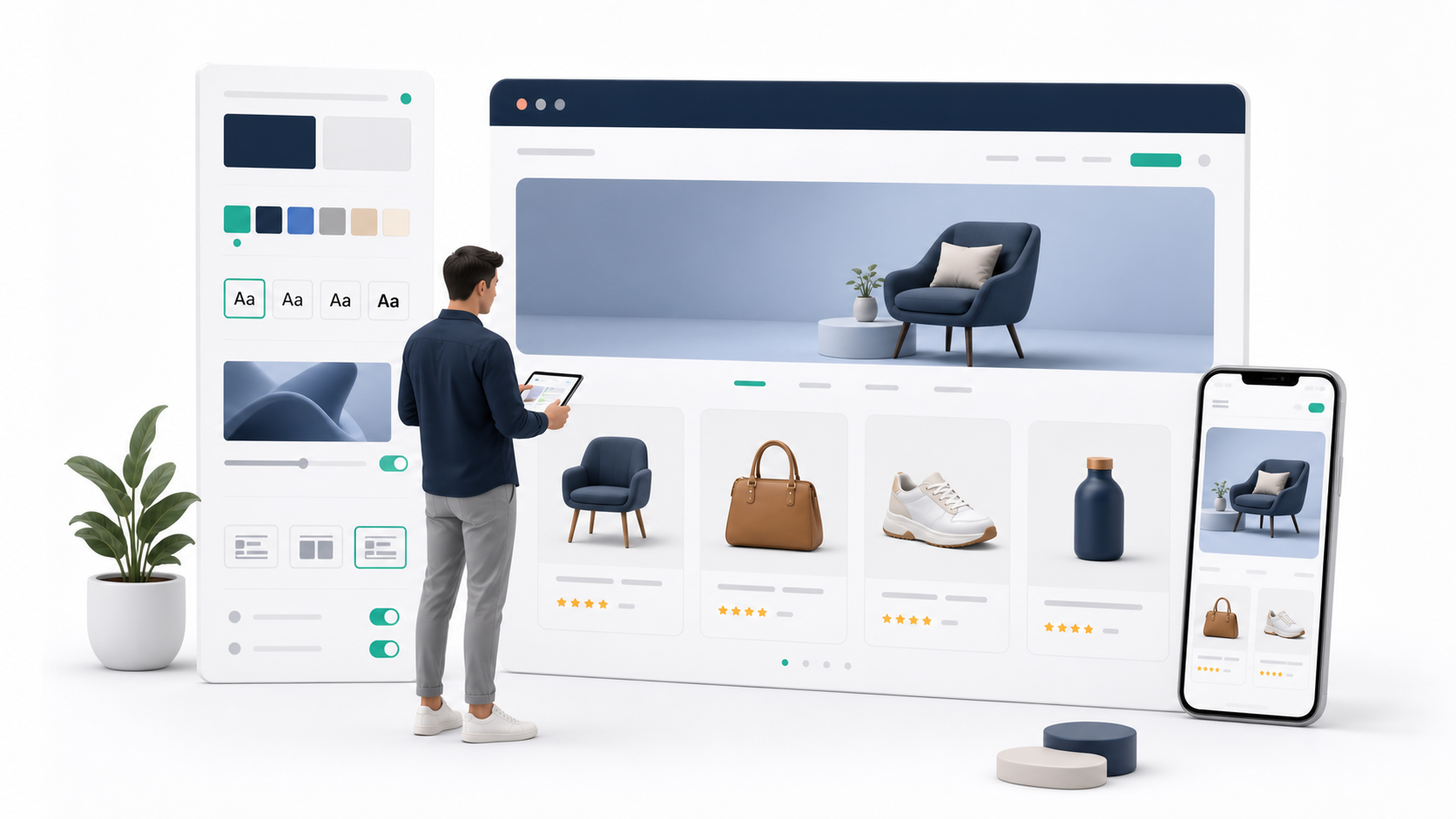
The Theme Editor controls how the customer-facing shop looks and feels. It lets the tenant adjust storefront presentation without changing product data, order data, warehouse stock, or delivery settings.
Use the Theme Editor after the market exists and before publishing. A good theme makes the shop feel trustworthy, makes products easy to scan, and keeps checkout actions easy to find.
In the admin portal
Go to Storefront -> Market -> Theme Editor.
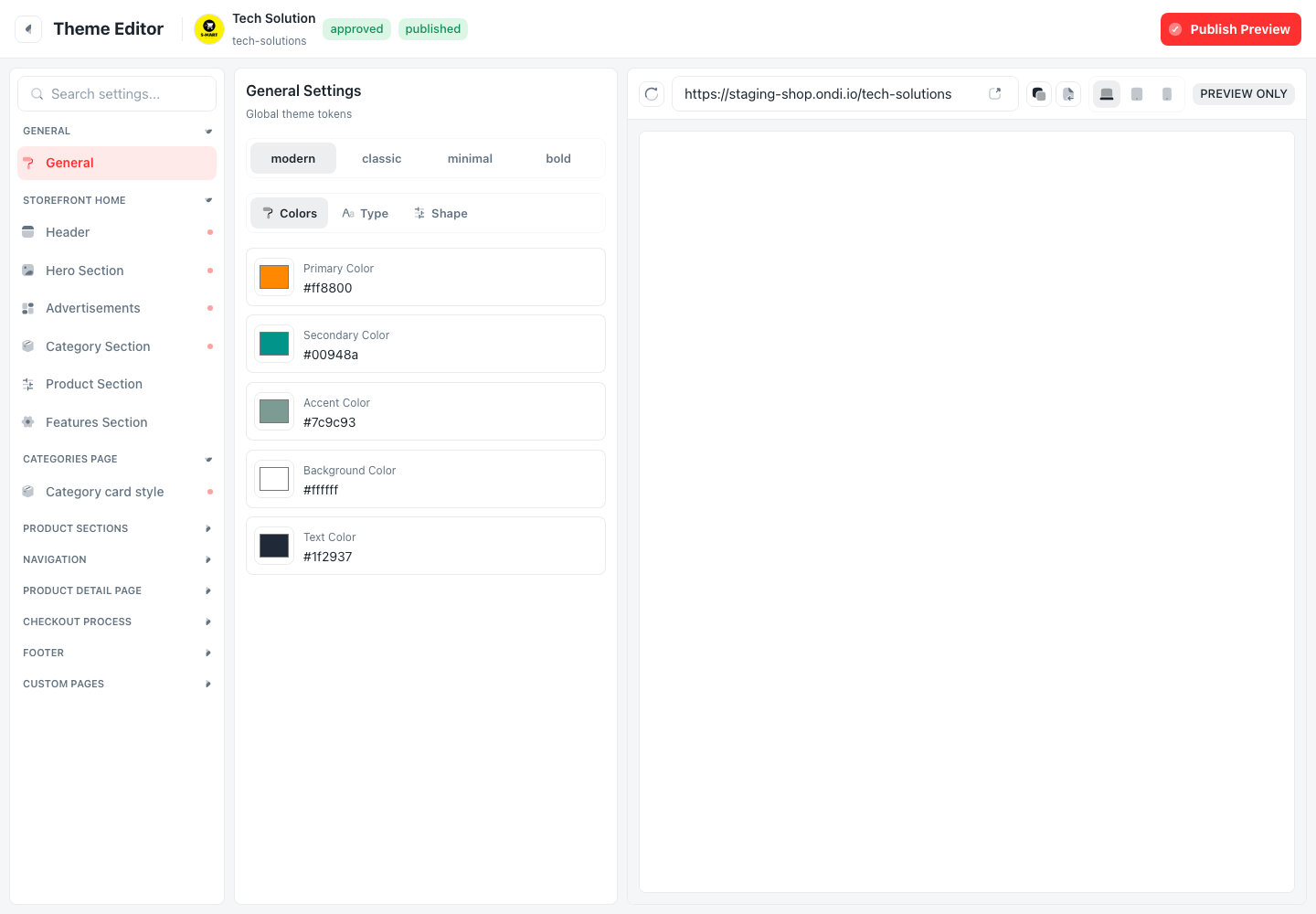
The editor includes global settings and sections for storefront home, categories page, product sections, navigation, product detail page, checkout process, footer, and custom pages.
What you can edit
The Theme Editor is organized around storefront sections:
- General controls theme style, colors, typography, border radius, shadows, background, surface, and text colors.
- Home header and hero control the first area customers see on the storefront home page.
- Advertisements control how promotional slots appear in the storefront layout.
- Categories and product sections control how catalog discovery appears.
- Navigation controls how customers move around the shop.
- Product detail controls how product pages present images, details, variants, reviews, and actions.
- Checkout controls the visual flow customers use before placing an order.
- Footer and custom pages support supporting information and brand content.
Theme changes affect the customer-facing storefront only. They do not change inventory, order approval, product prices, delivery configuration, or payment settings.
Preview before publishing
Use preview mode to review the storefront on desktop, tablet, and mobile before publishing the changes.
What to check on mobile
- Navigation is easy to open and close.
- Product cards are readable.
- Add-to-cart and checkout buttons are easy to tap.
- Hero images do not hide important products.
- Ad placements do not push shopping content too far down.
Step-by-step workflow
- Go to Storefront -> Market.
- Open Theme Editor.
- Start with global colors and typography.
- Review the header and hero section.
- Configure category and product sections based on the catalog.
- Add or review advertisement slots.
- Review product detail and checkout layouts.
- Preview desktop and mobile.
- Save changes.
- Open the public storefront preview and check the real customer experience.
Where customers see it
Customers see theme settings everywhere in the shop: home page, category pages, product cards, product details, checkout, navigation, footer, and mobile layout. Theme work should support shopping, not only decoration. If a theme choice makes product images, prices, or checkout buttons harder to see, change it before publishing.
Best practices
- Keep the primary color strong but not overused.
- Make product images and checkout actions easy to see.
- Keep hero text short.
- Use enough whitespace between sections.
- Preview on mobile before publishing.