Add your Brands

Brands help customers recognize product lines and compare items faster. They are especially useful when a shop sells goods from multiple manufacturers, suppliers, collections, or private labels.
In Store Front, brands are part of catalog organization. They make product filters cleaner, improve product detail pages, and help customers quickly understand what they are buying.
In the admin portal
Go to Storefront -> Brands.
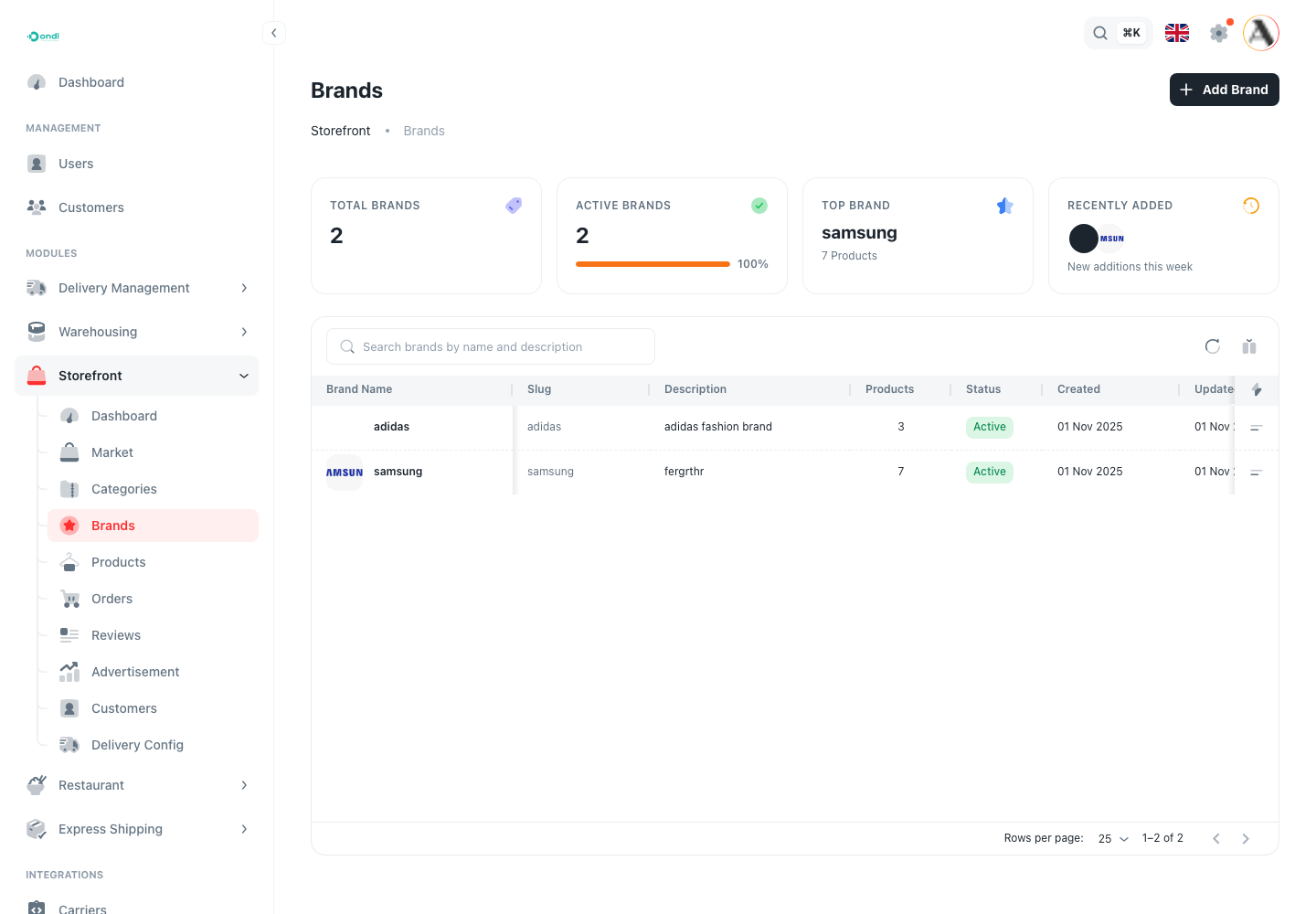
The Brands page shows total brands, active brands, top brand, recently added brands, and the brand table.
Create a brand
Click Add Brand.
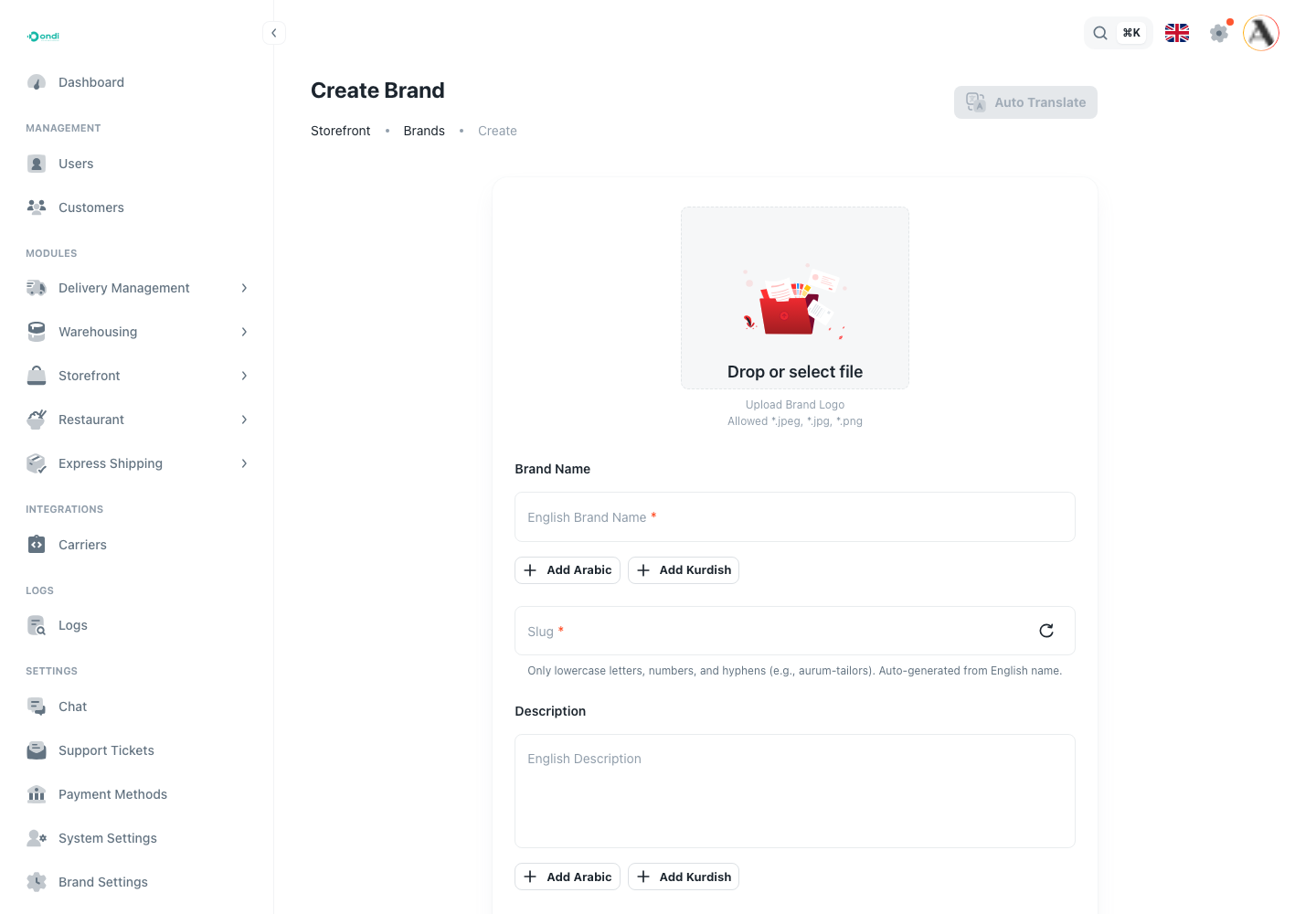
Add the brand logo, brand name, slug, and status. If the store operates in multiple languages, add translated brand names before launch. Keep the slug readable and stable because it may be used in customer-facing routes or filters.
Only mark a brand active when products under that brand are ready to appear in the shop. If the brand exists internally but the products are not ready, keep it inactive until launch.
Best practices
- Use the official brand name customers already know.
- Upload a clean logo with enough padding.
- Keep slugs short and readable.
- Mark only available brands as active.
- Avoid duplicate brands with slightly different spelling.
How brands connect to products
Every Store Front product should have a brand. This keeps storefront filters, product detail pages, and product reporting cleaner. If the shop sells private-label products, create a brand for the tenant's own label instead of leaving the field inconsistent.
If a product does not have a public manufacturer brand, create a private label brand for your business. That keeps the catalog consistent without leaving products uncategorized.
Where customers use it
Customers may see brands in product cards, product detail pages, filters, search results, and brand-focused browsing sections depending on the storefront theme. A clean brand list helps customers trust the product and reduces confusion when similar items appear in the same category.
Step-by-step setup
- Go to Storefront -> Brands.
- Click Add Brand.
- Enter the brand name.
- Add translated names if the shop supports multiple languages.
- Upload a clean logo.
- Set the slug.
- Mark the brand active only when it should appear in the storefront.
- Save the brand.
- Assign the brand to products from the product form.