Edit products

Use product editing when the customer-facing catalog needs to change. This includes product images, descriptions, category, brand, price, active status, tags, slug, variant details, and warehouse item links when the product was connected incorrectly.
Editing a Store Front product changes what customers see and what order items reference. It should be done carefully on published products, especially when the product already has active orders.
In the admin portal
Go to Storefront -> Products, find the product, and open the edit action.
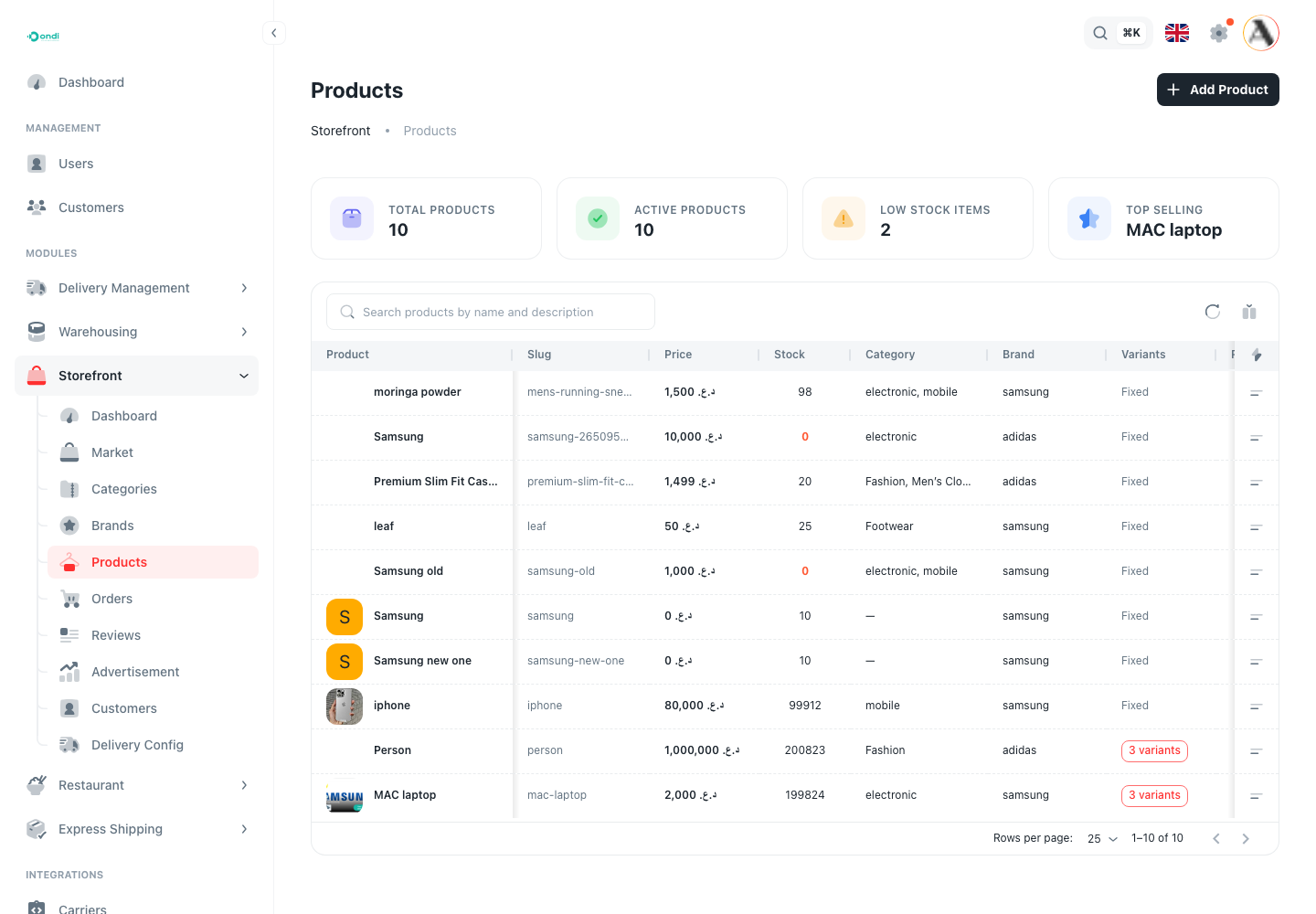
The edit form uses the same main structure as the create form, so the team can update catalog details without changing how the product is connected to warehouse and delivery operations.
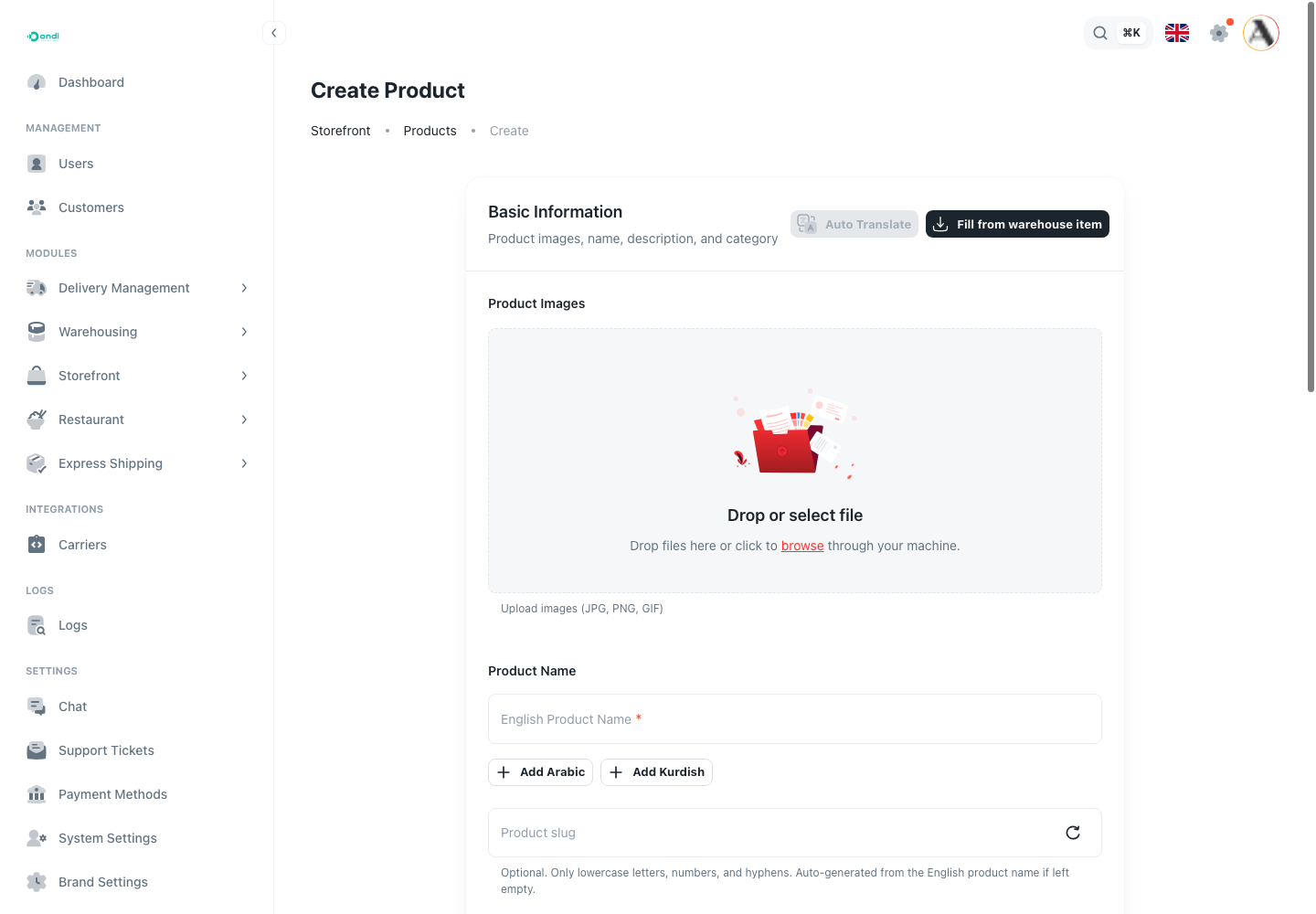
What you can edit
- Product name, description, images, and translated content.
- Category, brand, tags, slug, and active status.
- Price and customer-facing product details.
- Variant names, SKUs, images, prices, and attributes.
- Warehouse item links when the product was connected incorrectly.
What not to edit here
Do not use product editing as the main way to fix physical stock. If the quantity is wrong, review the linked warehouse item, stock, receiving records, or inventory audits. That keeps Store Front aligned with the warehouse instead of creating a separate manual truth.
Step-by-step editing workflow
- Go to Storefront -> Products.
- Search for the product.
- Open the edit action.
- Review the current customer-facing product page if the product is already published.
- Update the needed fields only.
- If changing category or brand, confirm the product still appears in the right storefront area.
- If changing variants, confirm each active variant still has the correct warehouse relationship.
- Save the product.
- Open the storefront preview and confirm the change appears correctly.
Where customers see changes
Customers may see product edits on the home page, category pages, product detail page, search results, cart, checkout, order history, and review flows. Changes to name, image, price, variant labels, or active status can directly affect customer buying decisions.
If you need to remove a product temporarily, consider making it inactive instead of deleting it. This protects order history and reduces the risk of broken references.
Before saving
- Confirm the product still belongs to the right category and brand.
- Confirm the slug is safe to change if customers already have the product link.
- Confirm the product should be active before it appears in the shop.
- Confirm every sellable variant has the correct warehouse stock relationship.