Approve orders

Order approval is the admin decision that moves an eligible order forward. Use approval when the tenant wants orders reviewed before fulfillment or when the system places the order in awaiting approval status.
Approval should not be automatic unless the business process supports it. Before approving, confirm that payment, stock, customer address, and delivery setup are acceptable.
Approve from the orders list
- Go to Storefront -> Orders.
- Filter for Awaiting approval.
- Find the order.
- Open the row action.
- Choose Approve.
- Add admin notes when needed.
- Add an estimated delivery date when the team can provide one.
- Confirm the approval.
Approving from the list is fast, but use it only when the row gives enough confidence. If the order looks complex, open the detail page first.
Approve from the order detail page
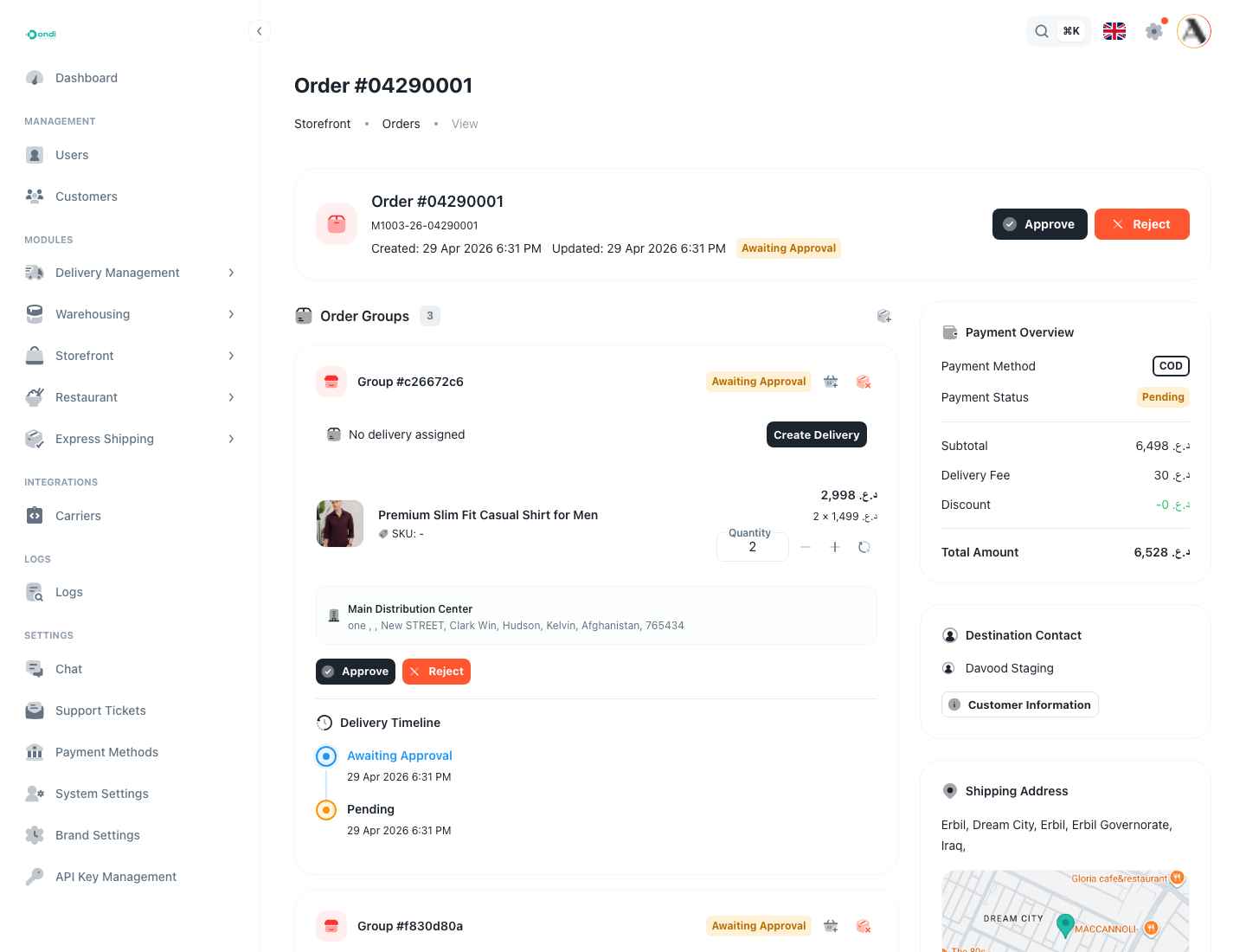
- Open the order detail page.
- Review payment status and payment method.
- Review customer contact and address.
- Review each order group and item.
- Confirm stock and warehouse grouping make sense.
- Click Approve for the whole order when the order status allows it.
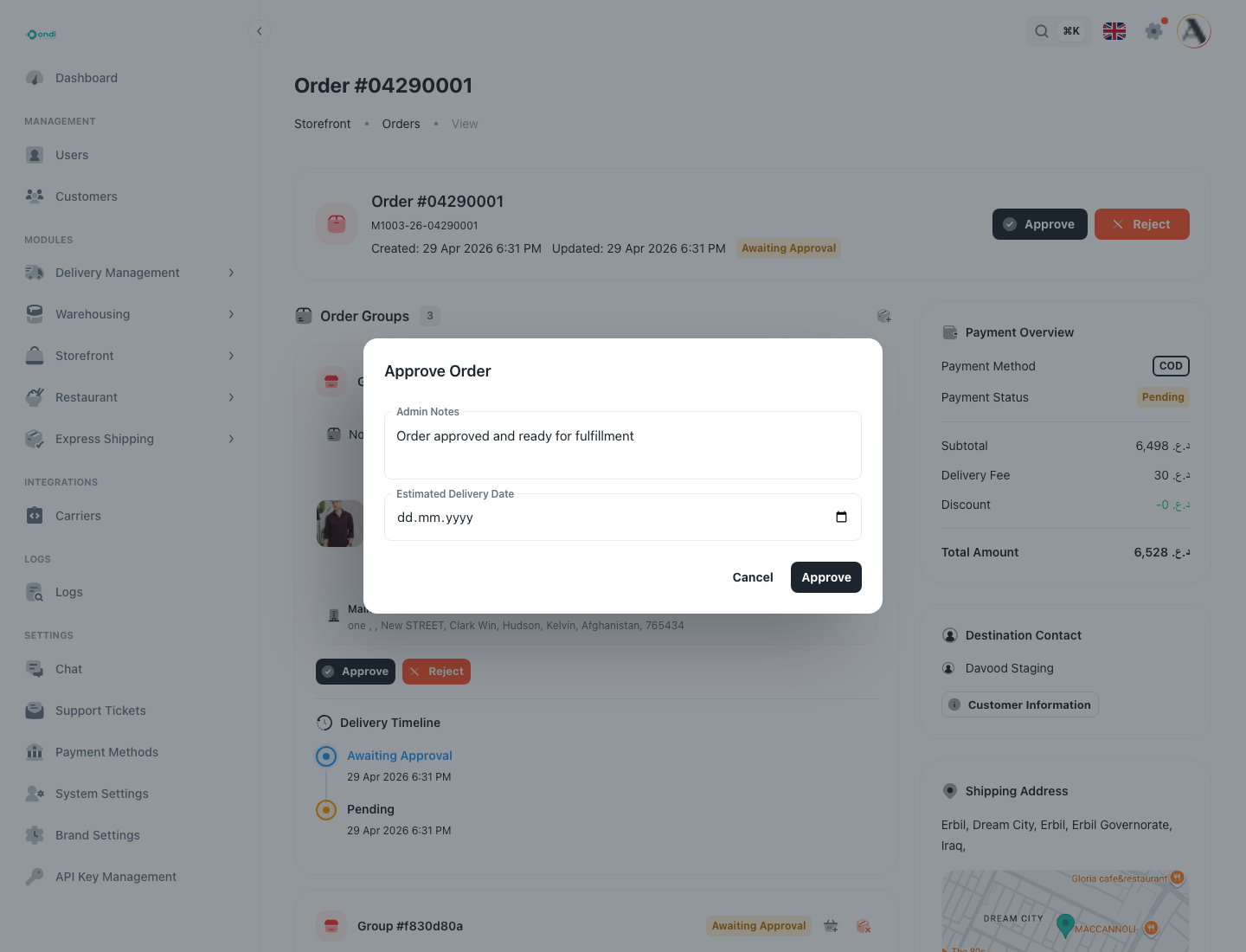
- Add admin notes and estimated delivery date.
- Confirm.
The order detail page also supports group-level approval. Use group approval when one group can move forward independently while another group needs separate review.
When the admin confirms approval, Ondi asks for the operational note and estimated delivery date. Use the note for internal context that explains why the order was approved, what was checked, or what the fulfillment team should know next.
What to check before approval
Payment should match the tenant policy. Cash-on-delivery orders may not be paid yet, while online payment orders should have a valid payment status before fulfillment.
Stock should still be available. If the order includes low-stock products, variants, or warehouse-linked products, confirm inventory before approving. Approval should not promise fulfillment if the warehouse cannot fulfill the items.
Delivery should be possible. Confirm the address and delivery service are valid for the tenant's delivery configuration. If delivery is external, make sure the external process can accept the order.
What approval changes
After approval, the order or group can continue into fulfillment and delivery work. Depending on configuration, delivery work may be created automatically or manually from the order group.
Customers may see the updated order status in the customer portal. Use admin notes and estimated delivery dates carefully because they can affect support expectations.
When not to approve
Do not approve the order if payment is invalid, the address is unusable, stock is not available, the order contains incorrect items, delivery cannot be completed, or the customer requested cancellation.
If the order should not continue, cancel or reject it according to tenant policy.